Managing Domains in cPanel: Complete Guide
How to add and manage domains and set redirects in cPanel. Complete guide to optimizing your domain settings.
Once you understand how to update preferences in cPanel, the next step is to learn how to manage domains. This section is especially important if you have multiple domains or want to create subdomains for your website.
Introduction to Domain Management in cPanel
The “Domains” section of cPanel allows you to manage everything related to domain, such as adding domains you just purchased from your hosting account, adding subdomains, or redirecting domains you own to other domains.
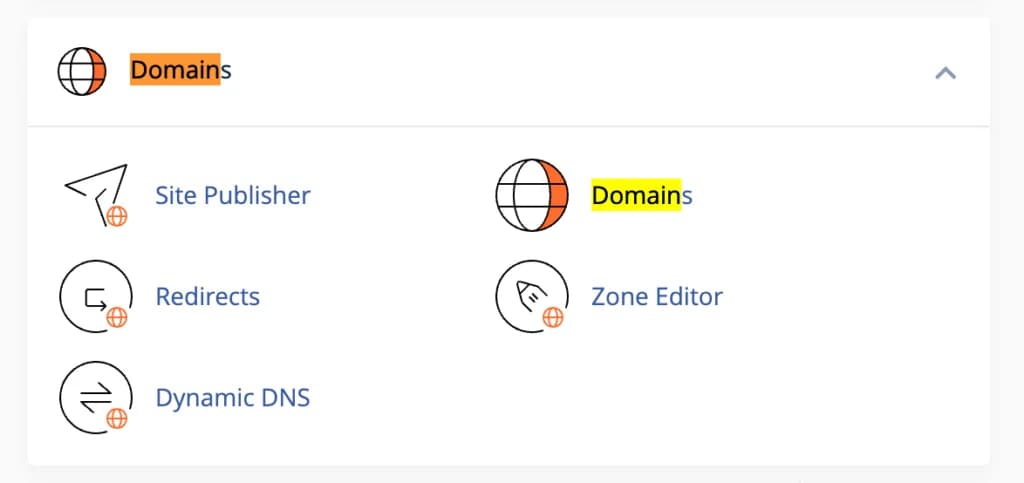
In the Domains section, you will find several key features:
- Domains - To add and manage domains
- Subdomains - To create and manage subdomains
- Addon Domains - To add additional domains to your hosting account
- Redirects - To set redirects from one URL to another
- Zone Editor - To manage your domain's DNS records
Let's discuss each feature in detail.
Add Domain
To add a domain to cPanel, you only need to click “Domains” in the “Domains” section as seen in the screen shot above.
By the way, you can only add domains to your cPanel only if the hosting package you choose allows you to add additional domains.
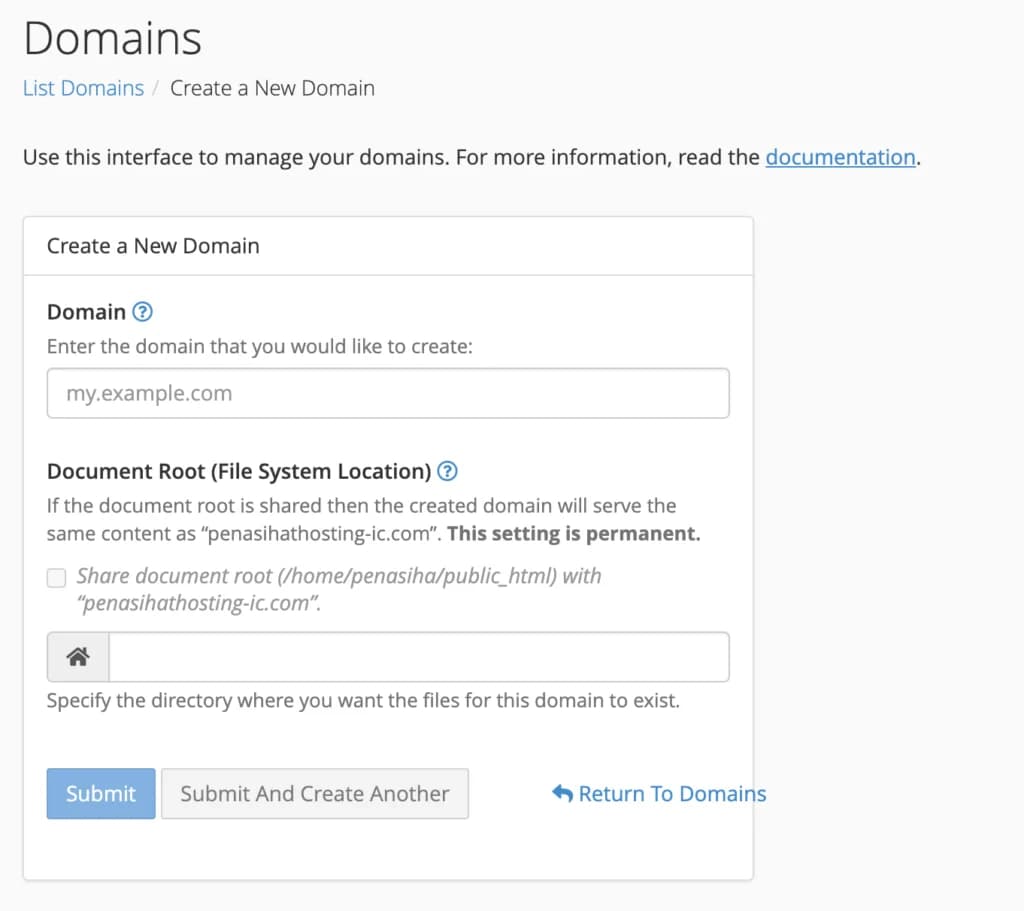
When you are on the "Domains" page as above, you will be asked to enter the Domain and document root. For your information, you can enter a new domain or sub domain from your main domain.
- New domain name is the domain name you want to register (enter the domain name without using “www”, for example adviserhosting.com).
- Subdomain creates a subdomain for the main domain in your cPanel account - the subdomain is created automatically after you type the new domain name and your visitors will never know that they were redirected from subdomain.maindomain.com to your new domain.
- Document root is the location/place on the server where your new domain is placed.
When you have finished typing the domain name, cPanel will automatically provide the subdomain and document root. I recommend that you do not change the automatic settings that cPanel makes, either on subdomains or the document root.
Click "Add Domain" when finished.
Overcoming Errors When Adding Domains
If an error like this appears:
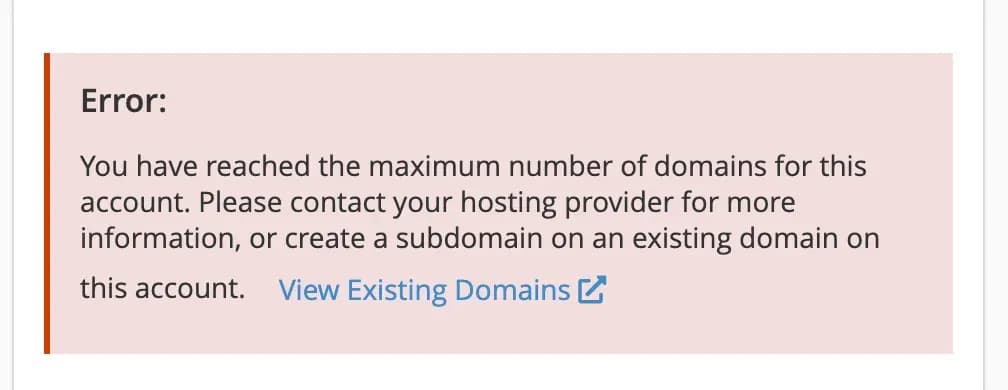
That means, the hosting package you are using cannot add new domains. You can add sub domains, but not domains that are different from your main domain.
The solution is:
-
Upgrade your hosting package to one that supports multiple domains
-
Use subdomains as an alternative if possible
-
Purchase a new hosting plan for your additional domains
Manage Subdomains
A subdomain is a part of your main domain that can be used to create a separate part of your website. For example, if your main domain is example.com, you could create a subdomain like blog.example.com or shop.example.com.
To create a subdomain:
- Click “Subdomains” in the Domains section
- Enter the desired subdomain name
- Select the parent domain from the dropdown
- Determine the document root (subdomain file location)
- Click "Create"
Subdomains are very useful for:
- Create a separate blog from the main website
- Create a separate online store
- Create a special member area
- Create a test environment (staging)
Manage Addon Domains
Addon domains allow you to add additional domains to your hosting account. This is different from a subdomain because an addon domain is a separate complete domain.
To add a domain addon:
- Click “Addon Domains” in the Domains section
- Enter a new domain name
- cPanel will automatically fill in the subdomain and document root
- Create a password for the FTP account (optional)
- Click "Add Domain"Make sure the domain you add is registered and its nameservers are directed to your hosting server.
Redirects
Redirects are the process of directing visitors from one URL to another.
This is done by sending an HTTP status code to the visitor's browser, which tells the browser to redirect the visitor to the new destination URL. Redirects are generally used for several reasons, such as:
-
Redirects can be used to redirect visitors from the non-www version to the www version (or vice versa) of a website, but is not recommended. Why? Due to the following two reasons:
- Redirection for this purpose should be performed at the DNS level, so that visitors are redirected before the request reaches the web server. This can reduce the load on your web server.
- Redirects set via the DNS manager will apply to all related domains and subdomains. You don't need to set up redirects individually for each page or subdomain.
-
Apart from that, redirects can also be used to redirect visitors from one page or directory to another page or directory.
-
Redirects are also useful when you want to change the URL of a page or directory without losing visitors who are used to the old URL.
The good thing is, cPanel has a Redirects feature that you can use.
Isn't there a Redirect plugin in WordPress that can do this task?
You're right, but when you set up a redirect via cPanel, the redirect is done at the server level before the request reaches WordPress. This means that the server can directly redirect visitors to the new destination URL, avoiding any additional processing that WordPress may require.
How to Add Redirects in
cPanel
How to add redirect in cPanel? Still in the Domains section, you will find the Redirects feature.
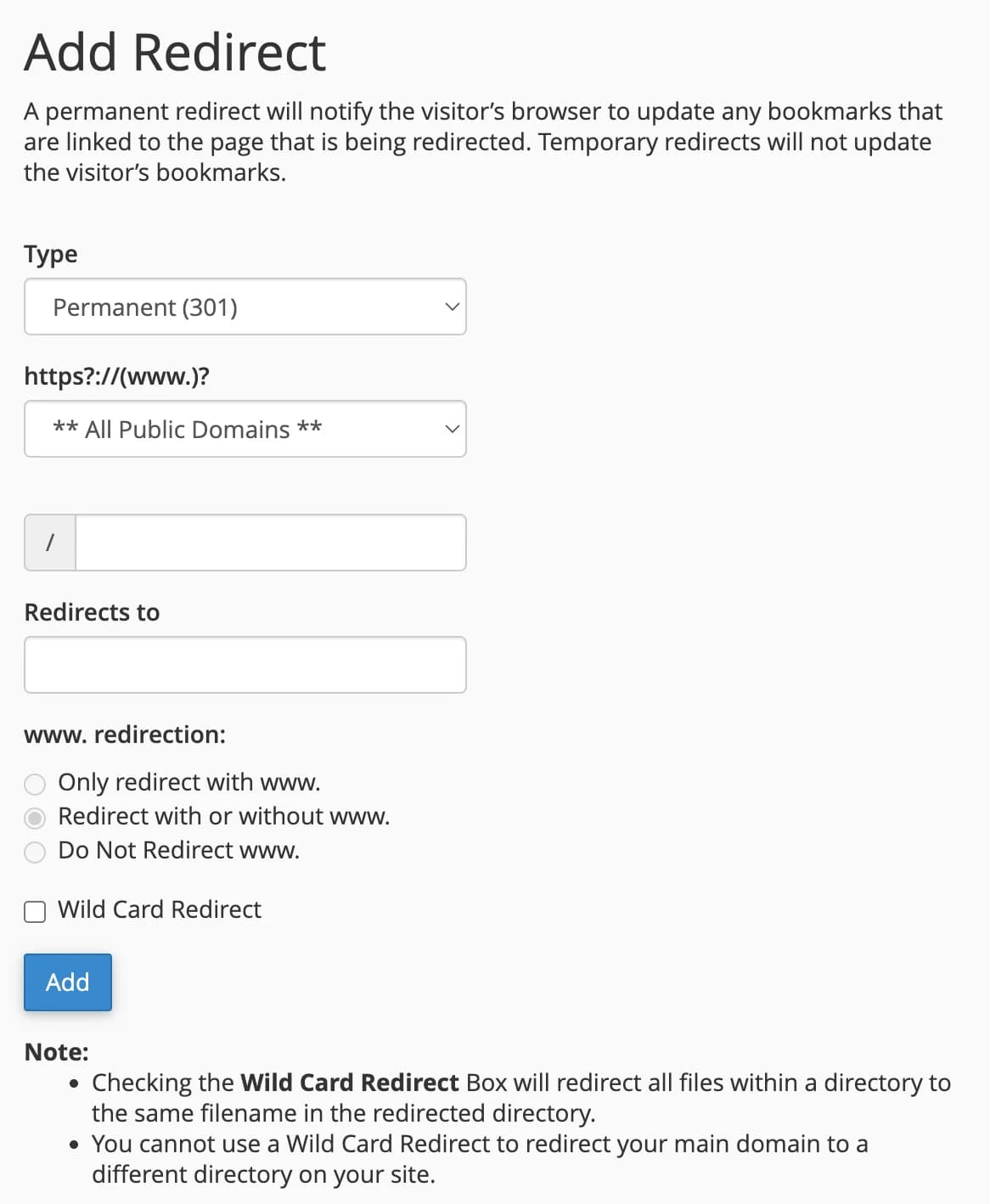
- Generally, redirects use the Permanent (301) type, unless they are temporary, then you can choose the 302 type.
- Then select the domain from which you will redirect, for example "penasihathosting.com"
- In the " / " column, fill in the URL address. For example, if you want to redirect the URL "penasihathosting.com/url-lama", then you fill in "url-lama"
- Then, fill in the complete new URL address in the Redirects to column
- Then choose whether you want to redirect using www or not or both and click the "Add" button.
Types of Redirects
There are several types of redirects that you need to know:
- 301 Redirect (Permanent) - Notifies search engines that the page has been moved permanently. This is the most commonly used and recommended type of redirect for SEO.2. 302 Redirect (Temporary) - Notifies search engines that the page has been moved temporarily. Use this if you plan to restore the original URL in the future.3. 307 Redirect (Temporary) - Similar to 302, but more stringent on preserving HTTP methods.4. 308 Redirect (Permanent) - Similar to 301, but more stringent in preserving HTTP methods.
Zone Editor
Zone Editor is a tool that allows you to manage DNS (Domain Name System) records for your domain. This is a useful advanced feature if you need to configure:
- MX records for emails
- Note A to point the domain to a specific IP
- CNAME records for domain aliases
- TXT record for domain ownership verification
- SRV records for special services
To access Zone Editor:
- Click “Zone Editor” in the Domains section
- Select the domain you want to manage
- Add, edit, or delete DNS records as needed
Domain Management Best Practices
Here are some best practices when managing domains in cPanel:
- Use HTTPS - Enable SSL for all your domains and subdomains
- Consistent with www/non-www - Choose one format and redirect the other
- Manage DNS carefully - DNS changes can affect email and other services
- Document changes - Note all changes you make to the domain
- Check DNS propagation - DNS changes take time to propagate (usually 24-48 hours)
Conclusion
Managing domains in cPanel is an important skill for webmasters. By understanding how to add domains, create subdomains, set up redirects, and manage DNS, you can optimize your domain settings for better performance and SEO.
In next chapter, we will learn how to set up an email account in cPanel, including how to create an email with your own domain.
When changing your website's URL structure, always use a 301 redirect for the old URL to the new URL. This helps maintain SEO rankings and ensures visitors using old bookmarks can still access your content.