Managing Website Files in cPanel: File Manager and FTP
How to use File Manager and FTP to manage website files in cPanel. Complete guide to uploading, editing, and organizing your website files.
Once you understand how to set up an email account on cPanel, the next step is to learn how to manage website files. This is one of the most important functions in cPanel because it allows you to upload, edit, and organize your website files.
Introduction to File Management in cPanel
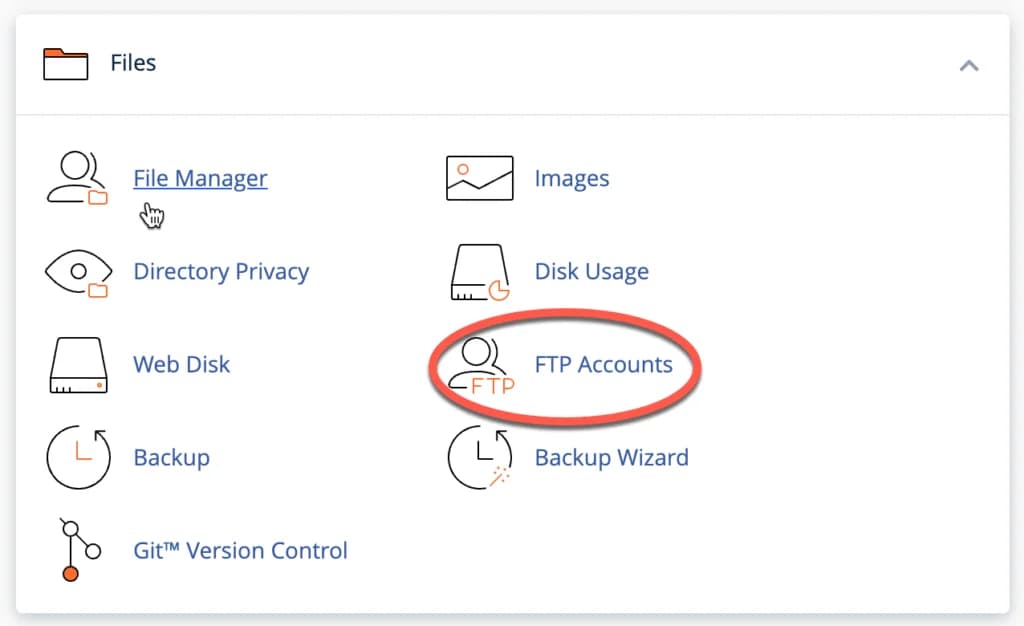
The “Files” section of cPanel allows you to upload files, back up websites, manage File Transfer Protocol (FTP) and also view disk usage.
By the way, FTP is another way to manage your website files, where with FTP you can also upload files to your hosting.
So, I will explain about managing these files in two ways, namely using "File Manager" and "FTP".
In the Files section, you will find several key features:
- File Manager - To manage files directly from the browser
- Disk Usage - To check disk space usage3. FTP Accounts - To create and manage FTP accounts
- Backup - To backup and restore website files
- Images - To manage and optimize images
- Web Disk - To access hosting files as a virtual drive
Let's discuss the two main methods for managing files: File Manager and FTP.
Using File ManagerFile Manager on cPanel allows you to manage all website files without the need to use an FTP application or other applications that you need to download first on your computer.
First of all, click "File Manager", then you will be directed to the page below:
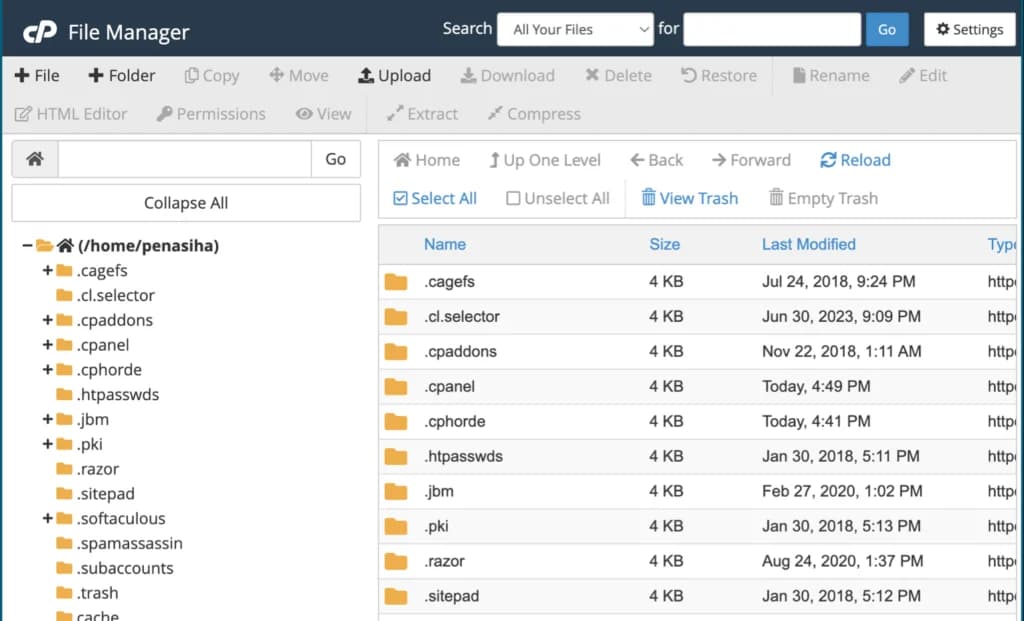
This is where all your website files are stored, so make sure you are careful when making changes.
Root Folder and Sub
- Folders
Basically, this File Manager is not much different from the file manager on a computer.
First, on the left you can find the root folder (/home/…) and sub folders, as marked by the red box below:
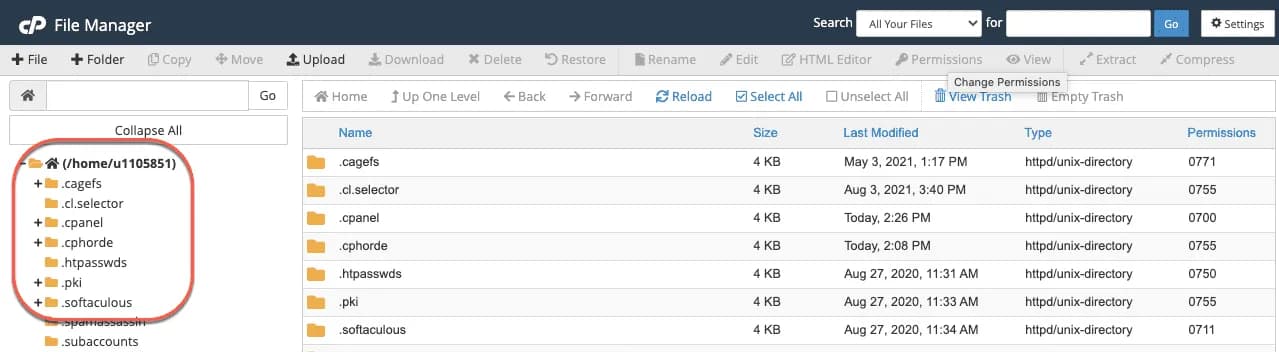
Selected Folder / Selected Folder
Then on the right side, you can see content, such as folders and text, which will be visible when you select/click the sub-folder on the left side.
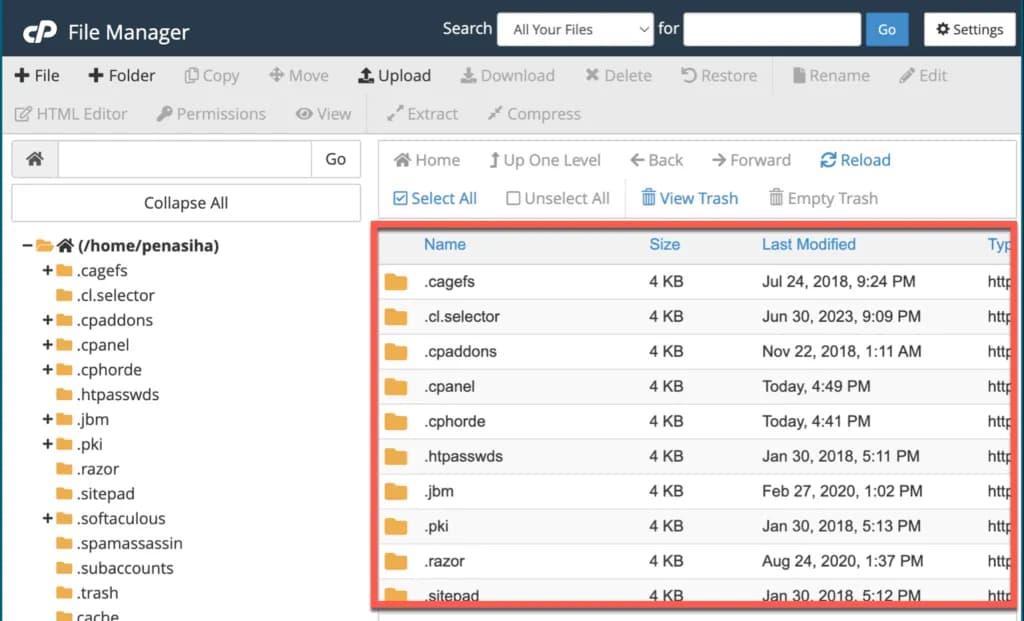
Knowing the things above, (again) just like the file manager on your computer, you can also create new folders and upload files.
Create a New Folder
Folders help you keep your website files organized and make your website structure easy to understand.
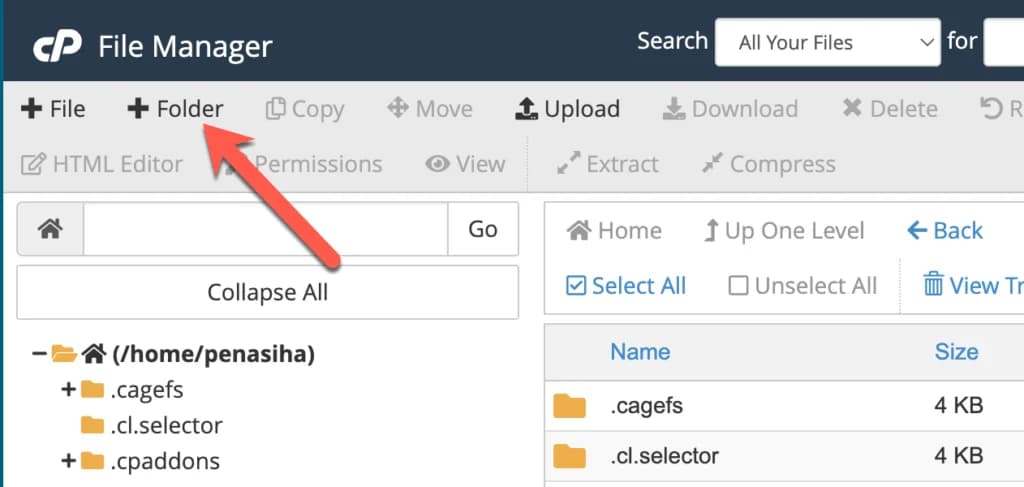
To create a new folder, click the "+ Folder" button at the top left of your "File Manager" display, as shown below:
Then a pop-up will appear as below and you will be asked to enter the name of the folder and also where you placed the folder.
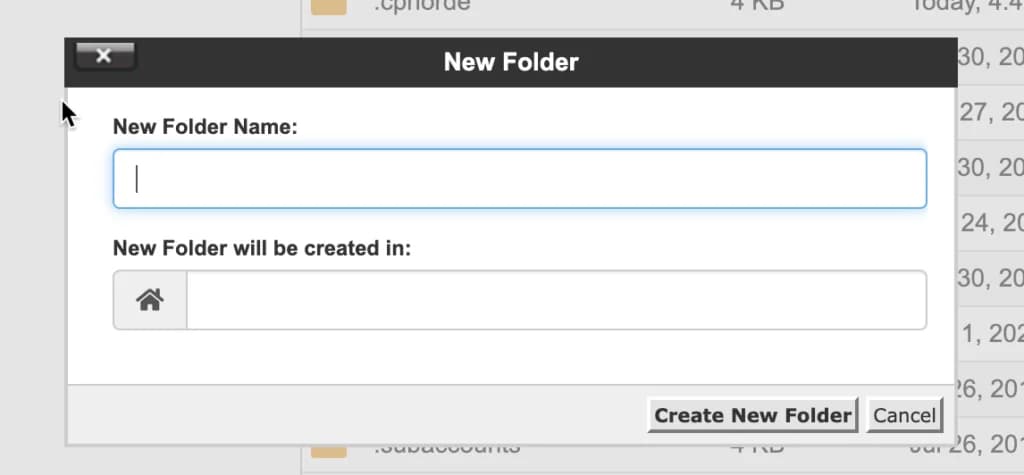
When finished, click "Create New Folder".
Uploading Files Using File Manager
To add a file - for example, a Word/PDF file that you want people to be able to download from your website - you first need to decide where you want to place the file.
For example, in the image below, I select "etc" (1), then click "Upload":
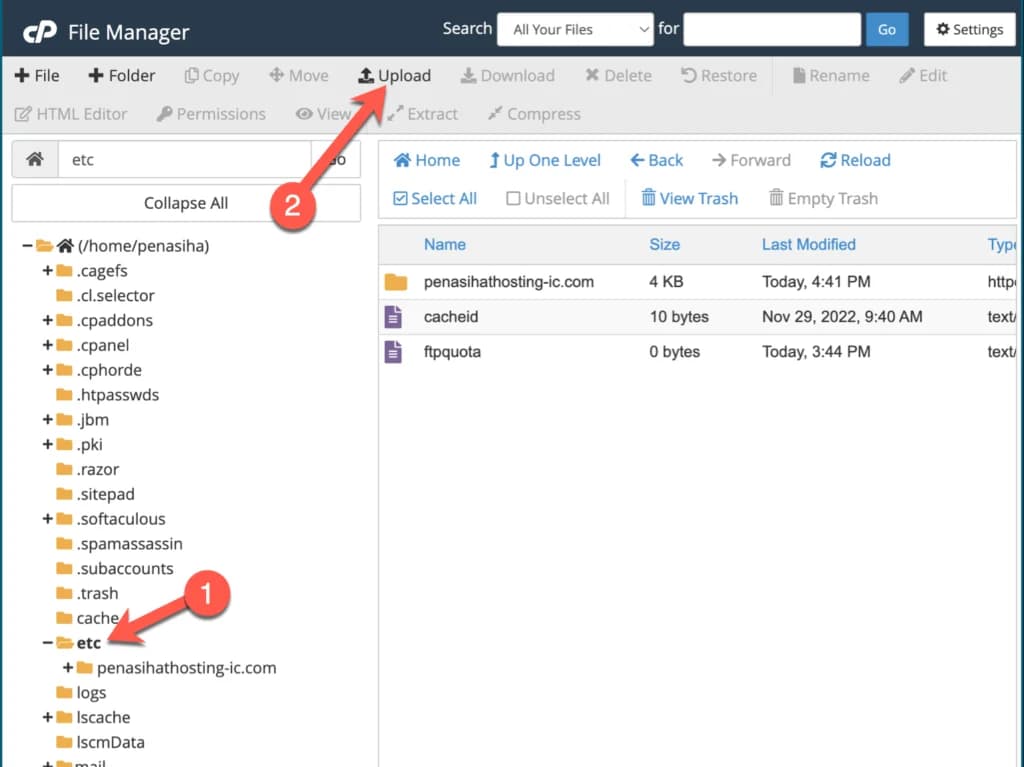
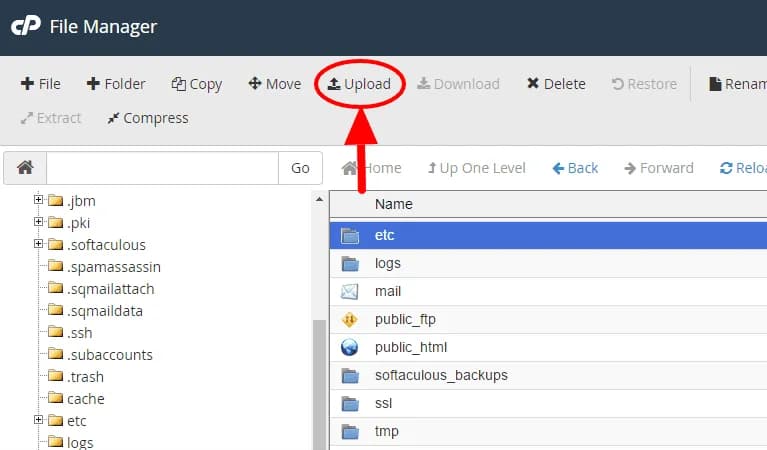
Finally, you will be asked to select the file you want to upload or just drag the file to the upload page as shown below:
Other Features in File Manager
Apart from creating folders and uploading files, File Manager also provides various other features:
-
Edit File - Edit text files directly in the browser
-
View - View the contents of a file without editing it
-
Copy/Move - Copy or move files and folders
-
Rename - Rename files and folders
-
Delete - Deletes files and folders
-
Permissions - Set file access permissions (chmod)
-
Extract - Extracts archive files such as ZIP, TAR, GZ
-
Compress - Creates an archive file from files and folders
Best Practices Using File Manager
Here are some best practices when using File Manager:
-
Always backup before editing - Make a copy of the file before editing it
-
Pay attention to file permissions - Set file permissions correctly (usually 644 for files, 755 for folders)
-
Use the search feature - Make use of the search feature to find files quickly
-
Do not delete system files - Be careful when deleting files, especially in system folders
-
Use an appropriate editor - Select an editor appropriate to the type of file being edited
Using FTP Account
In fact, if you have already created a cPanel account, you should be able to directly use your cPanel username and password to log in to your FTP.
However, what if you want to give someone permission to be able to upload files using an FTP client (like FileZilla as an example).
Of course you don't want to give away your cPanel username and password, right?
Therefore, you need a new username and password that will be used by someone other than you to be able to access your FTP.
First of all, click “FTP Accounts” in your cPanel.
And you will be directed to the "FTP Accounts" page as below:
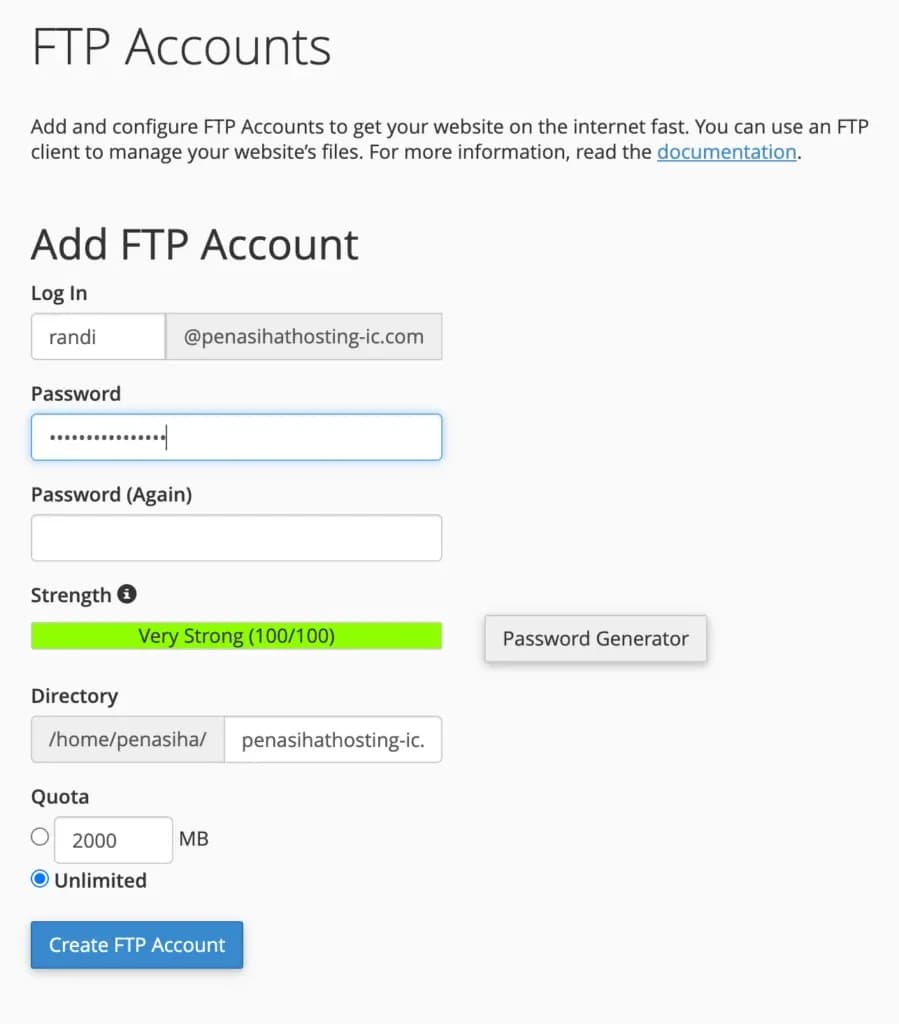
- Login: This log in name will be used by other users, so make sure you create a name that is easy to remember.
2. Password: make sure you always create a secure password, use numbers, a combination of upper and lower case letters, letters, etc. or for convenience use a password generator and don't forget to save it.
3. Directory: "The "Directory" column here means access to the highest level of the new FTP Account that you created, let's say you entered public_html in the "directory" column, that means the FTP Account that you created has access to the directory /home/$user/public_html down to its sub-directories.
4. Quota: Finally, you need to determine how much quota or space is needed for the FTP account you just created. This quota can be limited or unlimited.
Manage FTP Accounts
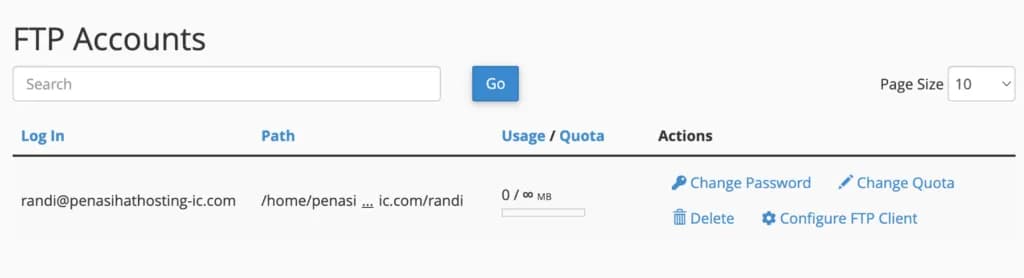
Now you can manage all your FTP accounts in the section below, such as changing passwords, changing quotas, deleting FTP accounts and setting up FTP clients.
Using FTP Client
To use FTP, you need an F
T
P client such as File
Zilla. Here are the steps to use File
Zilla:
-
Download and install FileZilla from Filezilla Project.org official site
-
Open FileZilla and click “File > Site Manager”3. Click “New Site” and give it a name4. Enter connection information: * Host: ftp.yourdomain.com (or server IP)
- Ports: 21
- Protocol: FTP - File Transfer Protocol
- Encryption: Use explicit FTP over TLS if available
- Logon Type: Normal
- User: your FTP username
- Password: your FTP password
- Click “Connect” to connect to the serverOnce connected, you will see a panel with a folder structure:
- The left pane displays local files on your computer
- The right panel displays files on the hosting server
You can drag files from one panel to another to upload or download files.
Benefits of Using FTP
F
T
P has several advantages over File Manager:
- Faster file transfer - Especially for large files or many files at once
- Stable connection - Not affected by browser timeouts
- Easy drag and drop - Makes bulk file transfers easy
- Folder synchronization - Some FTP clients support folder synchronization
- Offline access - Some FTP clients allow you to view the folder structure offline
Best Practices Using FTP
Here are some best practices when using F
TP:
-
Use SFTP or FTPS - More secure than regular FTP
-
Restrict directory access - Give access only to necessary folders
-
Set quota - Set disk usage limits to prevent misuse
-
Use strong passwords - Avoid passwords that are easy to guess
-
Delete unused accounts - Don't let inactive FTP accounts persist
File Manager vs F
TP: When to Use Each?
Both methods have advantages and disadvantages. Here's a guide to when to use each:
Use File Manager when:
- You need to make small, quick changes
- You don't want to install additional software
- You access from different computers
- You need to edit files directly on the server
- You only need to upload a few small files
Use F
T
P when:
- You need to upload multiple files at once
- You are working with large files
- You need to synchronize local and server folders
- You are working with an unstable internet connection
- You need to give limited access to others
Conclusion
Managing website files is an important skill in managing your website. By understanding how to use File Manager and FTP, you can easily upload, edit, and organize your website files.
In next chapter, we will learn how to backup website files in cPanel, an important step to protect your website data.
Always set file permissions correctly to prevent unauthorized access. Regular files should be set to 644 (owner can read and write, group and public can only read), and folders should be set to 755 (owner can read, write, and execute, group and public can only read and execute).