Installing Apps in cPanel: WordPress and More
How to install WordPress and other applications via Softaculous in cPanel. A complete guide to easily install and manage web applications.
Once you understand how to install SSL on cPanel, the next step is to learn how to install web applications such as WordPress, Joomla, or e-commerce platforms. cPanel provides an easy way to install various web applications through Softaculous Apps Installer.
Introduction to Softaculous Apps Installer
The final chapter I want to show you is how to install WordPress, directly from your cPanel.
(Pssst... this method only requires 1 click and only 1-2 minutes).
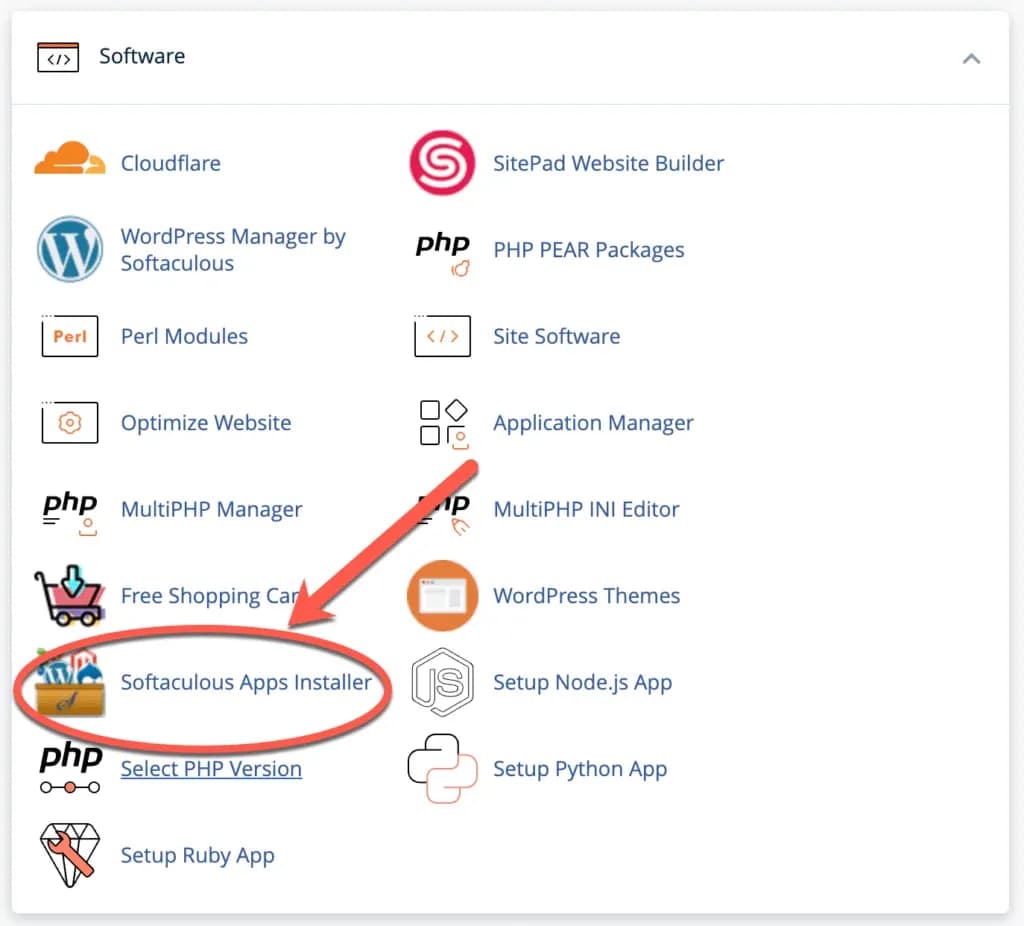
First of all, click “Softaculous Apps Installer” in your cPanel, usually located in the “Software” section.
Then on the next page as below, you can find lots of applications that you can install, not only WordPress, but also Prestashop, Joomla, etc.
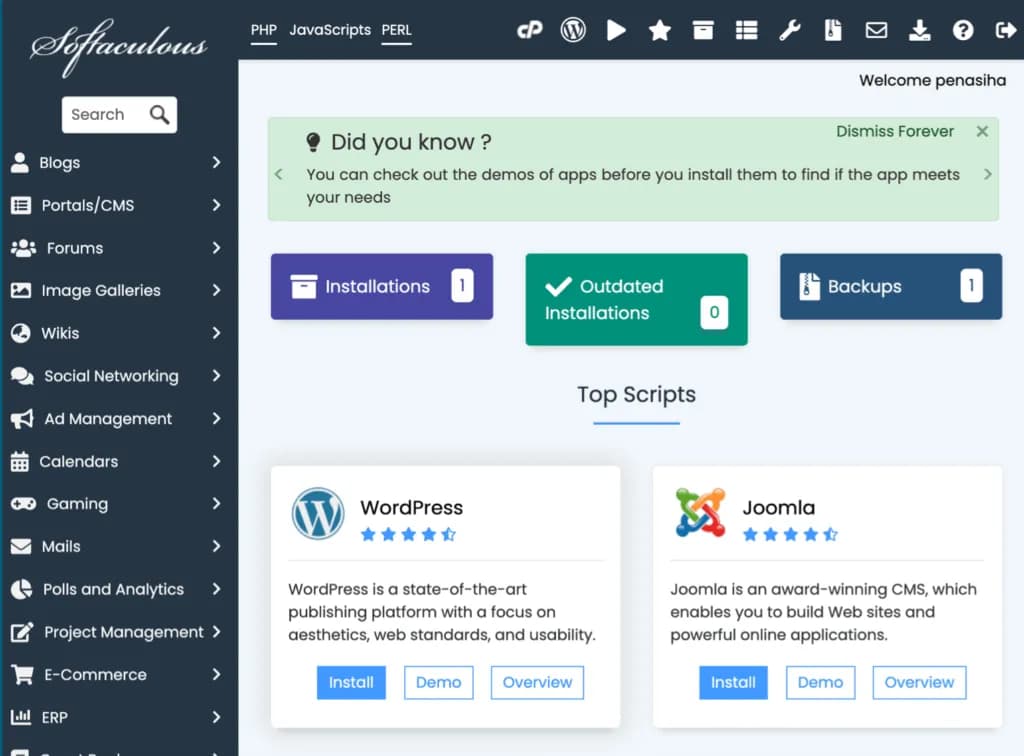
It would be very time consuming if I gave a tutorial on how to install all these applications, but now I will show you one of them, namely WordPress.
Installing WordPress via Softaculous
Next, click WordPress which is located at the top left in the middle of the screen and click “install”.
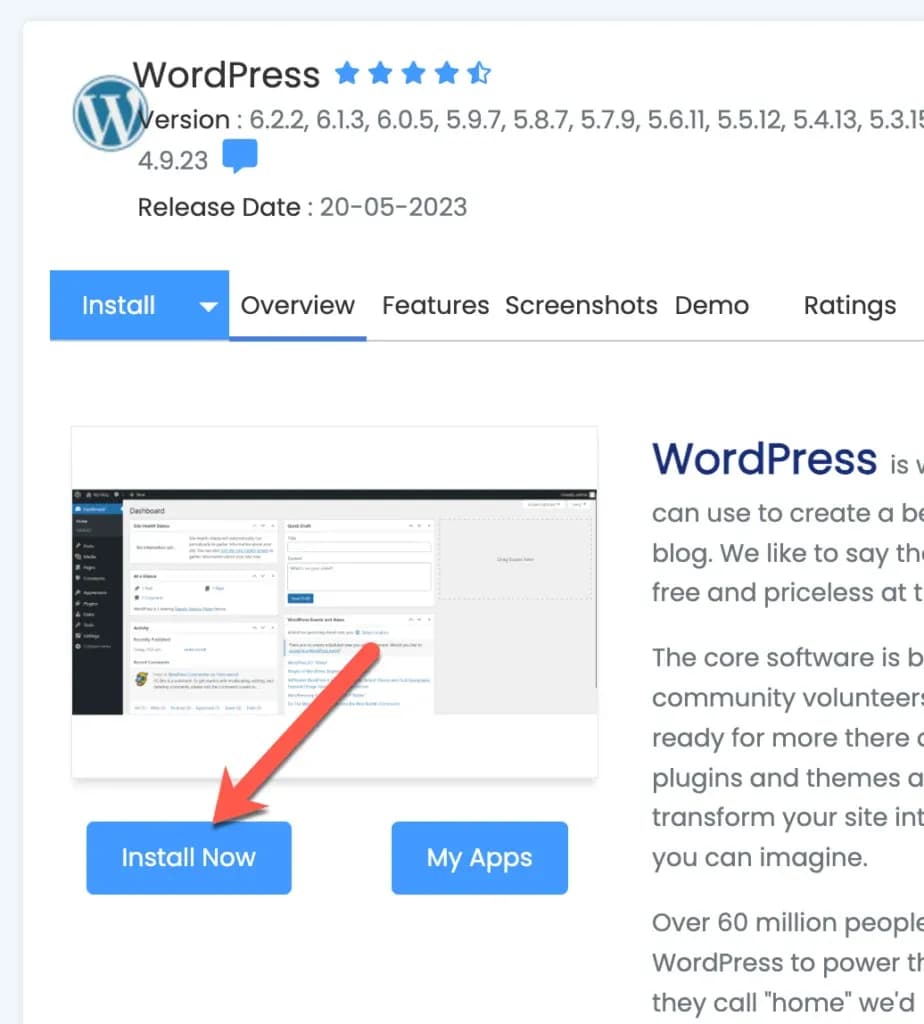
Then, fill in the required information. I will guide you step by step.
1. Software Setup
- Select "https://". Make sure you have SSL installed on your domain beforehand
- Select the domain where you will install WordPress
- In the directory column, if you are not sure, just leave it blank.
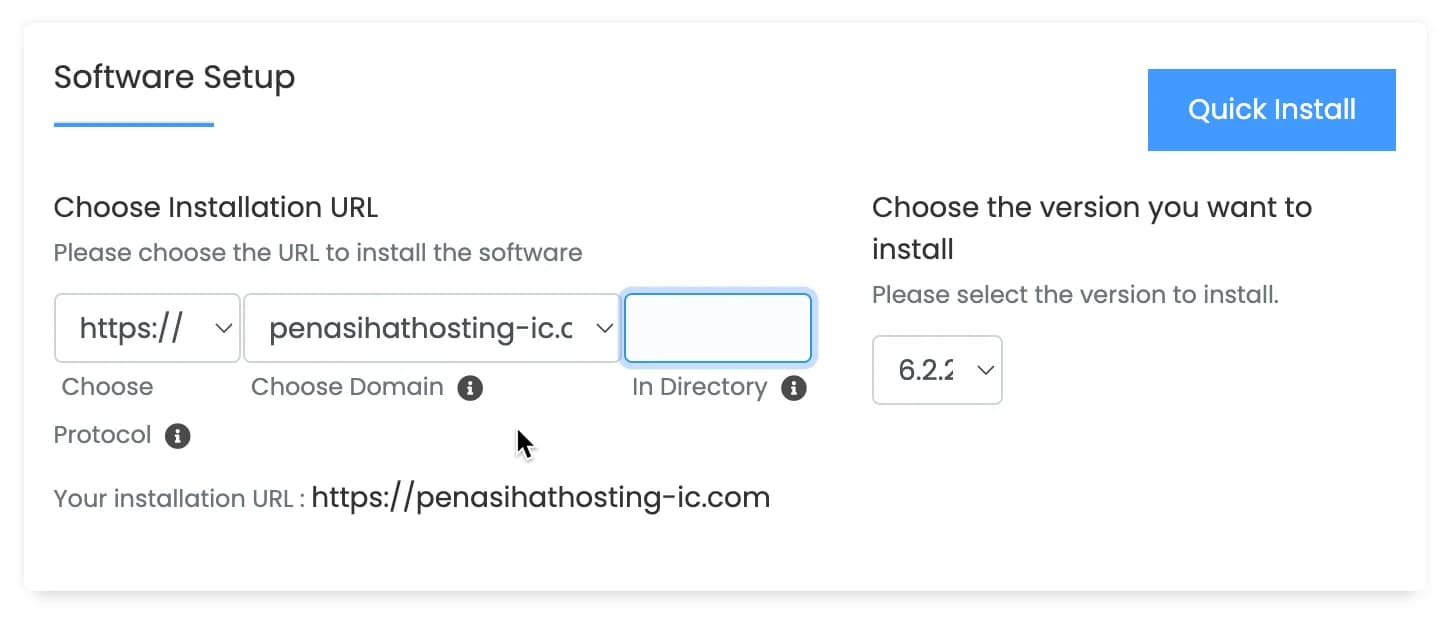
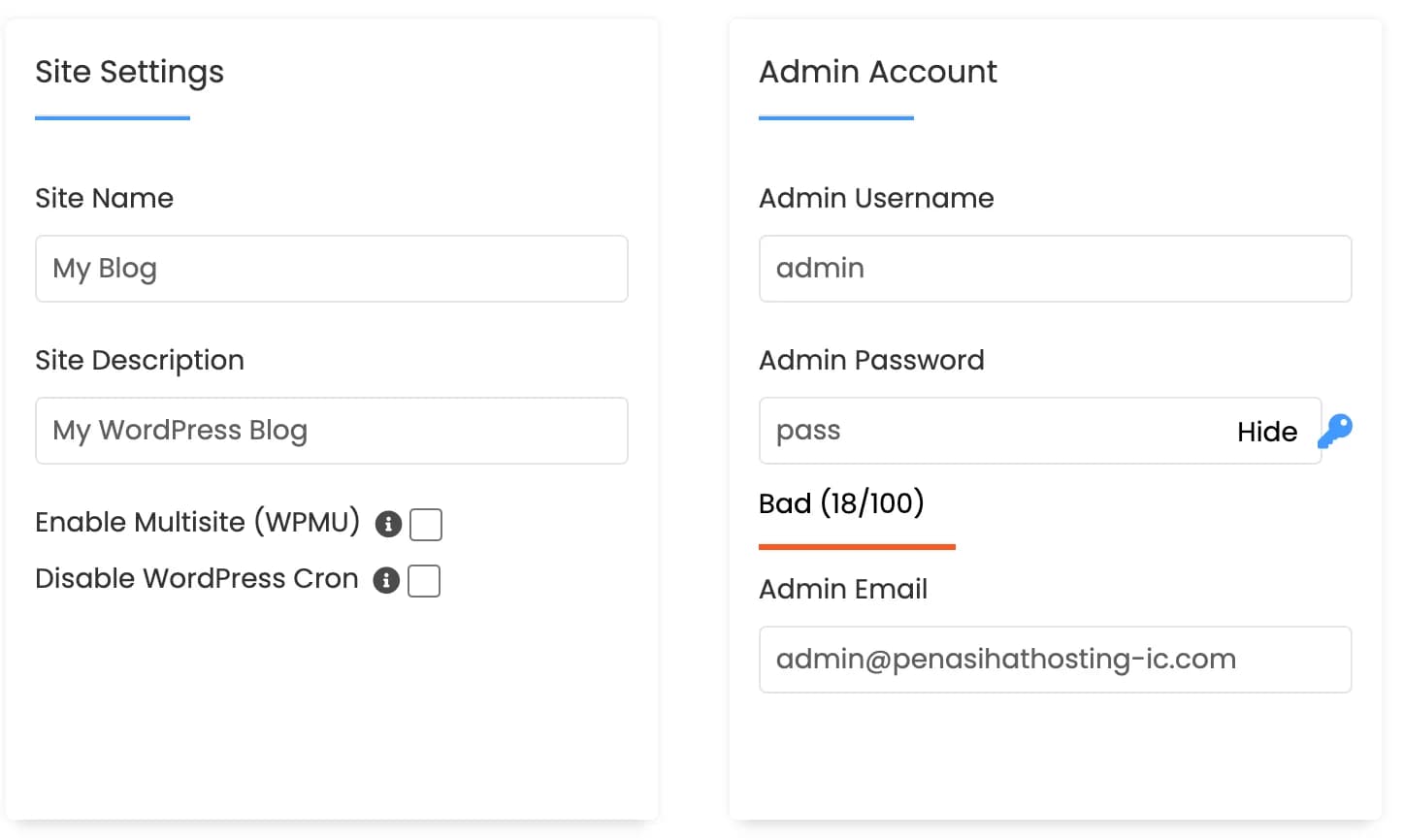
2. Site Settings and Admin Account
- Fill in the name of your site or website along with its description and ignore or don't check it if you are not sure about the Enable Multisite and Disable WordPress Cron options
- Then, fill in the admin username. Don't use the admin name, use a name that is difficult to recognize. As for passwords, use a password generator to create a strong password
- In the admin email column, this is up to you. You can use the business email address that you created previously in the "Email Account" section, or your personal email address, such as a Gmail email account. This email can be changed later.
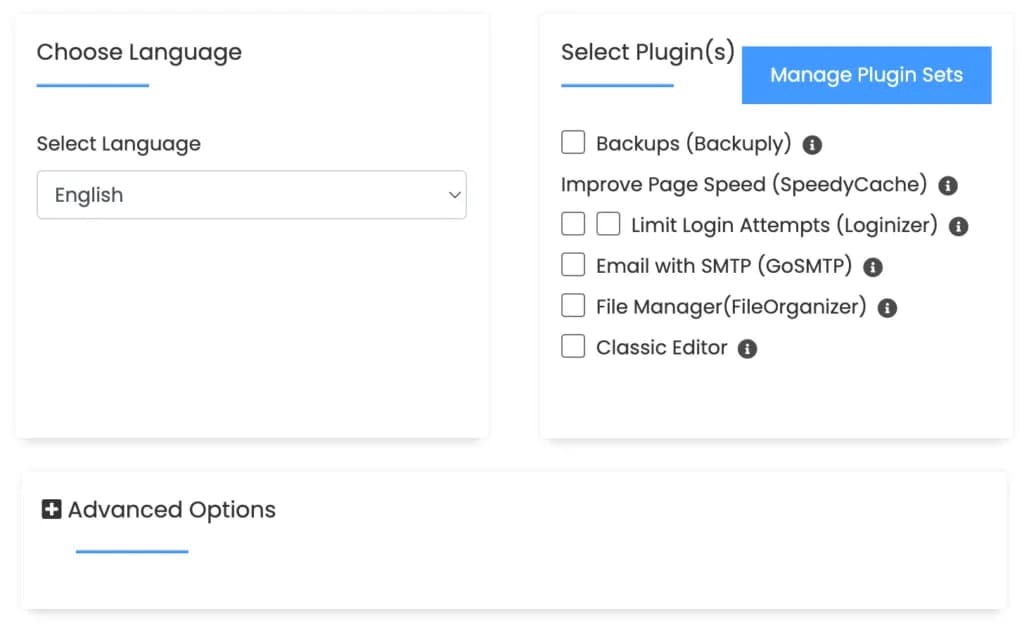
3. Choose Language and Select Plugin(s) and Advanced Options
- For language, this is up to you. If you are comfortable using English, then please choose English, if not, you can use Indonesian.
- For Select Plugin(s), if you are not sure, don't check anything or just leave it blank unchecked.
- Likewise with Advanced Options, you can skip it.
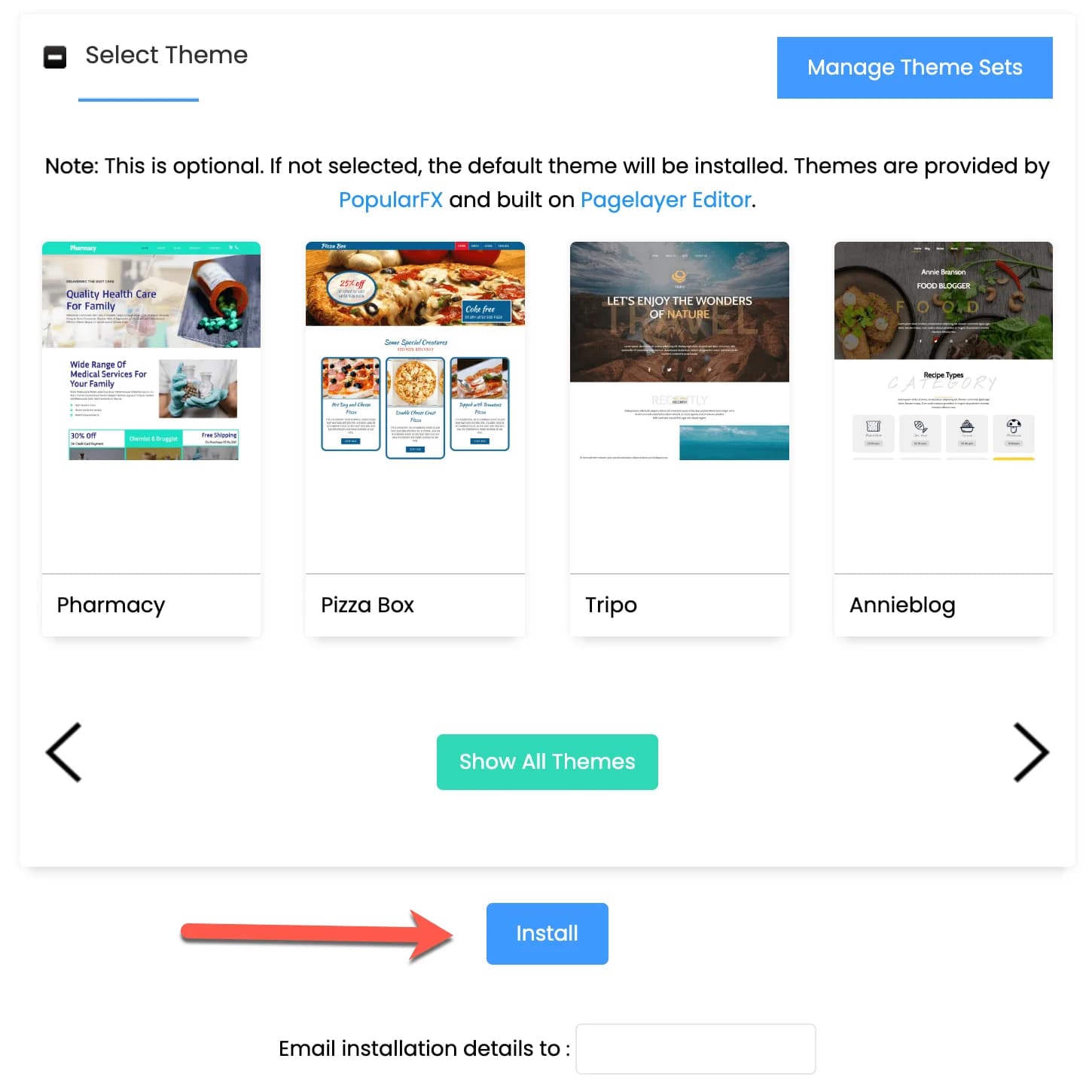
4. Select theme and click the Install button
*You don't need to select a WordPress theme during this installation process, so you can also skip this step
- Double check all the details that you have filled in. If everything is correct, click the blue “Install” button
To log in to WordPress, you can use the address below:
http://www.domainanda.com/wp-adminBy the way, I also made a complete guide on how to create a website with WordPress which you can access via this page: /how-to-make-a-website/
Other Popular Apps on Softaculous
Apart from WordPress, Softaculous provides various other popular applications that you can easily install:
Content Management Systems (CMS)
- Joomla - A versatile CMS with many extensions
- Drupal - Powerful CMS for complex websites
- Ghost - Modern and minimalist blogging platform
- Concrete5 - CMS with drag-and-drop interface
E-Commerce
-
PrestaShop - Complete e-commerce platform
-
OpenCart - Open source e-commerce solution
-
Magento - Enterprise e-commerce platform
-
WooCommerce - E-commerce plugin for WordPress
Forums and Communities
- Discourse - A modern discussion platform
- MyBB - Flexible forum software
- Simple Machines Forum - Easy to use forum
Learning Management Systems (LMS)
- Popular online learning platform
-
Canvas LMS - A modern LMS with lots of features
-
OpenEDX - Open source online learning platform
Customer Relationship Management (CRM)
-
SuiteCRM - Complete open source CRM
-
Vtiger - CRM for small and medium businesses
-
EspoCRM - Lightweight and easy to use CRM
How to Manage Installed Apps
After installing the app via Softaculous, you can manage it easily:
-
Click “All Installations” in Softaculous to view all installed applications
-
Click the “Edit” icon to change the installation settings
-
Click the “Upgrade” icon to update the app to the latest version
-
Click the “Remove” icon to uninstall
-
Click the “Backup” icon to back up the app
WordPress Manager by Softaculous
Apart from Softaculous Apps Installer, cPanel also provides WordPress Manager by Softaculous which is specifically for managing WordPress installations. This feature is usually available in the left sidebar of cPanel.
WordPress Manager provides features specific to WordPress:
-
One-click Updates - Update WordPress, themes and plugins with one click
-
Staging - Create a staging copy of the website for testing
-
Clone - Duplicates an existing WordPress installation
-
Backup & Restore - Create and restore WordPress backups
-
Security - Scan for security vulnerabilities
-
Performance - Optimize WordPress performance
Best Practices for Installing Apps
Here are some best practices when installing apps via Softaculous:
-
Install SSL first - Always enable SSL before installing the application
-
Use a strong password - Create a strong and unique admin password
-
Backup before upgrading - Always backup before updating the app
-
Update regularly - Keep apps, themes and plugins up-to-date
-
Delete unused installations - Do not allow unused installations to remain
-
Use a valid email - Make sure the admin email is valid to receive important notifications
-
Choose directories wisely - Consider whether you want to install in the root of the domain or a subdirectory
Troubleshooting Common Problems
Here are some common problems you may face while installing apps and how to resolve them:
1. Installation Failed
- File permissions are incorrect
- Database already exists
- Full disk quota
- Check the error log for specific details
- Make sure file permissions are correct (usually 755 for folders, 644 for files)
- Use a different database name
- Clean up unnecessary disk space
2. Cannot Access Admin Panel
- Incorrect admin URL
- Browser cookies are problematic
- Problem with .htaccess
- Verify correct admin URL
- Clear browser cache and cookies
- Reset .htaccess via File Manager
3. Slow Application
- Too many plugins/extensions
- Heavy theme
- Server configuration is not optimal
- Disable unnecessary plugins
- Use a lighter theme
- Enable caching
- Optimize database
Conclusion
Installing apps via Softaculous in cPanel is a quick and easy way to add functionality to your website. With the various applications available, you can easily create a blog, online store, forum, or other type of website without in-depth technical knowledge.
With this, we have completed a complete guide on cPanel. You now have enough knowledge to manage your hosting effectively, from managing domains, email, files, backups, SSL, to installing applications.
After installing WordPress, immediately change the permalinks to an SEO-friendly structure (Settings > Permalinks > Post name), install a security plugin like Wordfence or Sucuri, and set up automatic backups with a plugin like UpdraftPlus. Also, remove unused default themes and plugins to reduce potential security vulnerabilities.
Final Words
I hope this cPanel guide can be useful for you and that in the end you have sufficient knowledge and can manage important functions in cPanel.
If you need further help, you can leave a comment below, I will be happy to answer it.
To return to the main page of the guide, please click Complete cPanel Guide.