Introduction to cPanel: What It Is and How to Access It
Understand what cPanel is, why to use it, and how to access it. Complete guide for beginners who want to learn cPanel basics.
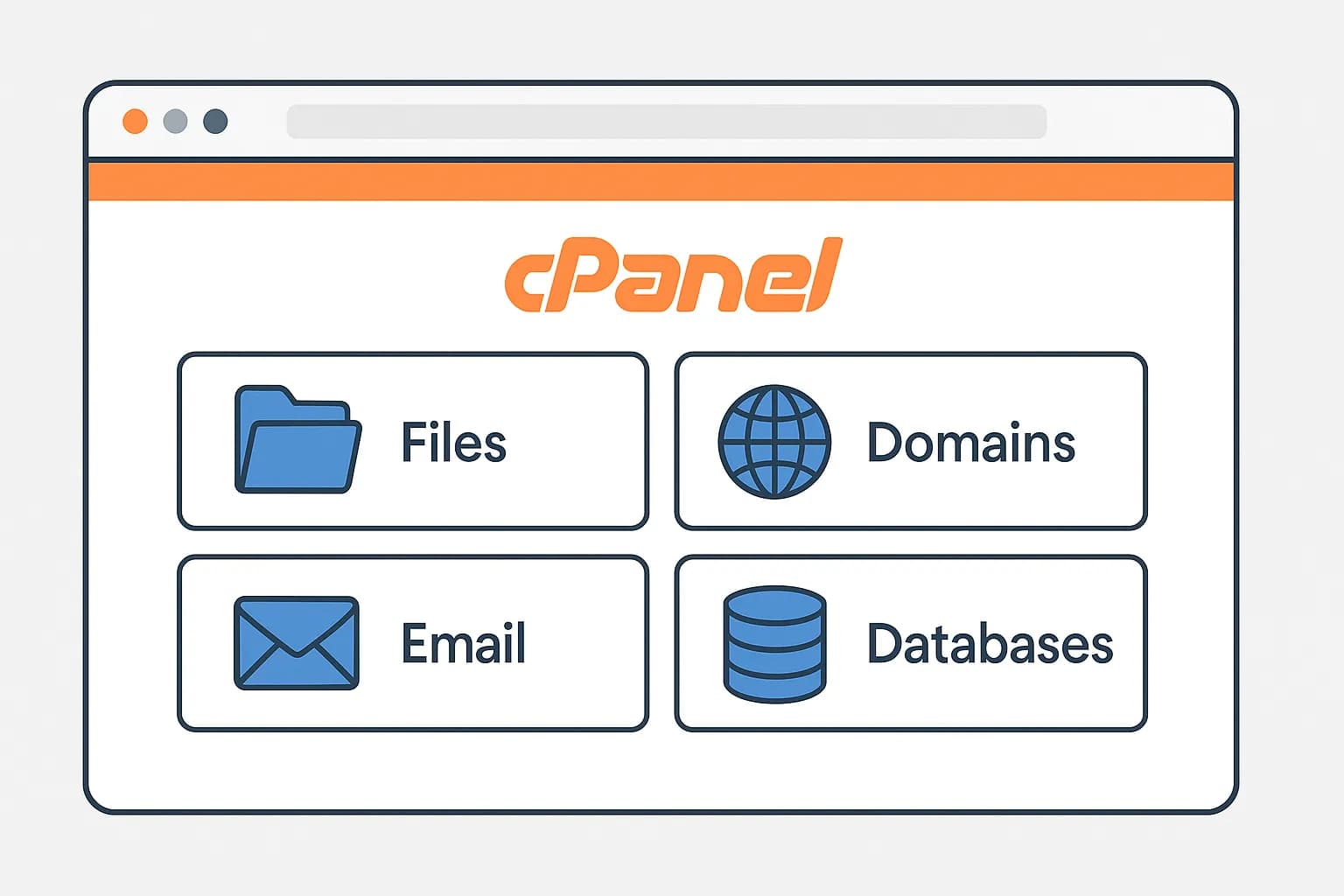
What is cPanel?
cPanel is a control panel where you can manage all elements of your hosting.
If you have read the Web Hosting Guide that I wrote previously, you will remember that basically web hosting is the same as a computer.
I mean, it will be very easy to understand if you realize that web hosting is the same as a computer, which both have a control panel with the same function, namely to make it easier for you to manage all the elements on your computer/hosting.
Why Use cPanel?
Actually, there are many kinds of control panels in hosting, such as Plesk, DirectAdmin, and others. However, the most popular and most widely used in the world is cPanel.
Because cPanel was created specifically with a simple appearance and because it continues to be updated regularly, there are continuous improvements both in terms of convenience and security, most of the Penasihat Hosting web hosting providers use cPanel to help customers manage their websites.
Here are some reasons why cPanel is the main choice:
-
Intuitive Interface - User-friendly design makes things easy for even beginners
-
Comprehensive Features - Provides all the tools needed to manage a website
-
Regular Updates - Always updated with the latest features and security patches
-
Extensive Support - Many tutorials and resources available online
-
Compatibility - Works well with various platforms and web applications
What Can Be Done With cPanel?
Via cPanel you can:
- Create and manage email accounts for your website
- Installing WordPress (Or another CMS like Joomla, Prestashop, etc)
- Backup website files for your data security
- Upload files to your hosting server
- Checking bandwidth and disk space usage
- Install SSL for website security
- Manage databases MySQL or MariaDB
- Setting domains and subdomains
- View website statistics and visitor analysis
- Set the security settings of your website
And much more, such as installing certain applications, checking website statistics and changing website security settings.
How to Access/Log in to
cPanel?
If this is your first time logging into cPanel, usually your web hosting provider will provide details of your cPanel username and password via email or have the details provided on your hosting account dashboard.
Don't worry if you lose your username and password data, because almost all web hosting providers provide "links" that lead to your cPanel without needing to log in first.
For example, here is the place where you can log in to cPanel (on the hosting provider IdCloudHost), on the “tab” circled in red.
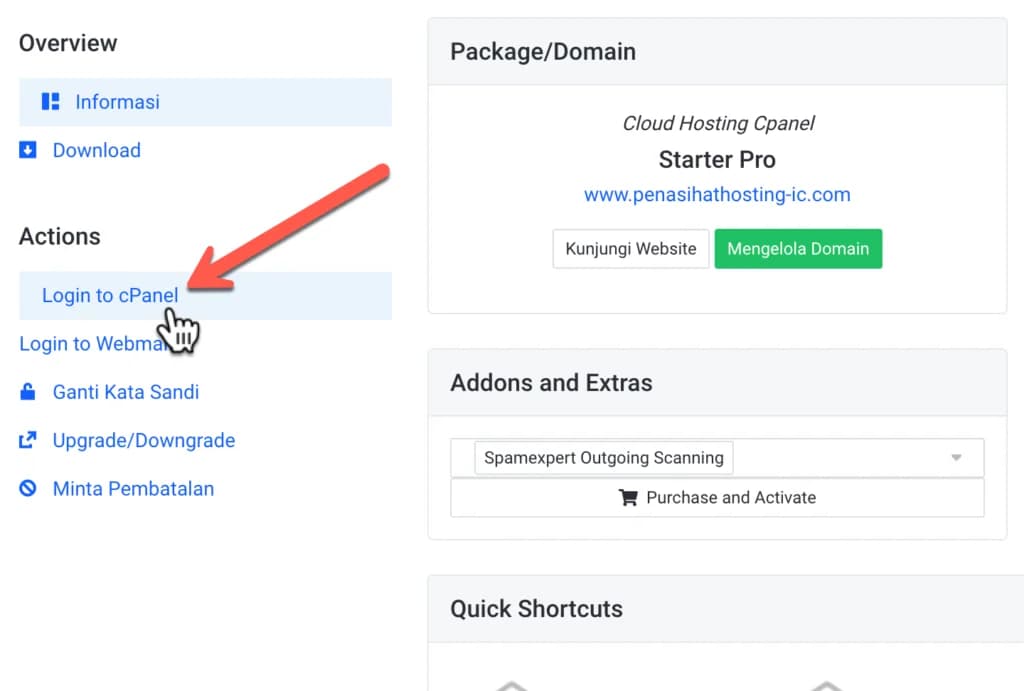
All web hosting providers have different displays, they will not be the same as above.
However, the "link" that leads to cPanel will be very easy to find on your hosting account dashboard or if you have difficulty finding it, you can contact your hosting support via live chat.
Direct Access Method
The easiest and fastest way to log in to cPanel is to type your website address into your browser followed by :2082 (unsecured) or :2083 (secured).
http://www.domainanda.com:2082/ or https://www.domainanda.com:2083/
I usually use :2083 (secured) to log in to cPanel because it is more secure.
Alternative Access Method
Apart from the above methods, there are several other ways to access cPanel:
https://cpanel.domainanda.com- Hosting Provider URL - Login to your hosting provider's dashboard and look for the cPanel access button
- Server IP - Uses server IP in the format
https://[IP-SERVER]:2083
Security When Accessing cPanel
When accessing cPanel, pay attention to the following security tips:
- Always use HTTPS connection (port 2083) not HTTP (port 2082)
- Never access cPanel from an unsecured public network
- Always log out when finished using cPanel
- Use a strong and unique password
- Enable two-factor authentication if available
Conclusion
cPanel is a very useful tool for managing your website. With an intuitive interface and comprehensive features, cPanel makes it easy for you to manage various aspects of your website without needing in-depth technical knowledge.
In next chapter, we will learn more details about the cPanel interface and its basic functions.
Save your cPanel login information in a safe place. Use a password manager like 1Password, LastPass, or BitWarden to safely store your login credentials.