cPanel Interface: Getting to Know the Basic Appearance and Functions
Get to know the appearance and basic functions of the cPanel interface. A complete guide to understanding cPanel layout and navigation.
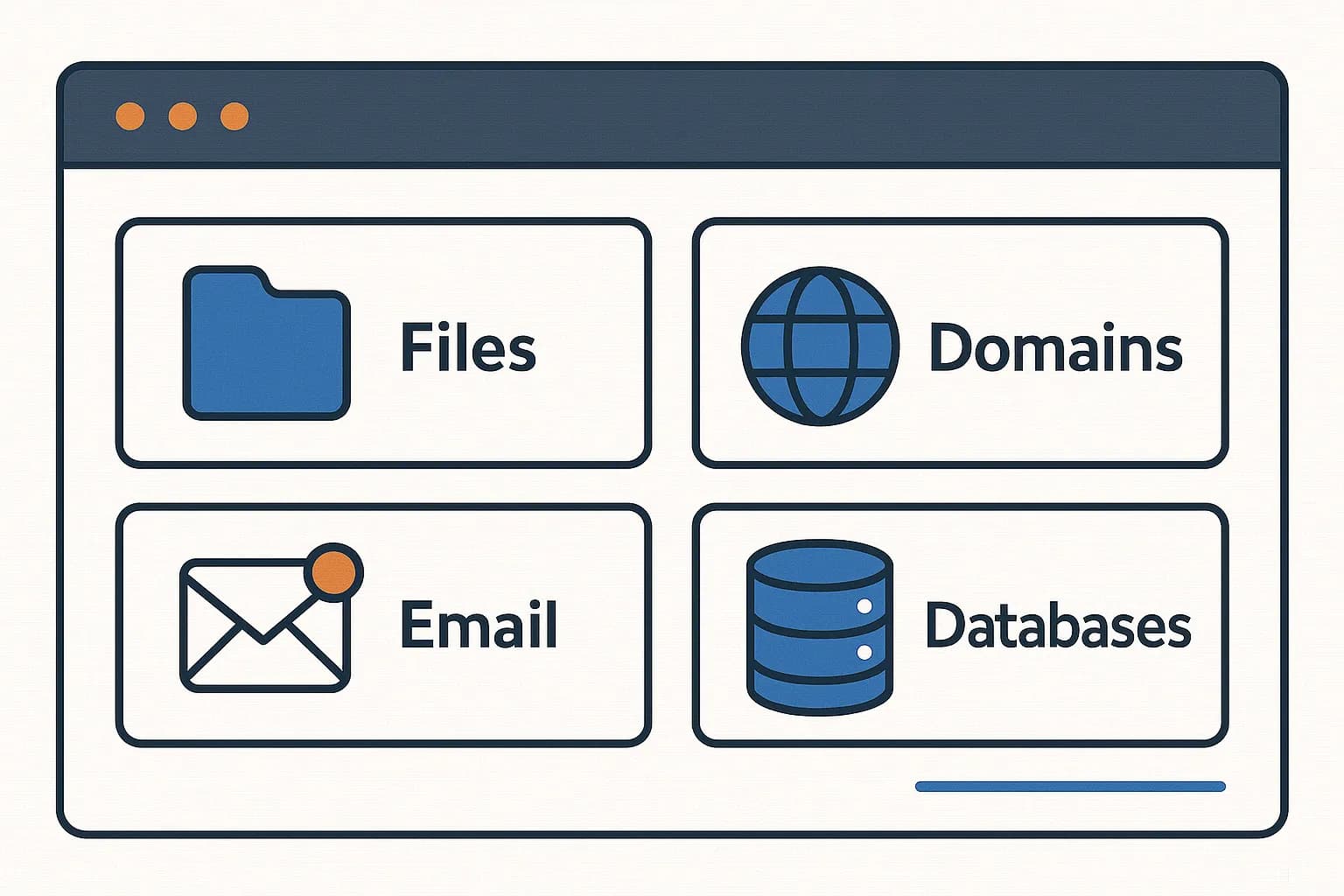
After you successfully login to cPanel, the next step is to understand the appearance and basic functions of the cPanel interface. This will make it easier for you to manage your website.
cPanel Main View
When you have logged in to cPanel, you will see the cPanel display as below.
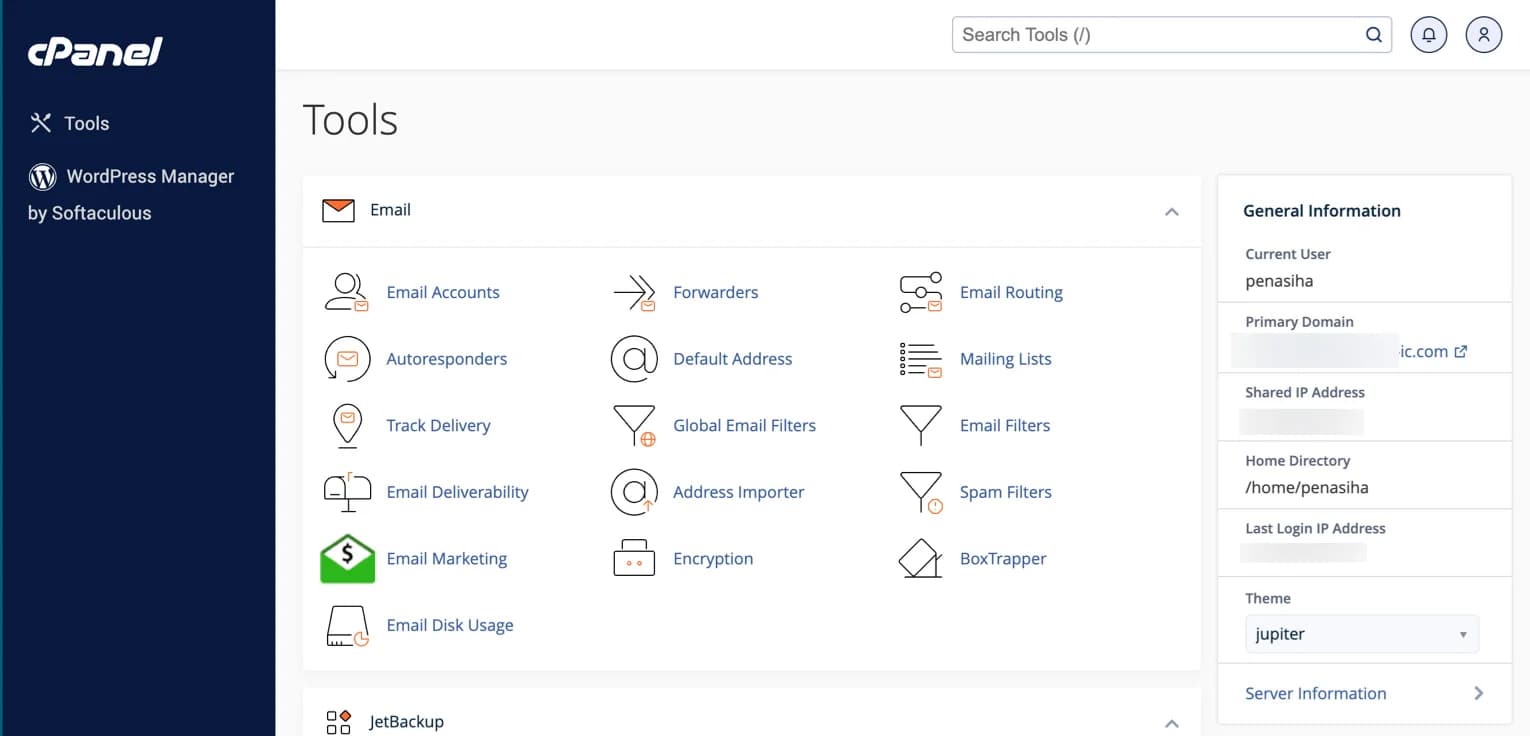
By default, in 2025, if your hosting provider regularly updates cPanel, your cPanel display should already use the "Jupiter" theme as above. The only difference should be the color, usually according to the hosting provider's brand color.
If your cPanel display is different, don't panic!
Don't panic if the cPanel appearance on your hosting provider is different, because only the appearance or theme has changed, but not the settings.
Get to know the basic functions of cPanel
The cPanel interface consists of several main parts that you need to know:
-
Left Sidebar
-
Right Sidebar
-
Main Content Area
Let's discuss them one by one.
Search Bar and Navigation Bar
At the very top right of cPanel, you will find a search column, a bell icon (notifications), and a user icon (user preferences).
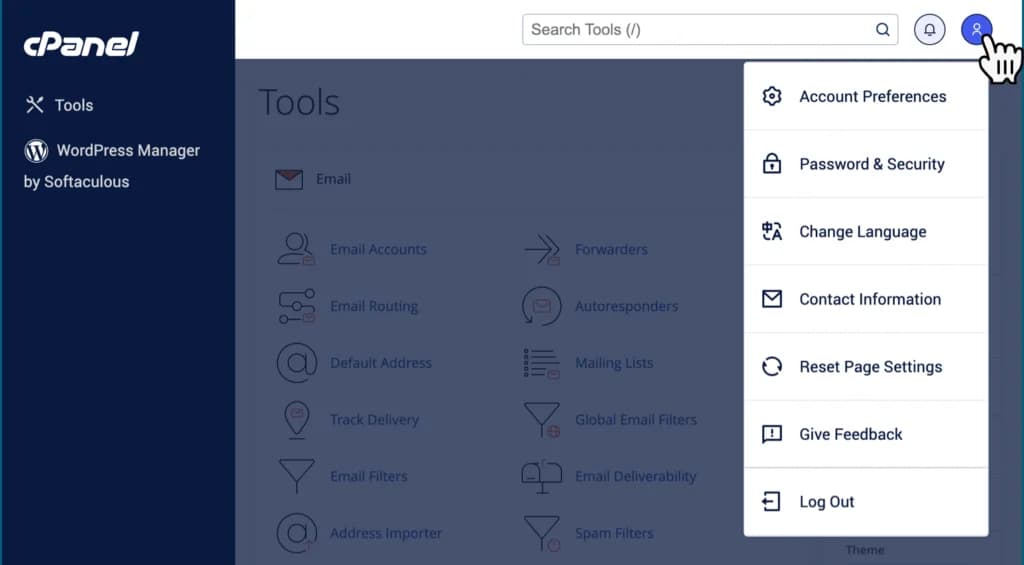
- Search Features: used to search for any function in cPanel, for example searching for “File Manager”, “Disk Usage”, “Errors”, etc. This search feature is very useful, especially for beginners who are not familiar with the location of features in cPanel.
- User preferences: where you will easily find the main settings, such as changing the cPanel password, changing the language, changing the cPanel theme/appearance, viewing your contact information (email used in cPanel) and also settings to reset all settings with just one click.
- Notifications: the same as notifications on social media, their purpose is to notify you if there are certain updates to cPanel and other information related to cPanel.
- Logout: This is very important, I mean when you have finished using cPanel, for security reasons you should immediately log out of your cPanel by clicking logout.
Left Sidebar
In the latest cPanel display, by default, there should only be menus, namely Tools and WordPress Manager by Softaculous.
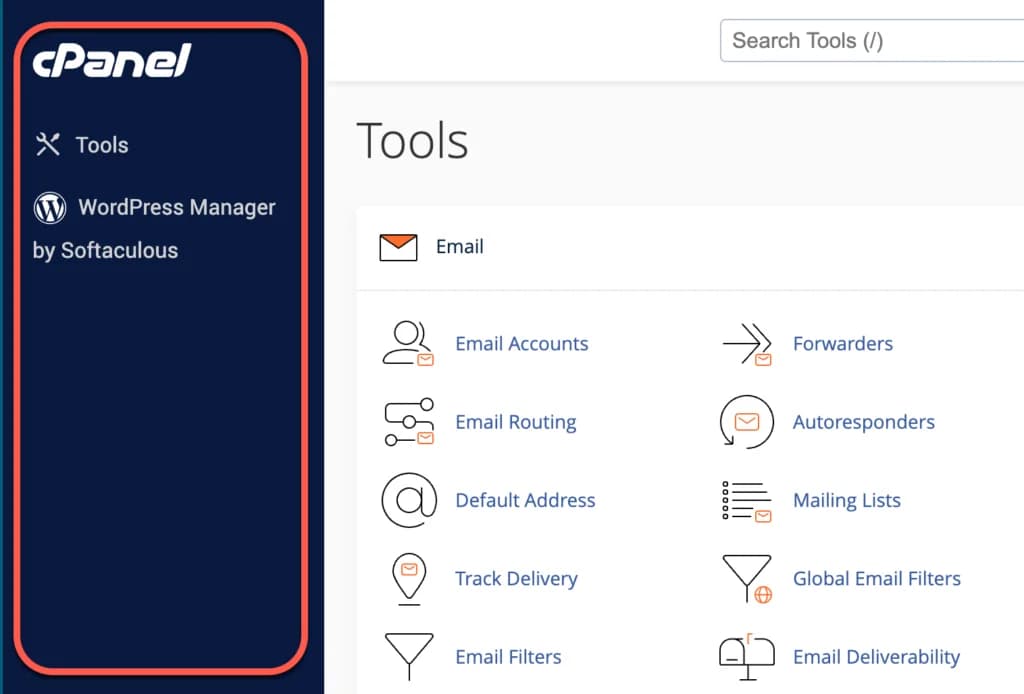
- Tools: You can click the Tools menu to return to the cPanel home page. Think of this like the “Home” menu on a website.
- Word
Press Manager: Well, more than 60% of websites in the world are built using WordPress, so it's no surprise that cPanel created and placed the WordPress Manager menu in the sidebar so you can easily find it. I will discuss WordPress Manager in more detail in a separate section later.
Right Sidebar
Meanwhile, on the right side of the cPanel display, you will find two important pieces of information related to your account and hosting specifications, namely general information and statistics.
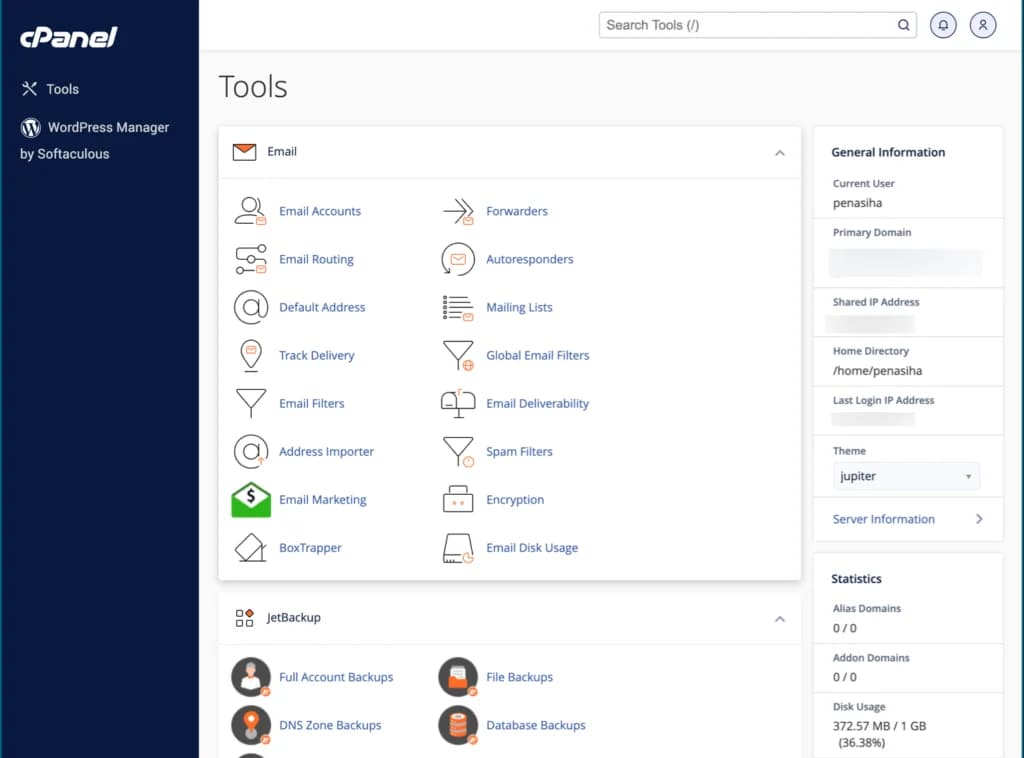
- General Information: where you can see general information on your cPanel, such as the user you are using, the main domain on cPanel, IP address, last login information, there is also a link that leads to your hosting server information.
- Statistics: where you will find information regarding the resources you have used, such as the amount of bandwidth used, the amount of disk/storage usage, CPU usage, RAM, etc.
Main Content Area
The main area of cPanel contains various categories of features grouped by function. Some of the main categories include:
-
Files - To manage website files, backups and disk space
-
Domains - To manage domains, subdomains and redirects
-
Email - To manage email accounts, forwarders, and spam filters
-
Databases - To manage MySQL/MariaDB databases
-
Software - To install applications such as WordPress
-
Security - To set SSL, IP blocking, and other security
-
Advanced - For advanced settings such as cron jobs and error logs
Each category contains icons that represent specific features you can access.
Organize on cPanel
You can also organize all the sections in your cPanel by opening or closing certain sections. It's easy, just click on the arrow I gave in the image below:
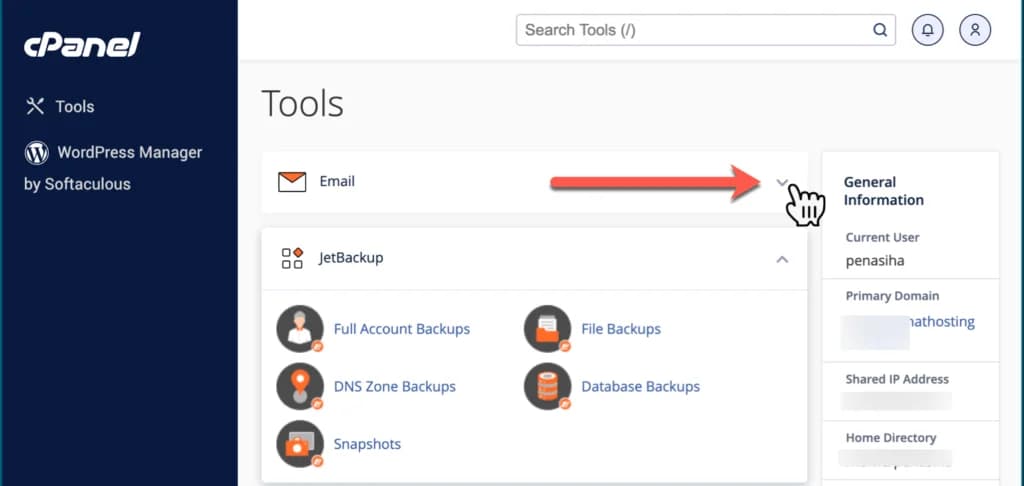
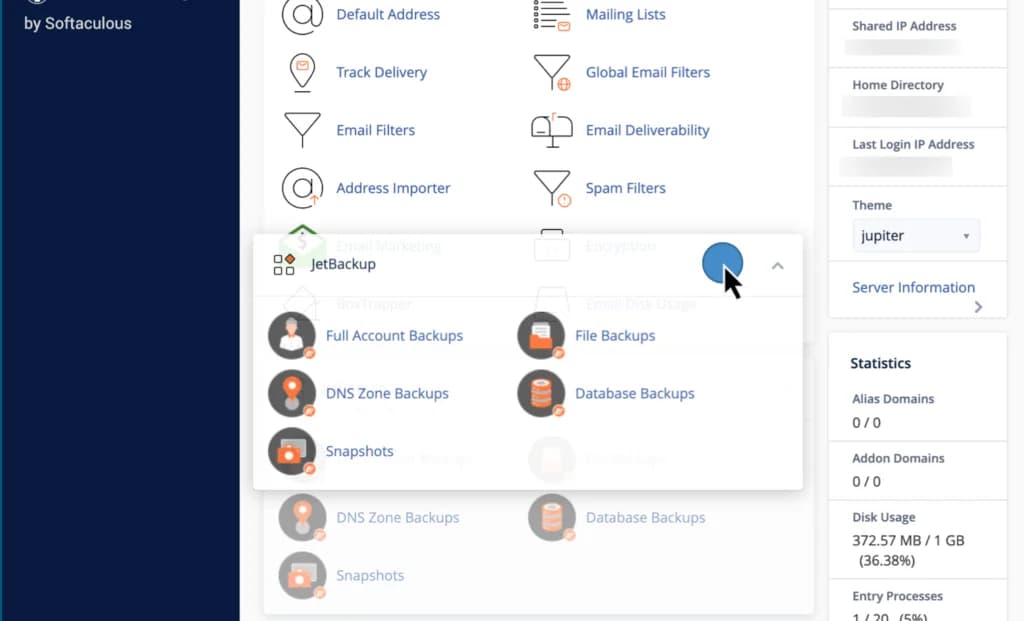
You can also move (drag and drop) certain parts up and down according to your wishes.
Changing cPanel Appearance
cPanel offers several display options that you can customize to your preferences:
-
Paper Lantern - A simpler classic look
-
Jupiter - Modern look with cleaner design (default in 2025)
-
Basic Mode - A simpler display with larger icons
To change the appearance, click the user preferences icon in the top right corner, then select "Change Style".
cPanel Navigation Tips
Here are some tips to make navigation easier in cPanel:
-
Use the Search Bar - The fastest way to find the features you need
-
Bookmark Pages - Bookmark cPanel pages that you frequently use
-
Use Keyboard Shortcuts - Several keyboard shortcuts are available in cPanel
-
Set Favorites - Place frequently used features at the top
-
Use Breadcrumbs - Note the breadcrumbs at the top for navigation
Conclusion
Understanding the cPanel interface is an important step in managing your website effectively. By getting to know the appearance and basic functions of cPanel, it will be easier for you to navigate and use the available features.
In next chapter, we will learn how to update preferences in cPanel, including how to change passwords and manage users.
Take some time to explore the cPanel interface and familiarize yourself with the location of the different features. This will save you time in the future when you need to quickly access certain features.