How to Install WordPress on Kinsta
A step-by-step guide on how to easily install WordPress on the Kinsta hosting platform, including choosing a server location and filling in important details.
In fact, installing WordPress on Kinsta is easy, even easier than using WordPress Manager or WP Toolkit on cPanel.
However, if you find it difficult or want to make sure you choose the right server location for your website, considering the many server options available at Kinsta, I will guide you through the process below.
1. Login to MyKinsta
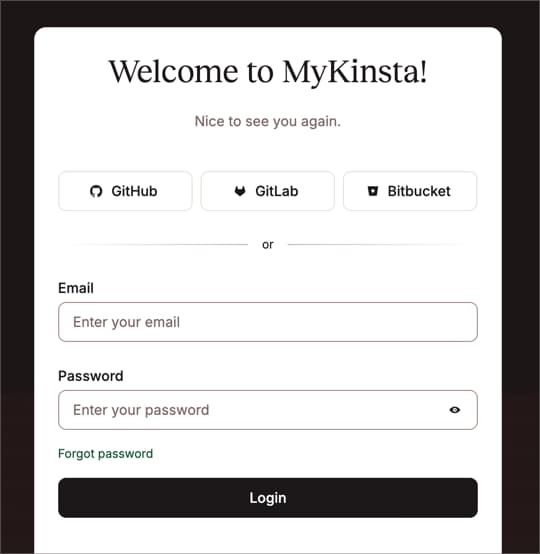
First, if you have not logged into your MyKinsta, please visit the following URL: https://my.kinsta.com/login, then enter your email and password:
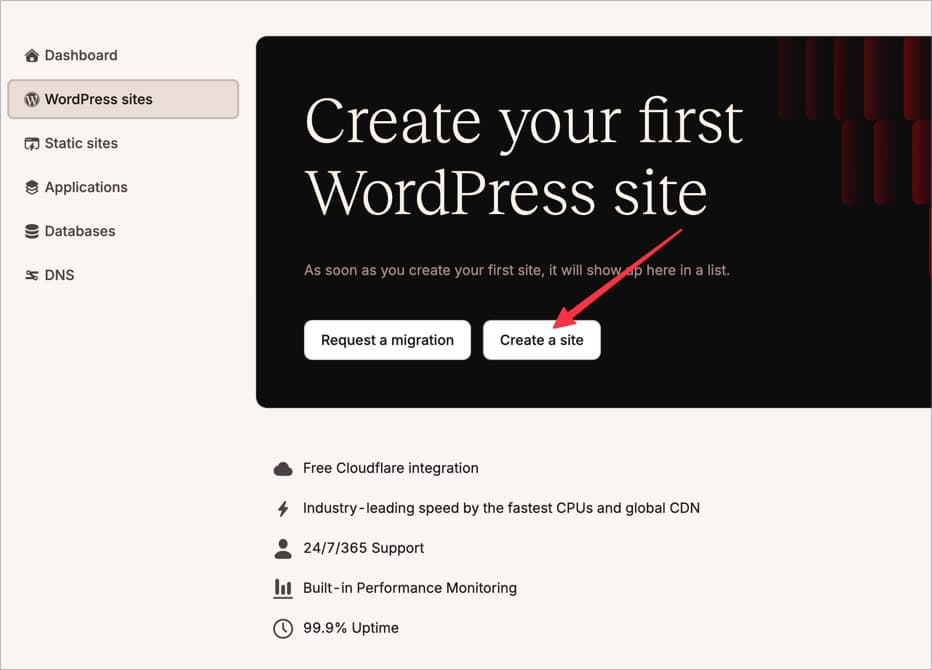
Next, click the "WordPress Site" menu and select the "Create a site" button.
2. Select Install WordPress
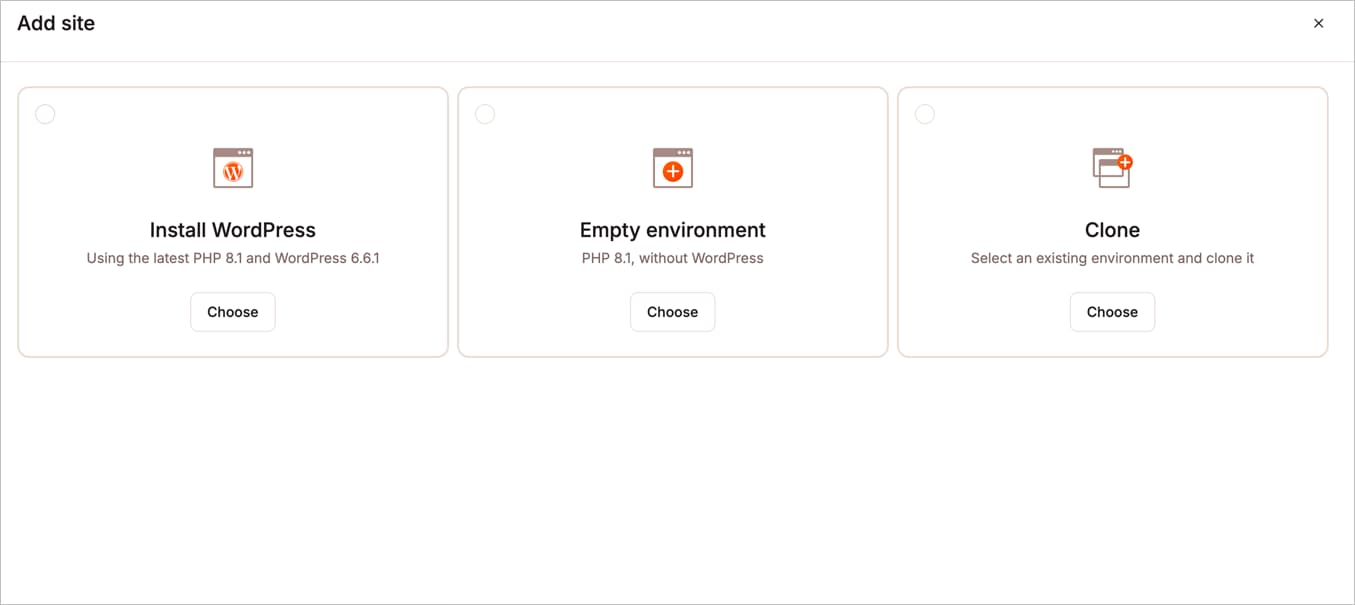
You will see three options: Install WordPress, Empty Environment (only contains PHP without WordPress), and Clone (intended for cloning a pre-existing environment, for example for website staging/development needs).
Select the “Install WordPress” option and click the “Continue” button.
3. Fill in your website name and select the server location
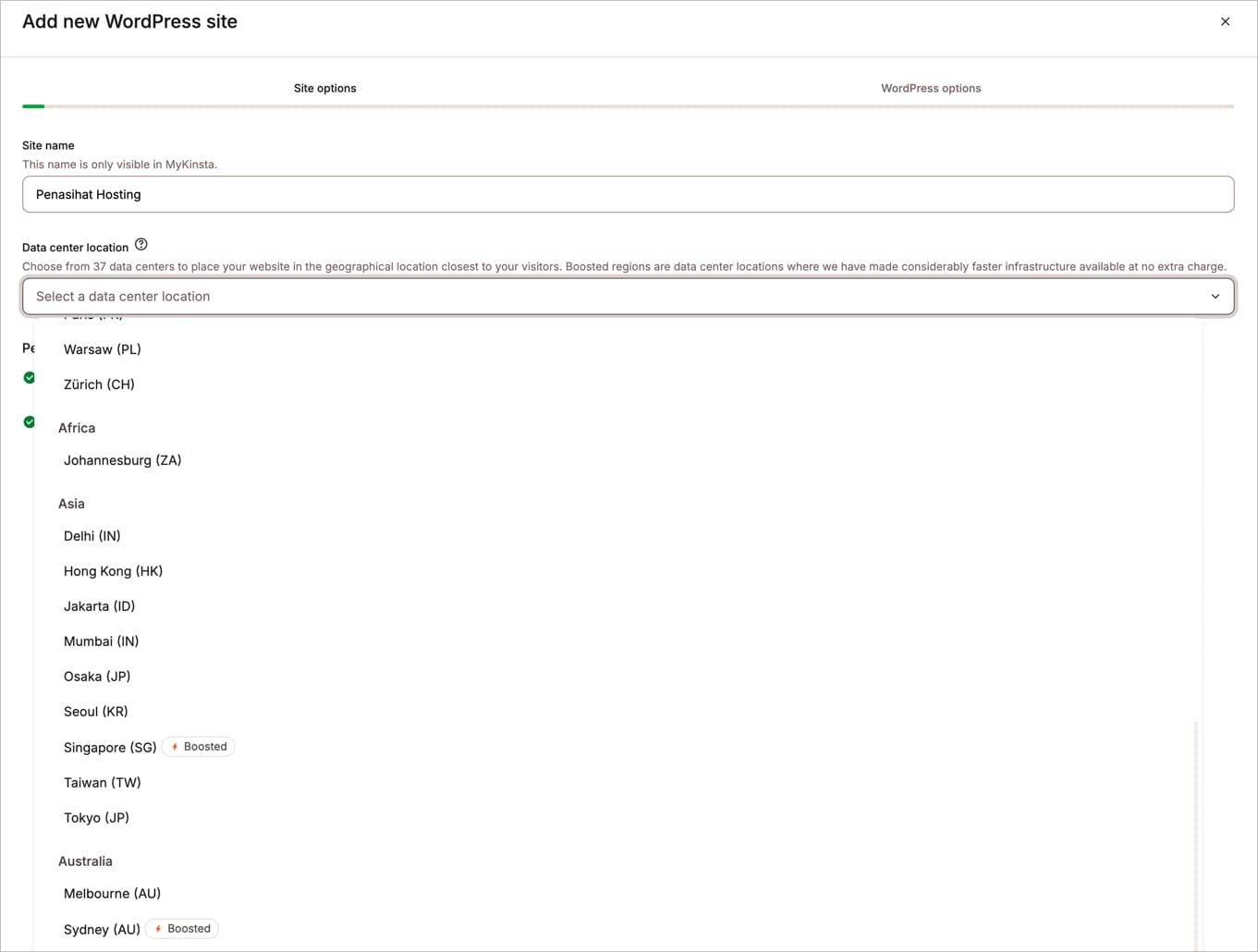
Next, you need to fill in the website name field (this will only appear in MyKinsta, not in your WordPress).
The most important thing in this step is selecting the server location. If your website is in Indonesian or targets visitors from Indonesia, I recommend choosing a server location in Singapore, because it has higher performance. Note the “Boosted” label on the Singapore server.
If your website targets international visitors, I recommend selecting a server in the US.
After selecting, click the “Continue” button.
4. Fill in all details
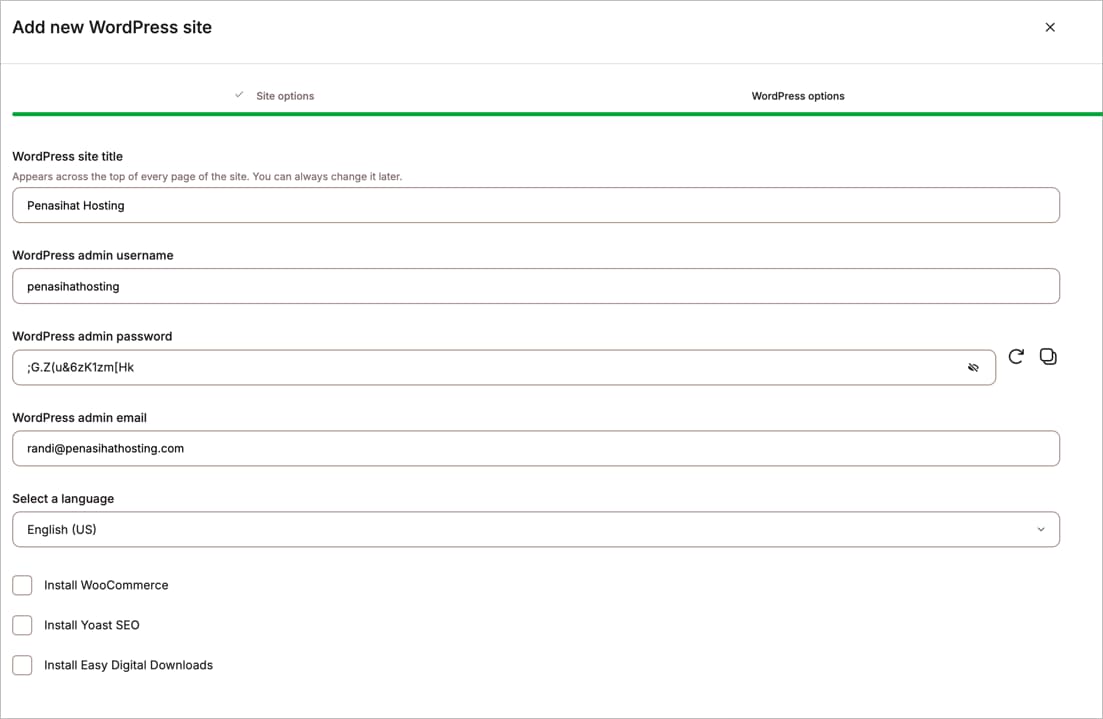
Make sure you fill in carefully at this stage and don't forget to save your username and password information. If you forget or don't save it, you may need to change your password via PHPMyAdmin (not friendly for novice users), reset your password (if your email SMTP has been set up, which most likely hasn't), or ask Kinsta support for help via live chat.
Fill in all the following details:
- Your WordPress title
- Username
- Password (make sure to use a strong password)
- Admin email
- And WordPress language
- Optional, but if you need the WooCommerce, Yoast SEO or EDD plugin, then you can install it directly at the beginning
Once finished, click the "Continue" button.
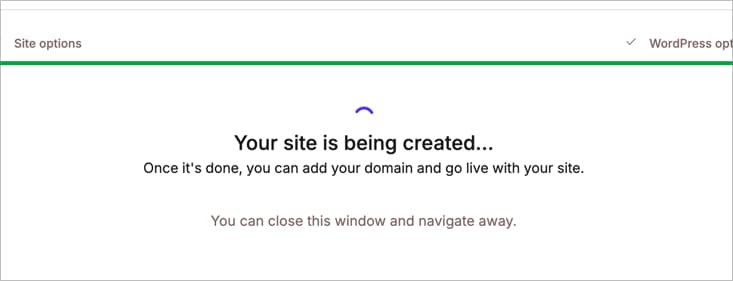
The system will install your WordPress based on the details you have filled in. At this stage, you just need to wait until the process is complete, which usually takes around 5-10 minutes. You can close this page while you wait.
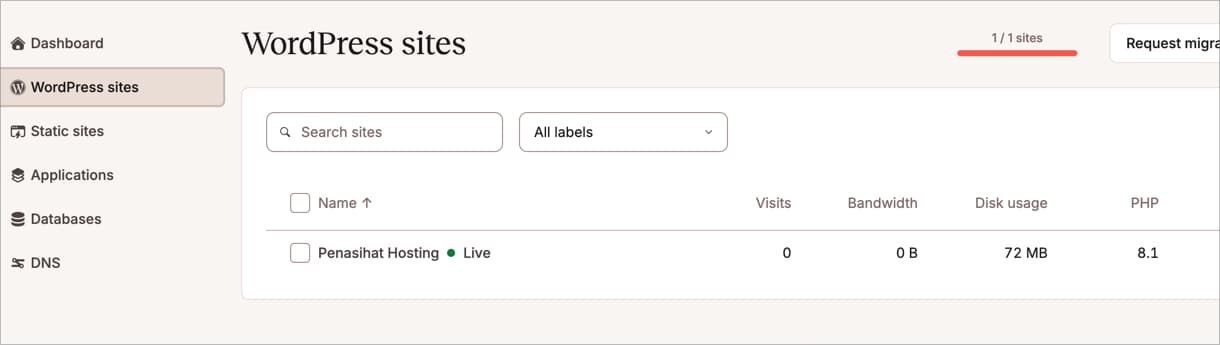
Once the process is complete, you will receive a notification via email and will see your WordPress name with the label “Live” in the MyKinsta dashboard.

Willya Randika
Hi, saya Randika, seorang Web Developer yang spesialis di WordPress, Astro, dan Next.js. Sejak 2015, saya telah membantu ratusan bisnis dan profesional membangun website yang tidak hanya cepat dan aman, tapi juga mudah ditemukan di Google dan efektif mengkonversi pengunjung menjadi pelanggan.
Related Articles
How to Migrate WordPress to Kinsta Manually
Complete guide on how to migrate a WordPress website to Kinsta safely and without downtime. Learn three migration methods: Kinsta's free service, the Migrate Guru plugin, and the manual way.
WordPress to Cloudways Migration Tutorial
Complete guide on how to easily migrate a WordPress website to Cloudways. Learn the migration steps using the Cloudways WordPress Migrator plugin and DNS configuration
Tutorial or How to Install WordPress on Cloudways
Complete guide on how to easily install WordPress on Cloudways. Learn the steps for WordPress installation, domain configuration, and SSL setup.

3 Best Uptime Monitoring Services
Review and comparison of the 3 best uptime monitoring services. Find free and paid website monitoring tools with full features to ensure your website is always online.
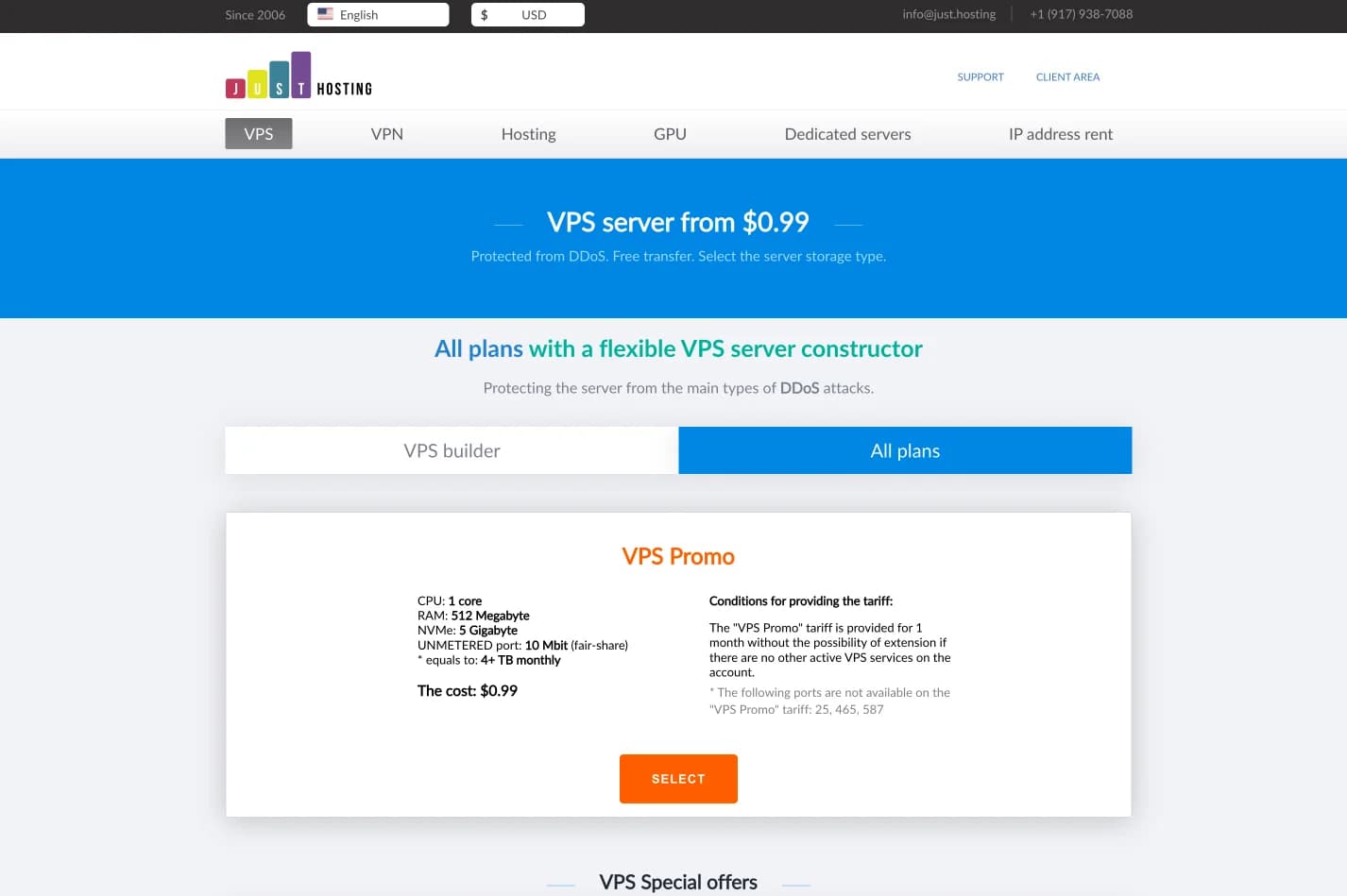
just.hosting: Global VPS with 20 Years of Experience
International VPS provider serving 329,000+ clients in 40 countries with a focus on flexibility, performance and competitive pricing
How to Create a Web Application Without Coding for Online Business
Complete tutorial on how to create a web application without coding for online business, starting from planning, creating, and putting the application online.
Hostinger: Global Infrastructure, Local Touch
The hosting platform that serves 5 million users in 150+ countries is now present with full commitment to the Indonesian market.
Cloudways Review
A complete review of Cloudways, a popular managed cloud hosting platform, discussing its advantages and disadvantages as well as how it compares to other providers. Suitable for beginners to developers.
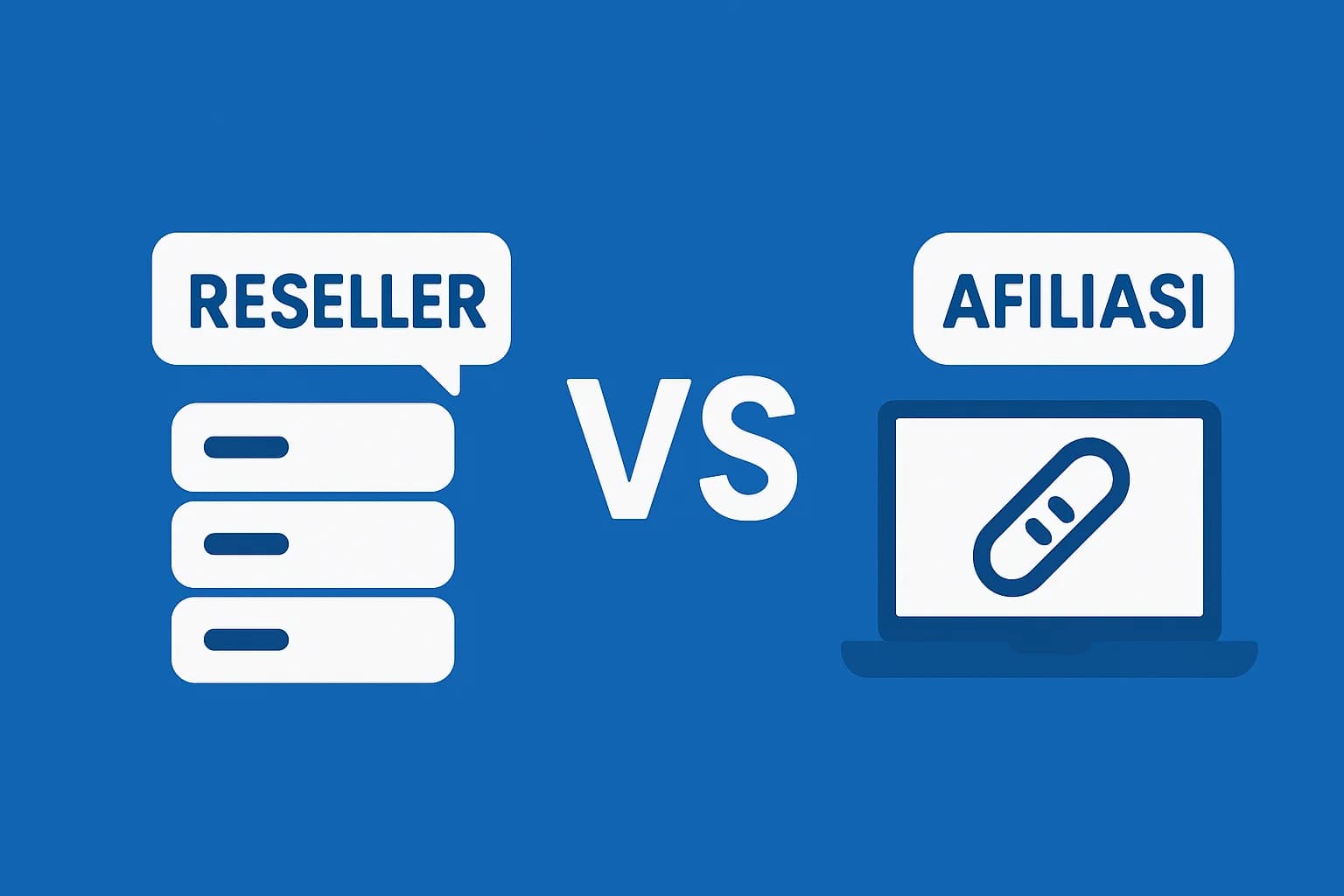
Reseller Hosting vs Hosting Affiliate Programs: Which is More Profitable?
Compare the reseller hosting business model (cPanel/WHM) vs hosting affiliate programs in terms of margins, operations, risks and traffic requirements. Choose the monetization scheme that suits you best.