How to Migrate WordPress to Kinsta Manually
Complete guide on how to migrate a WordPress website to Kinsta safely and without downtime. Learn three migration methods: Kinsta's free service, the Migrate Guru plugin, and the manual way.
Migrating a WordPress website can be scary, especially if you're worried about downtime that could hurt your online business. Apart from that, there are several common concerns that website owners often face when migrating:
- Fear of losing important data after the migration process is complete
- Worried about unexpected errors appearing during the migration process
- Lack of technical knowledge to overcome problems that may arise
However, don't let these fears stop you from upgrading or moving to better hosting like Kinsta. With proper preparation and following the right steps, you can migrate safely and without downtime.
The good news is that Kinsta offers unlimited free migration services to all its new customers. This means Kinsta's team of experts can handle the entire migration process for you, eliminating much of the stress and risk associated with manual migration.
However, if you have special needs or want to move your website to Kinsta immediately, there are several other options available:
-
Use WordPress Specialist services for fast and professional migration
-
Do the migration yourself using a plugin like Migrate Guru
-
Manual migration using SSH/FTP method for full control over the processIn this article, I will comprehensively discuss three methods of migrating WordPress websites to Kinsta:
-
Use Kinsta's free migration service
-
Migrate using the Migrate Guru plugin – a suitable method for beginners or those who want a more automated process
-
Manual method using SSH/FTP – for those of you who want full control over the migration process
Each method has its own advantages and disadvantages, and I will walk you through each step in detail. I'll also provide tips and tricks to ensure the migration process goes smoothly, as well as how to troubleshoot common issues you may encounter.
Most importantly, by following this guide, you will be able to migrate your WordPress website to Kinsta safely, minimize the risk of downtime and data loss, and have a better understanding of the migration process as a whole.
Let's start by looking at the first and easiest option: using Kinsta's free migration service.
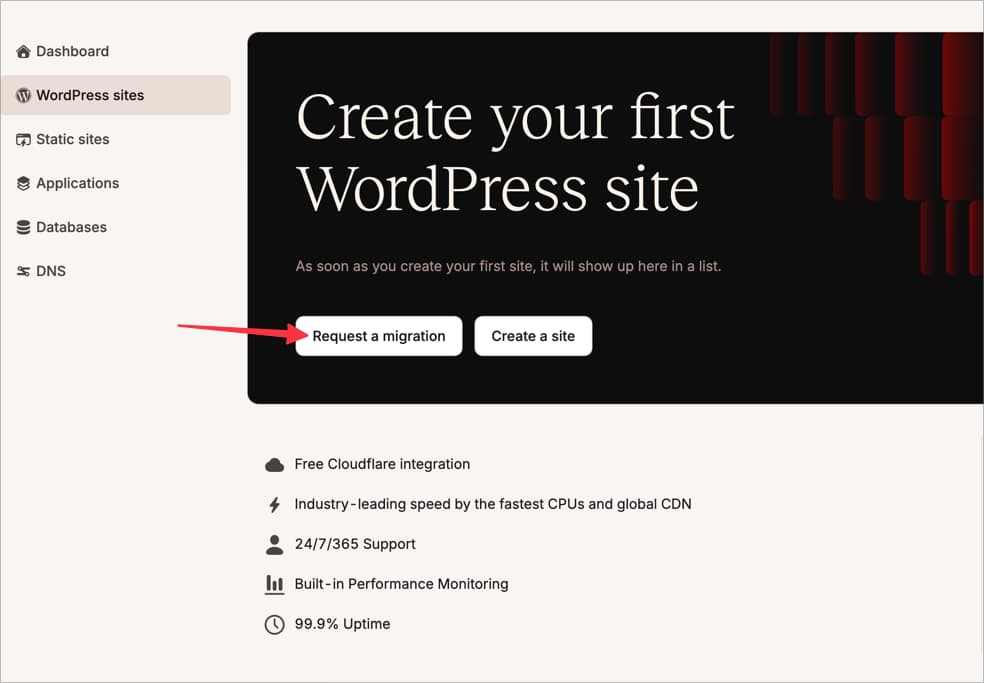
Migrate using Kinsta's free migration service
The free migration service offered by Kinsta is the ideal solution for those of you who want a hassle-free migration.
Kinsta's team of experts will handle the entire migration process, ensuring all your data is moved safely and without downtime. All you need to do is point your domain's DNS to Kinsta DNS.
Migrate using the Migrate Guru plugin
Of the many migration plugins in the WordPress.org
] repository, the Migrate Guru plugin is, in my opinion, the easiest and truly beginner-friendly. You don't need to look for information such as a website's IP address, create an FTP account first, or look for a suitable port.
The method is very simple. If you can copy-paste in Microsoft Word, you can also use this plugin.
1. Install New WordPress on New Hosting
First, you have to install a new WordPress on Kinsta. If you don't know how, you can follow this tutorial to Install WordPress on Kinsta .
Once the installation process is complete, you will be given a temporary address or URL, usually something like this: penasihathosting.kinsta.cloud.
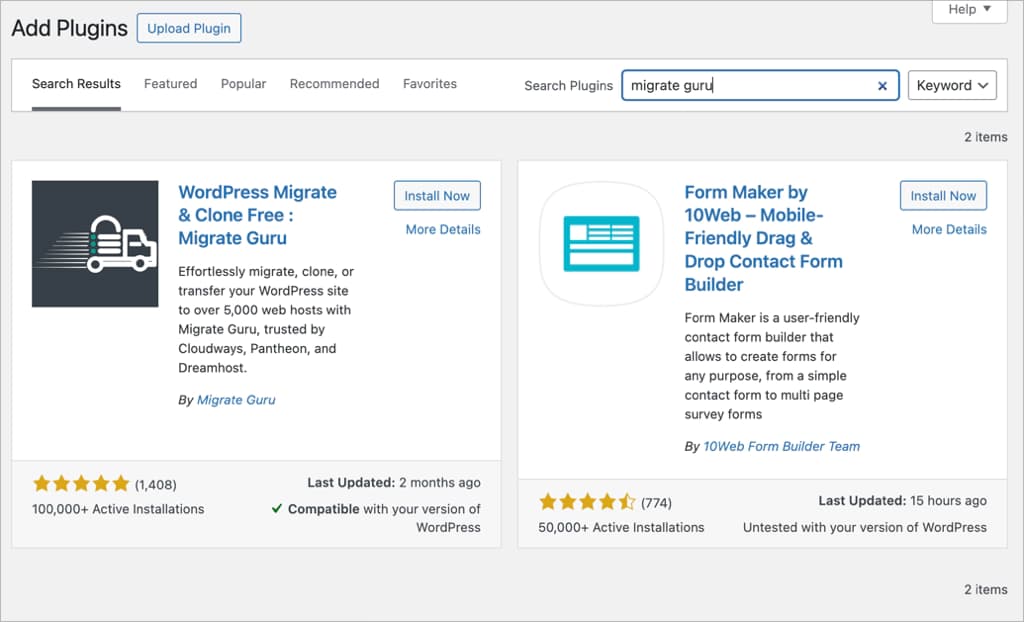
2. Install the Migrate Guru Plugin on Both Websites
Login to the WordPress dashboard at this temporary URL and install the Migrate Guru plugin. Likewise, on your current website (on old hosting), install the Migrate Guru plugin.
3. Copy
- Paste Key from Migrate Guru
Open the Migrate Guru plugin on your WordPress Kinsta and copy the migration key provided.
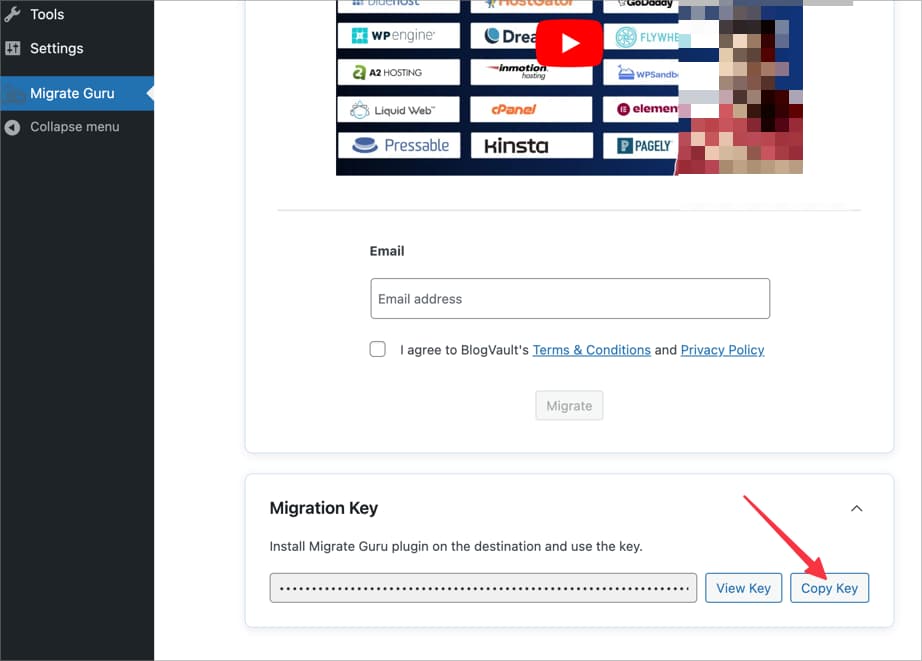
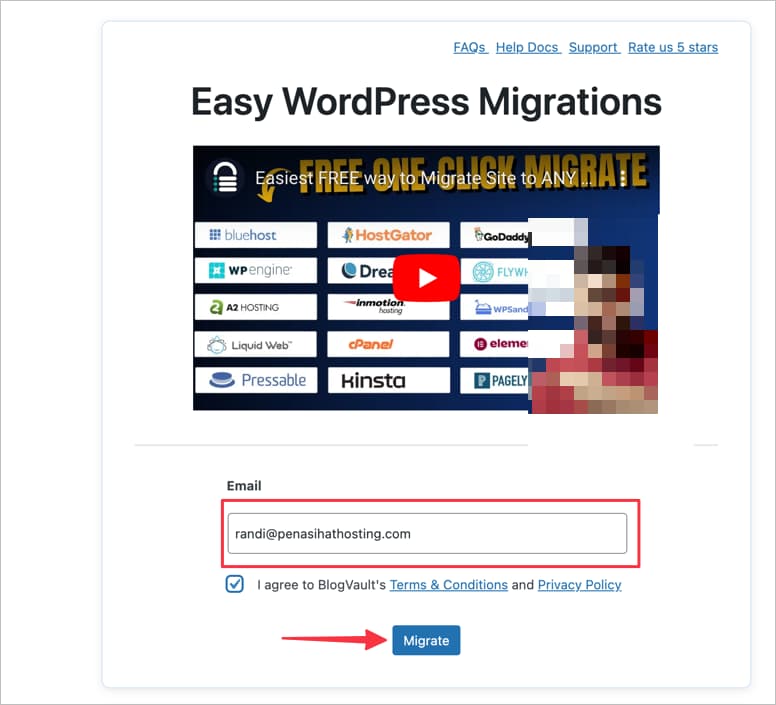
Return to your website on your old hosting, open the Migrate Guru plugin, fill in your email in the field provided, check “I agree to BlogVault's terms”, and click the “Migrate” button.
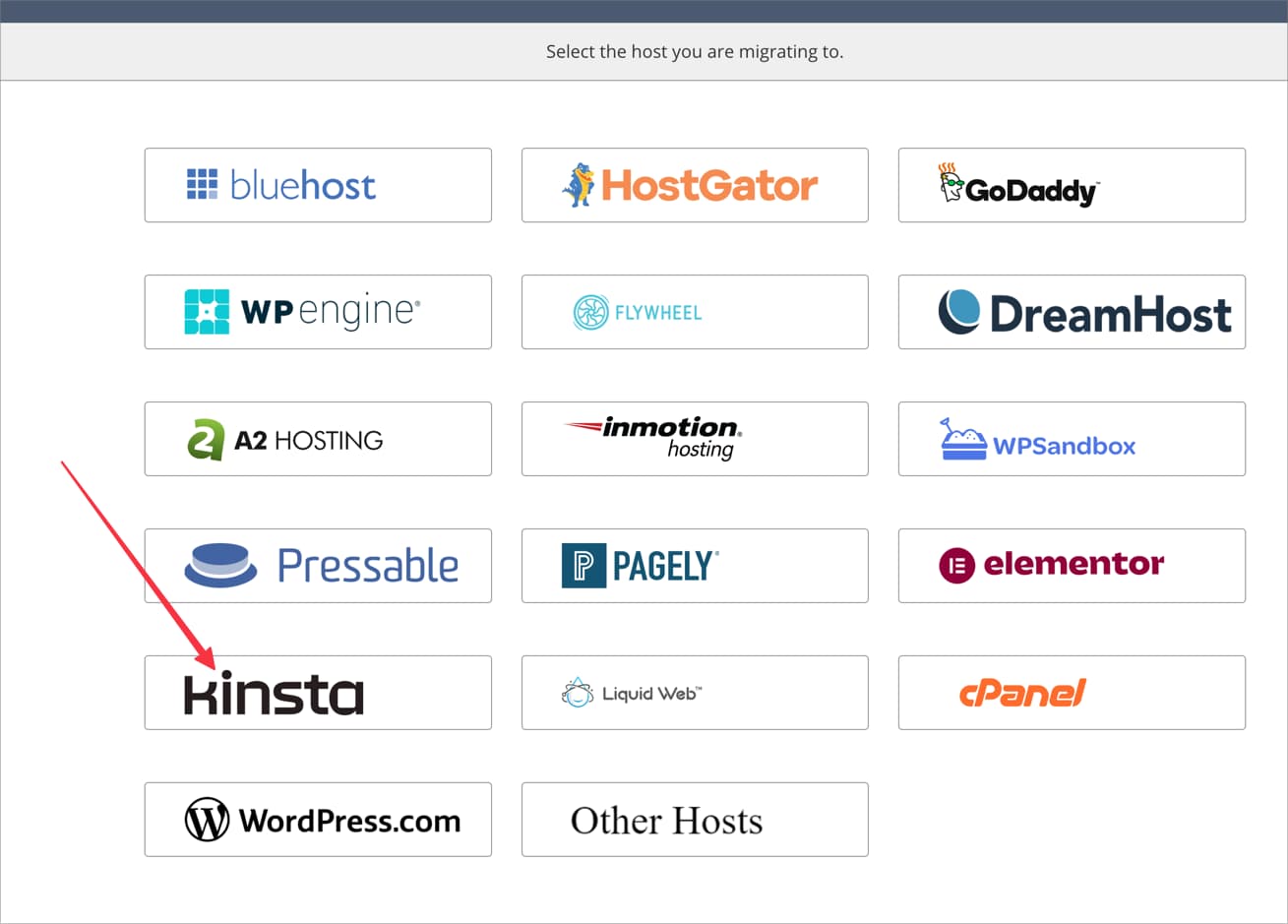
Select Kinsta in the list of available hosting.
Paste the migration key that you copied earlier and click the “Migrate” button.
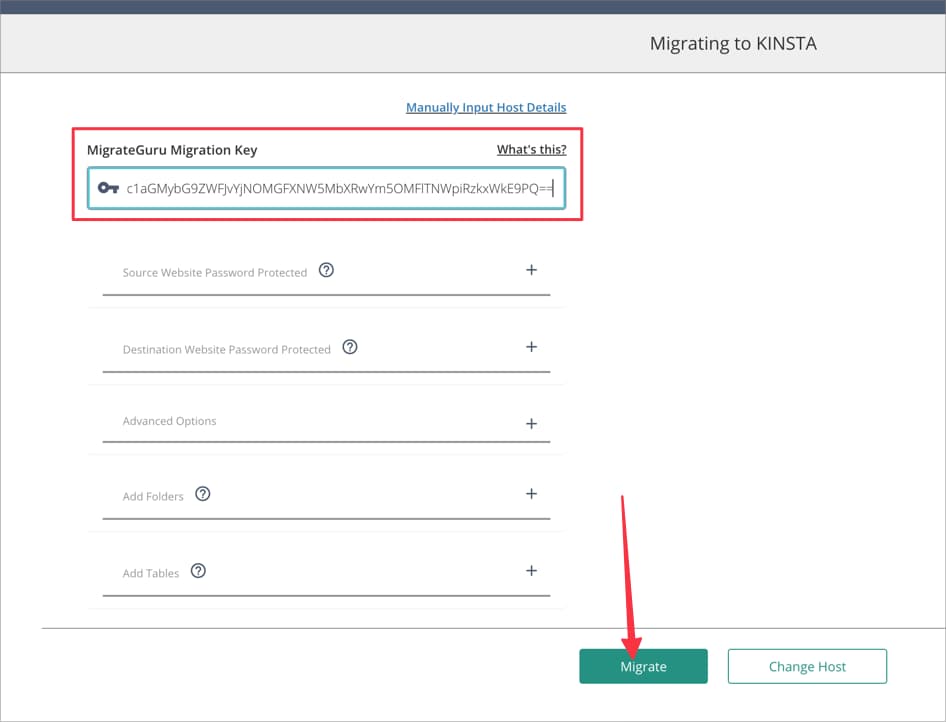
If the key you input is correct, the migration process will start automatically.
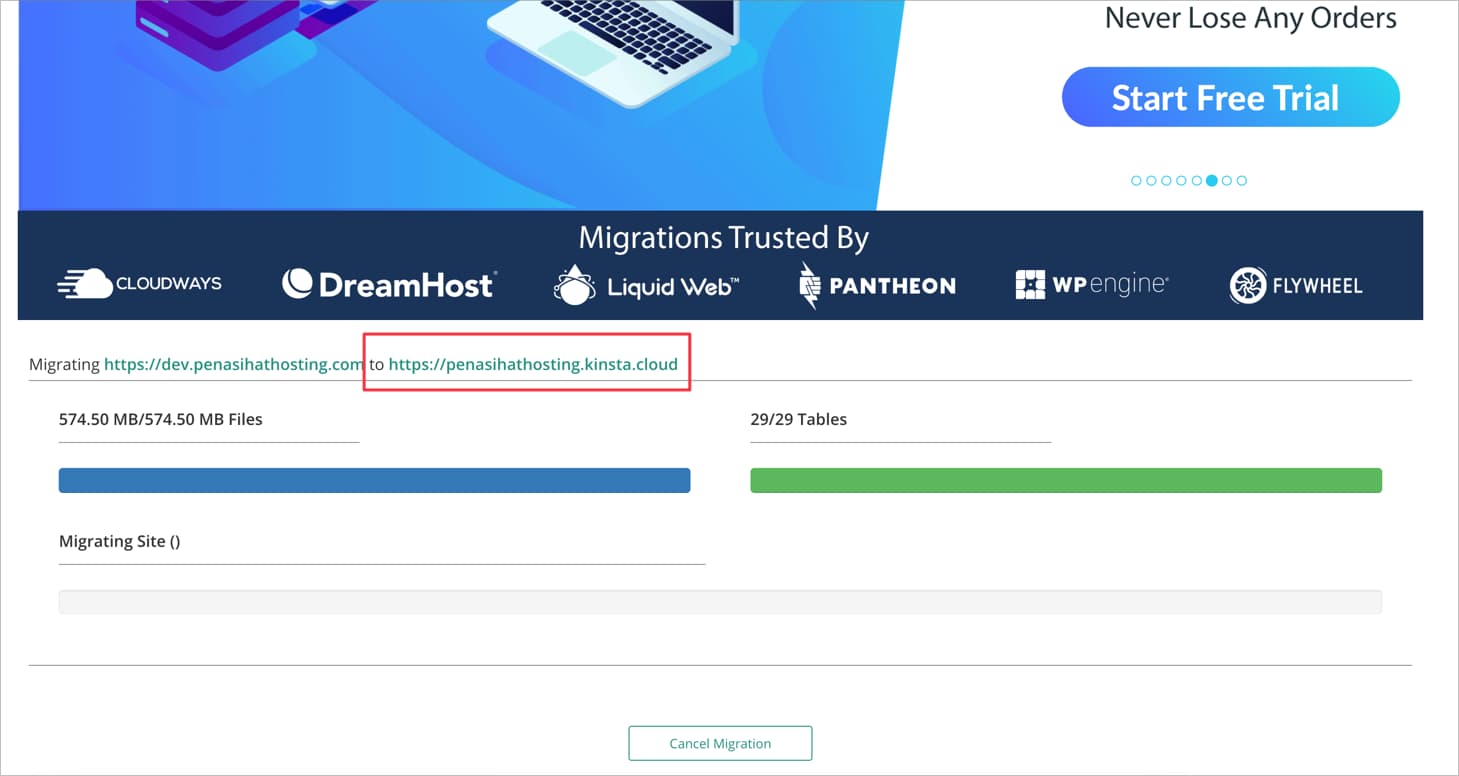
Make sure you pay attention to the section highlighted in red in the screenshot below, ensuring that you migrate from your domain URL to Kinsta's temporary URL, not the other way around.
If it is reversed, immediately click the "Cancel Migration" button.
Migration time duration depends on the size of your website; the larger it is, the longer it will take. Apart from that, your internet speed also affects the migration process.
4. Visit the Kinsta Temporary URL
Once the migration process is complete, you will see a message that the migration is complete. Click the "Visit Migrated Site" button and check whether your website is the same as the previous website. Check all pictures to make sure nothing is broken. Login to your WordPress dashboard to confirm everything.

4. Add Primary Domain to ‘Domains’ in MyKinsta
After you have ensured that there is nothing strange about the appearance of the website, there are no errors, all images load properly, and all plugins, users, themes, and others are the same as the website on the old hosting, it's time to change the domain from Kinsta's temporary URL to your actual domain.
Click the “Domains” menu in MyKinsta, click “Add domain” and enter your domain name.
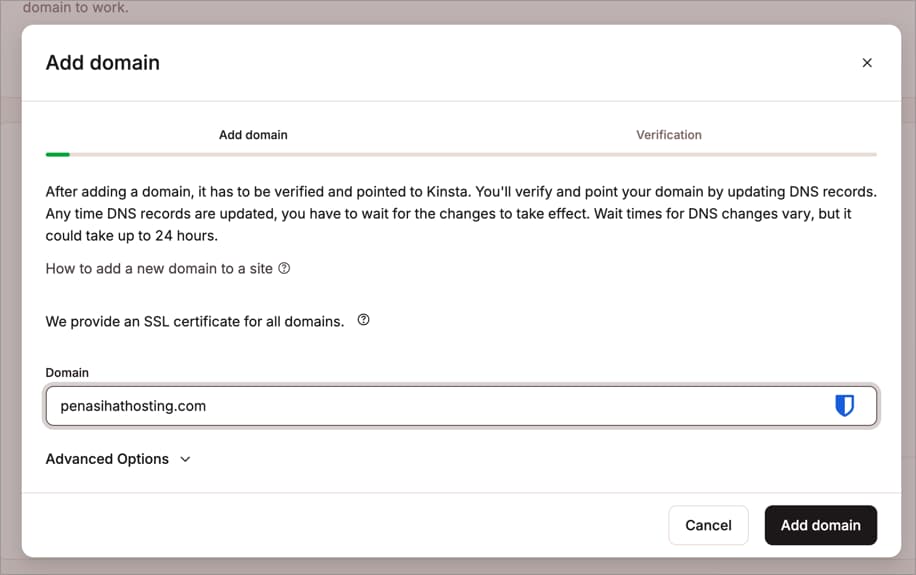
Then, make sure you point your domain's DNS to the Kinsta servers. Make sure DNS propagation is complete before checking your website. You can check domain propagation on the site DNSChecker.org.
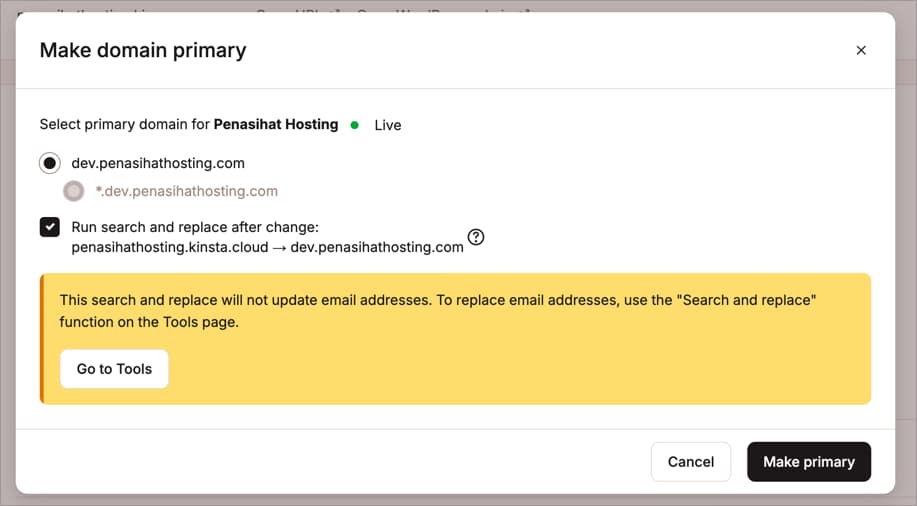
Once DNS has successfully pointed to your Kinsta server, make your domain a “Primary domain” by clicking the three vertical dots icon and then selecting “Make primary domain”.
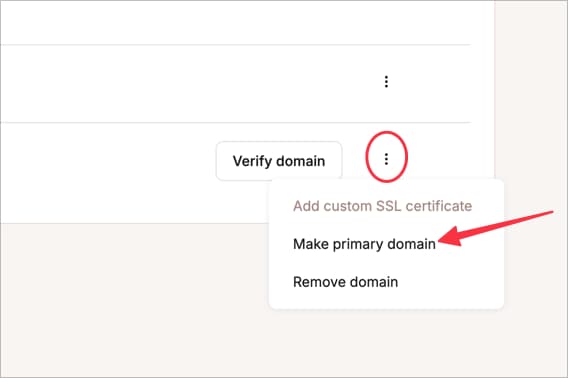
Don't forget to check the "Run search and replace after change" option. This will change all temporary URLs in your database to your domain URLs. However, this will not change the email address. To change your email address, you need to search and replace again in the "Tools" section.
By following this guide, you will be able to migrate your WordPress website to Kinsta safely, minimize the risk of downtime and data loss, and have a better understanding of the overall migration process. Good luck and good luck!

Willya Randika
Hi, saya Randika, seorang Web Developer yang spesialis di WordPress, Astro, dan Next.js. Sejak 2015, saya telah membantu ratusan bisnis dan profesional membangun website yang tidak hanya cepat dan aman, tapi juga mudah ditemukan di Google dan efektif mengkonversi pengunjung menjadi pelanggan.
Related Articles
How to Install WordPress on Kinsta
A step-by-step guide on how to easily install WordPress on the Kinsta hosting platform, including choosing a server location and filling in important details.
WordPress to Cloudways Migration Tutorial
Complete guide on how to easily migrate a WordPress website to Cloudways. Learn the migration steps using the Cloudways WordPress Migrator plugin and DNS configuration
Tutorial or How to Install WordPress on Cloudways
Complete guide on how to easily install WordPress on Cloudways. Learn the steps for WordPress installation, domain configuration, and SSL setup.

3 Best Uptime Monitoring Services
Review and comparison of the 3 best uptime monitoring services. Find free and paid website monitoring tools with full features to ensure your website is always online.
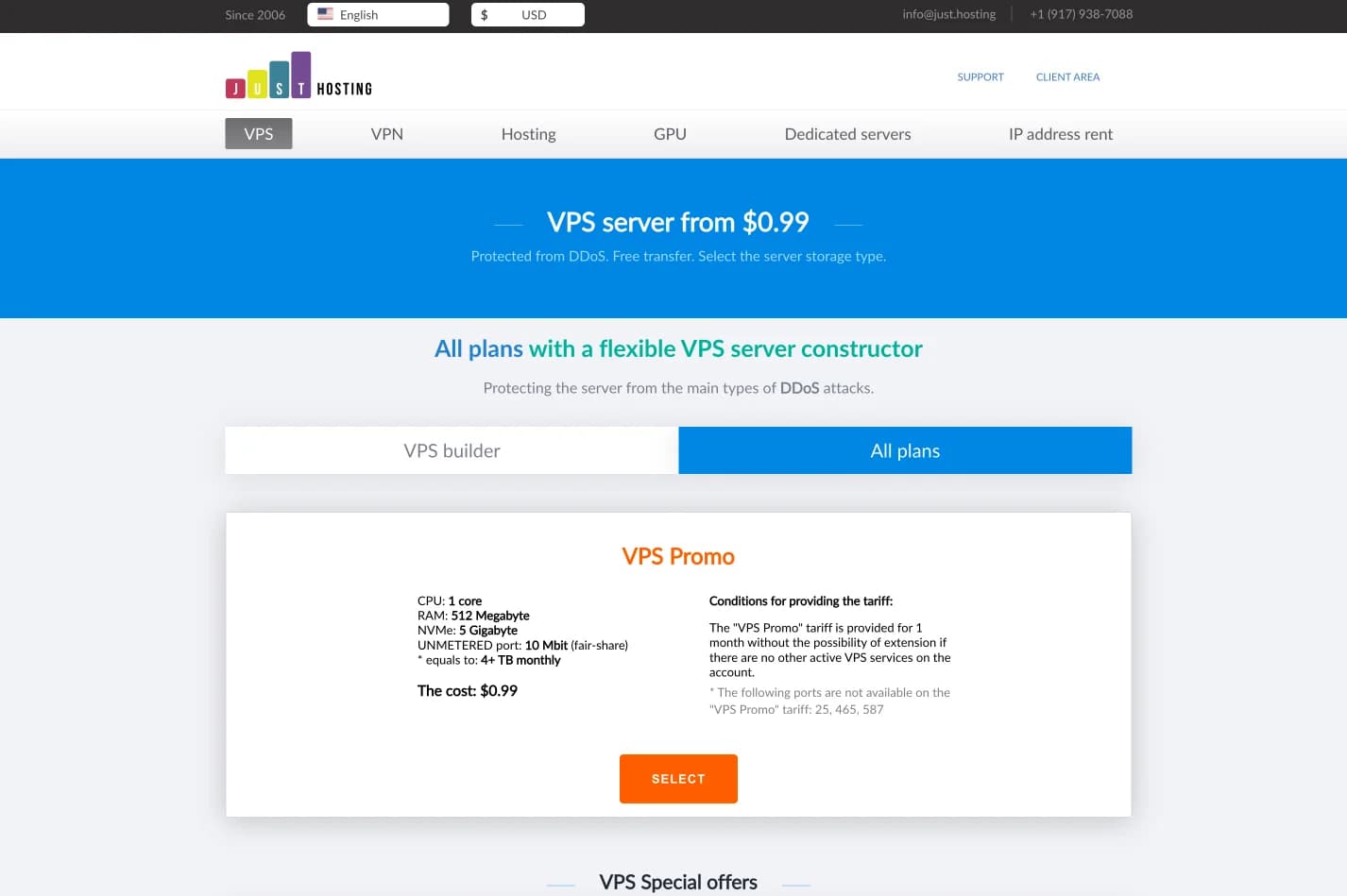
just.hosting: Global VPS with 20 Years of Experience
International VPS provider serving 329,000+ clients in 40 countries with a focus on flexibility, performance and competitive pricing
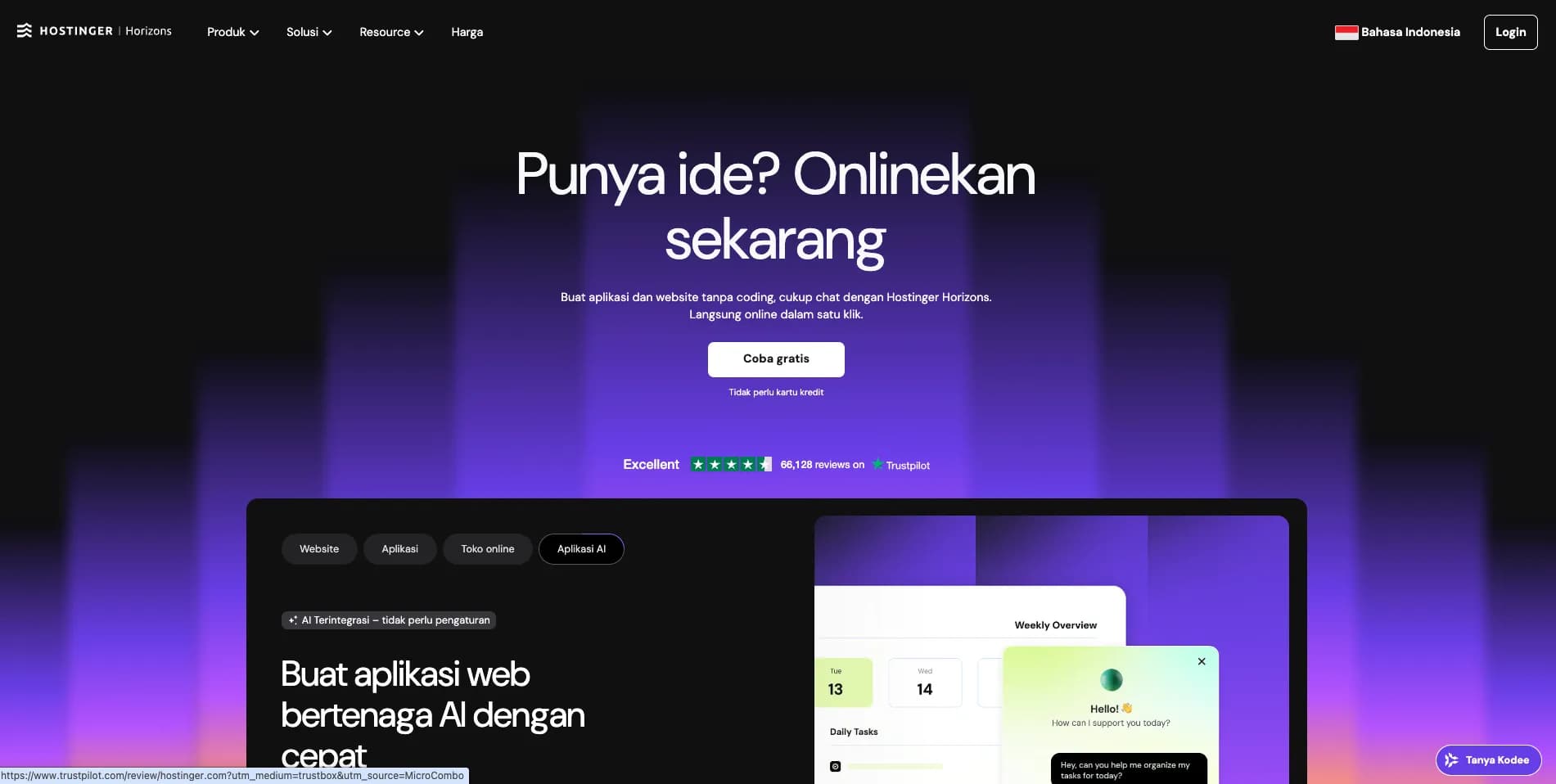
How to Create a Web Application Without Coding for Online Business
Complete tutorial on how to create a web application without coding for online business, starting from planning, creating, and putting the application online.
Hostinger: Global Infrastructure, Local Touch
The hosting platform that serves 5 million users in 150+ countries is now present with full commitment to the Indonesian market.
Cloudways Review
A complete review of Cloudways, a popular managed cloud hosting platform, discussing its advantages and disadvantages as well as how it compares to other providers. Suitable for beginners to developers.
Reseller Hosting vs Hosting Affiliate Programs: Which is More Profitable?
Compare the reseller hosting business model (cPanel/WHM) vs hosting affiliate programs in terms of margins, operations, risks and traffic requirements. Choose the monetization scheme that suits you best.