Building Website Pages with Elementor

Step 6 is the core of this guide on how to create a website with WordPress. I congratulate you on getting here. Great job! All I can say is that this last step is the most fun of all.
Still remember the blank pages you created in the previous step?
Now it's time for you to build those blank pages.
Building Pages With Page Builder Plugin
There are two ways to build pages in WordPress.
First, the method that requires coding knowledge: CSS, HTML, PHP and JavaScript (the hardest way).
Second, use the easy method (drag & drop) -> the method you will use in this guide.
Do you still remember how you used the drag & drop feature when customizing your website header?
Easy right? That's roughly how you would build a website using the Page Builder plugin.
Or if you have previously tried website builder platforms such as WIX and Squarespace, then you won't feel strange when trying the page builder plugin on WordPress.
In fact, in building this guide on how to create a website from scratch, I also used the page builder plugin (drag & drop).
I don't even have an IT background and I believe you can do it too.
Choose a Newbie
- Friendly Page Builder
Just like when choosing the Astra theme, before choosing the Page Builder plugin, I also tried various popular choices, such as Elementor, Beaver, and Brizy. Don't forget, I also tried Gutenberg Editors such as Kadence Block.
After spending hours trying out different page builders, I came to the conclusion that the Elementor Page Builder plugin is the best for beginners, for two reasons:
- Easy to use even for beginners (User
- Friendly)
- The free version is quite powerful and equipped with lots of features
- There are many free supporting plugins that you can utilize to add functionality
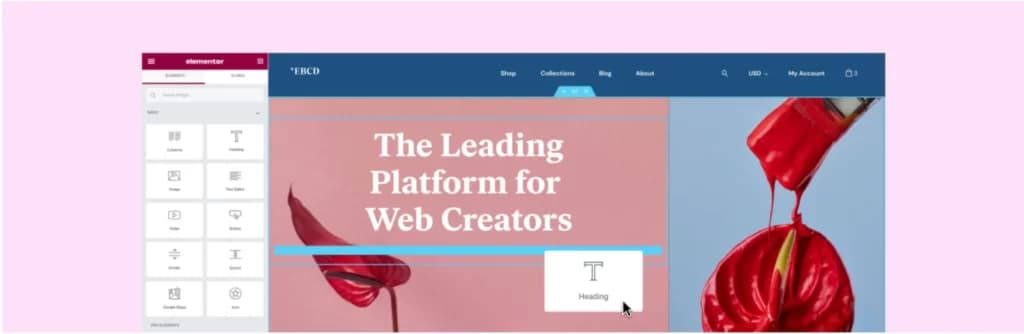
I believe you will love how to build your website pages using Elementor.
Currently it has been installed more than 5 million times and has received more than 5,000 5 ratings. You are using the right plugin.
To get started, please follow these two steps:
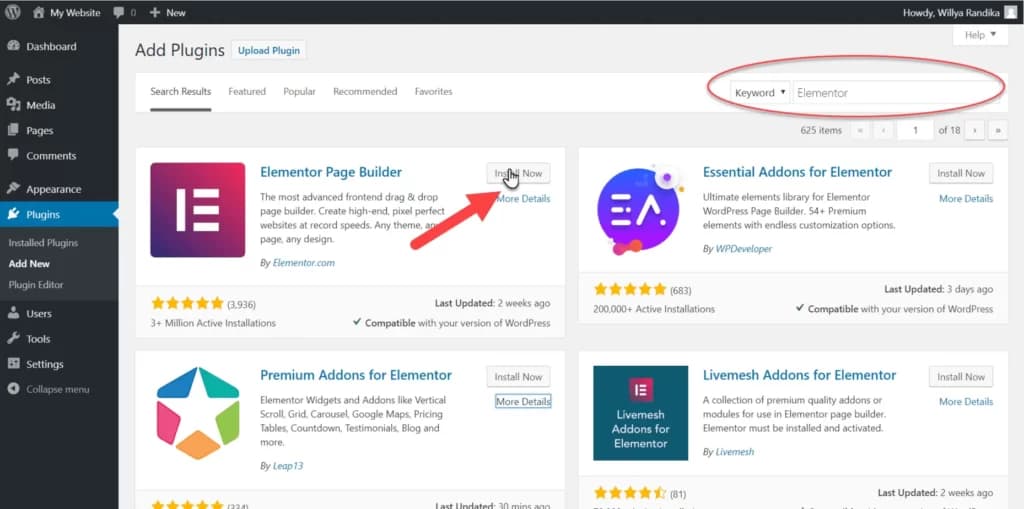
- Install Elementor pluginGo to Plugins > Add New > Search for “Elementor” in the search box.
Then click the “Install Now” and “Activate” buttons until the message “Plugin Activated” appears.
You need a supporting plugin for Elementor. The point is to add more functions to the Elementor plugin that you use, making it easier for you to create a website.
From the results of testing some of the best free supporting plugins for Elementor, I came to the conclusion that the Starter Templates from Brainstorm Force plugin is the best.
This Starter Templates plugin is a plugin created by the same team that created the Astra theme.
So, the combination of the theme Astra + page builder plugin Elementor + supporting plugin Starter Templates is the right choice and is the best based on the tests I did.
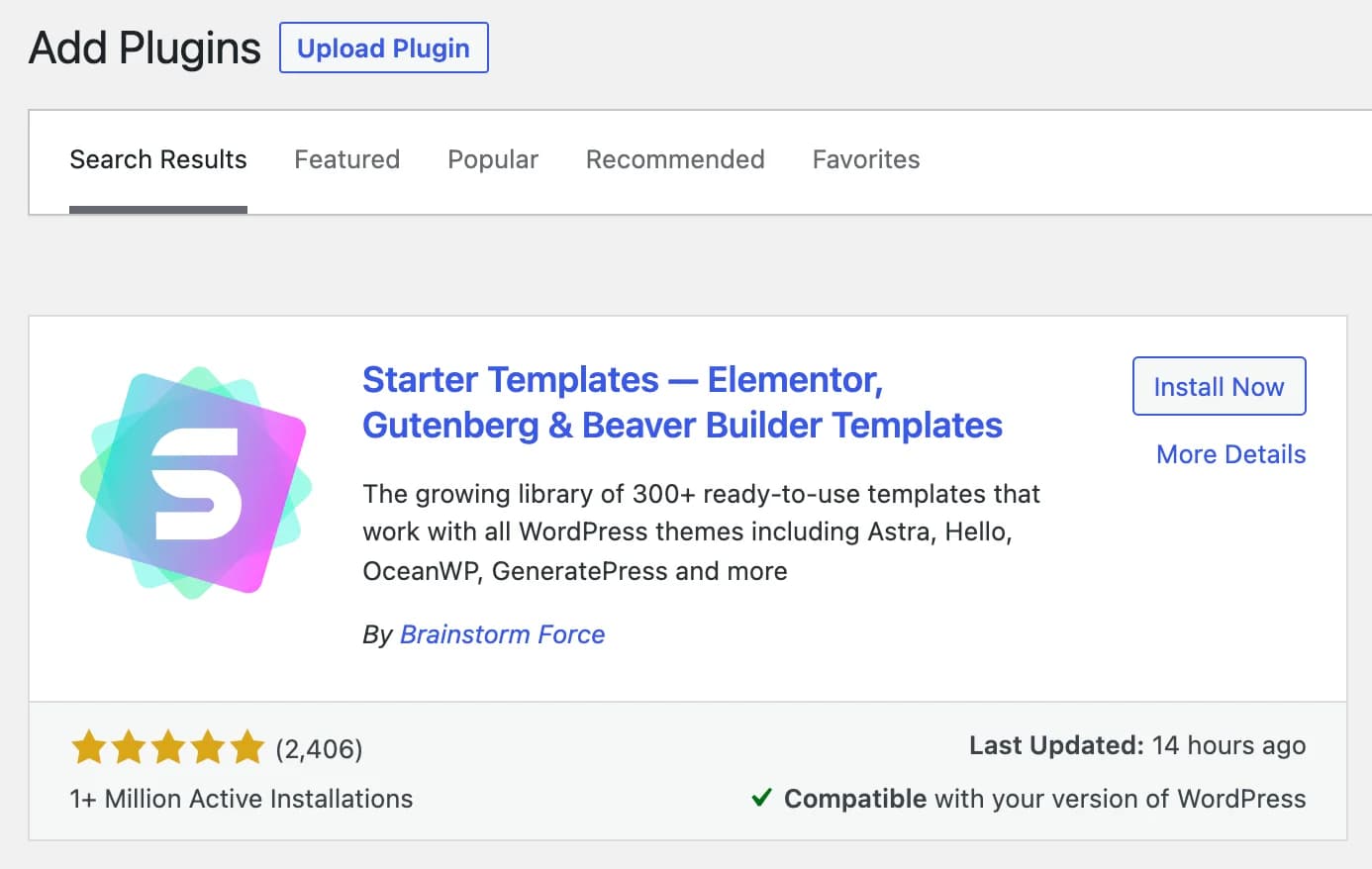
Go to the
Plugins section again > Add New > Search for “Starter Templates” in the search box.
Then click the “Install Now” and “Activate” buttons until the message “Plugin Activated” appears.
Building the Front Page (Home)
1. Preparation
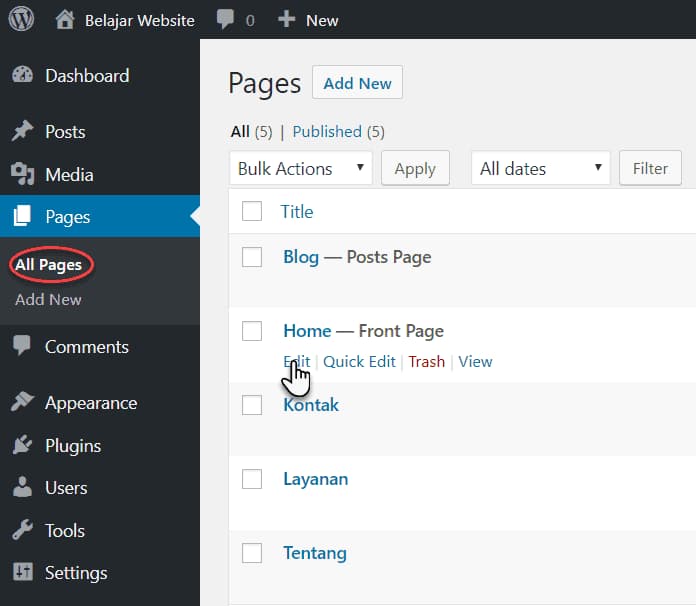
Go to
Pages.
Then Edit your front page, in this example I gave the front page title as Home.
Then, follow these setup steps to prepare your page before editing it with the Elementor plugin.
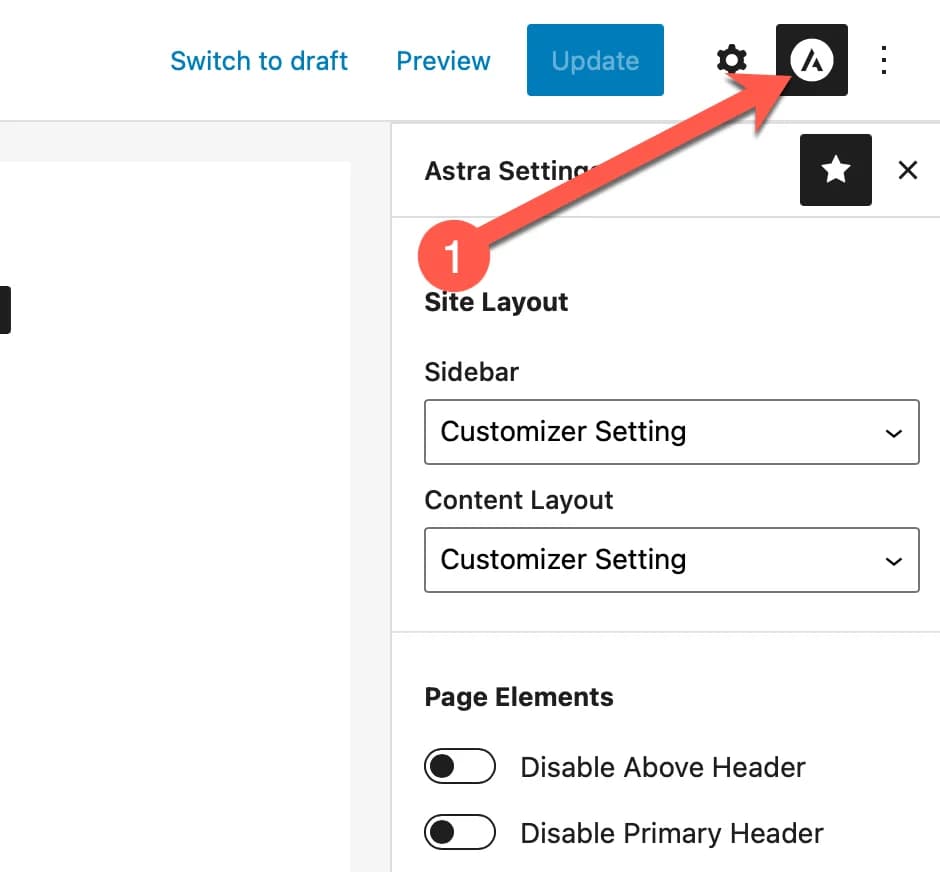
- Click the Astra icon located at the top right of your screen
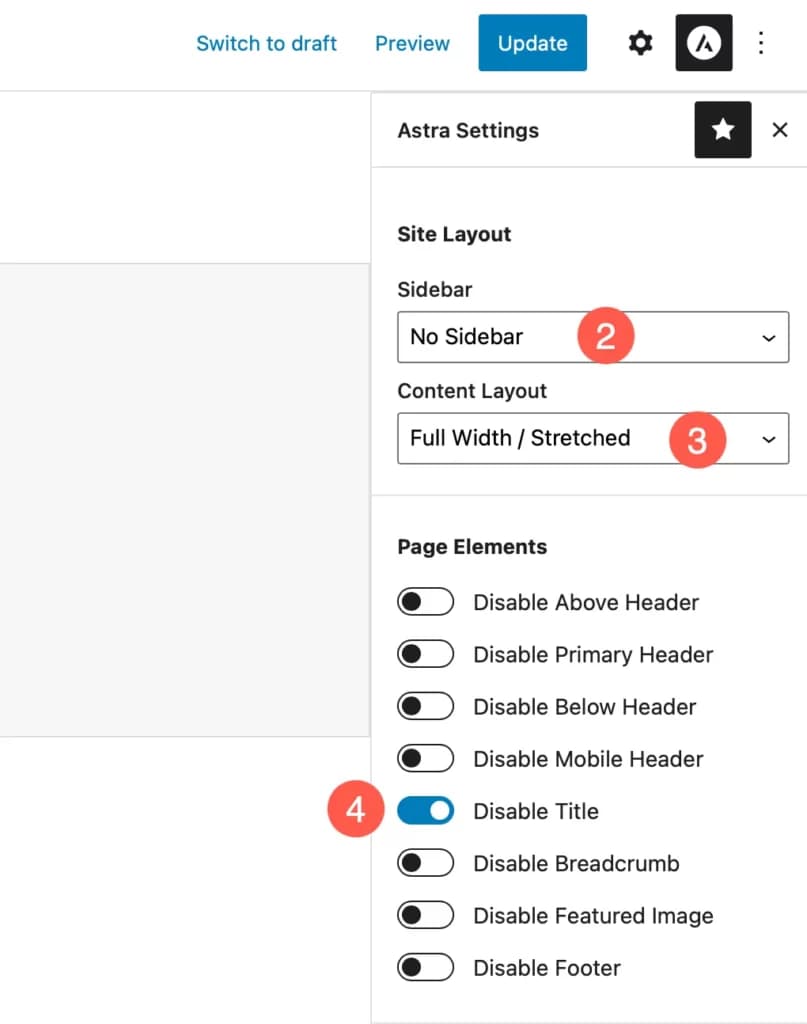
- Set the page settings as follows:(2) Change the Sidebar to No Sidebar (3) Change the Content Layout to Full Width / Stretched (4) And select Disable Title
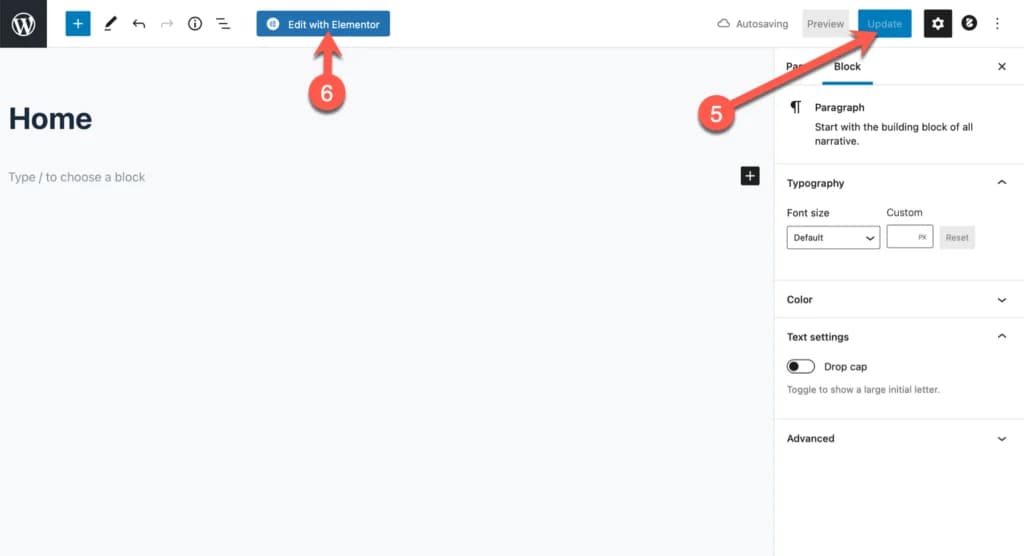
 3. (5) Click the Update button
(6) Then, click the blue “Edit with Elementor” button
3. (5) Click the Update button
(6) Then, click the blue “Edit with Elementor” button
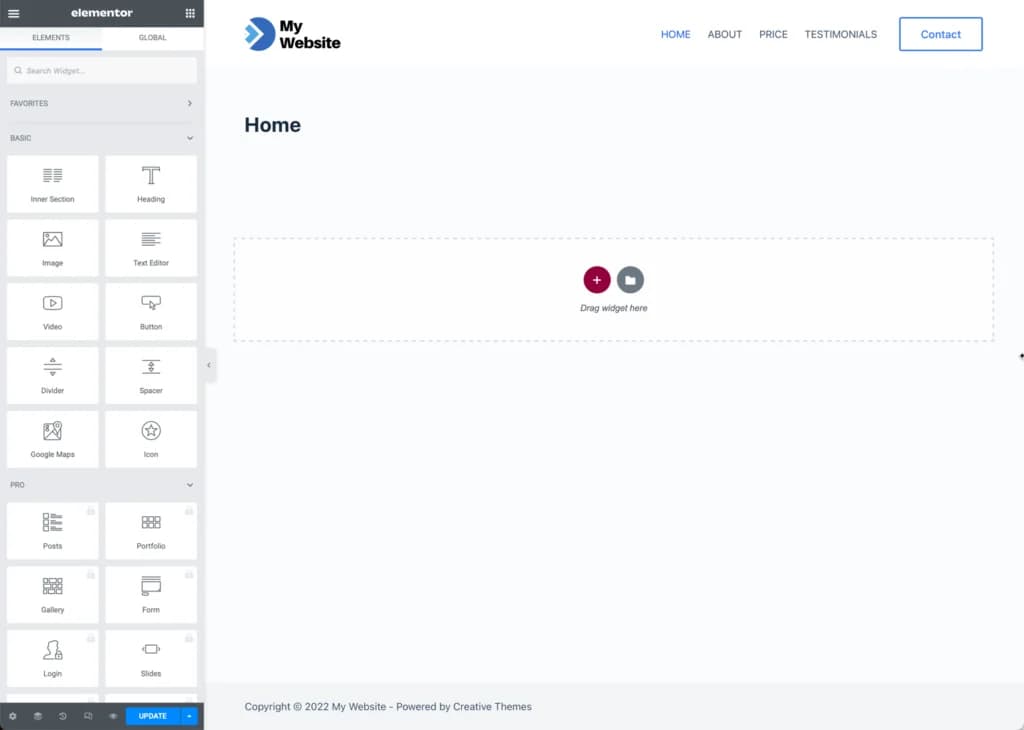
You will be taken to the Elementor Page Builder page.
This is where you build the pages on your WordPress website.
2. Get to know the Elementor User Interface
As you can see in the image below, there are 2 parts: left (green part) and right (red part) which are somewhat similar to the Customizer feature that you have used before.
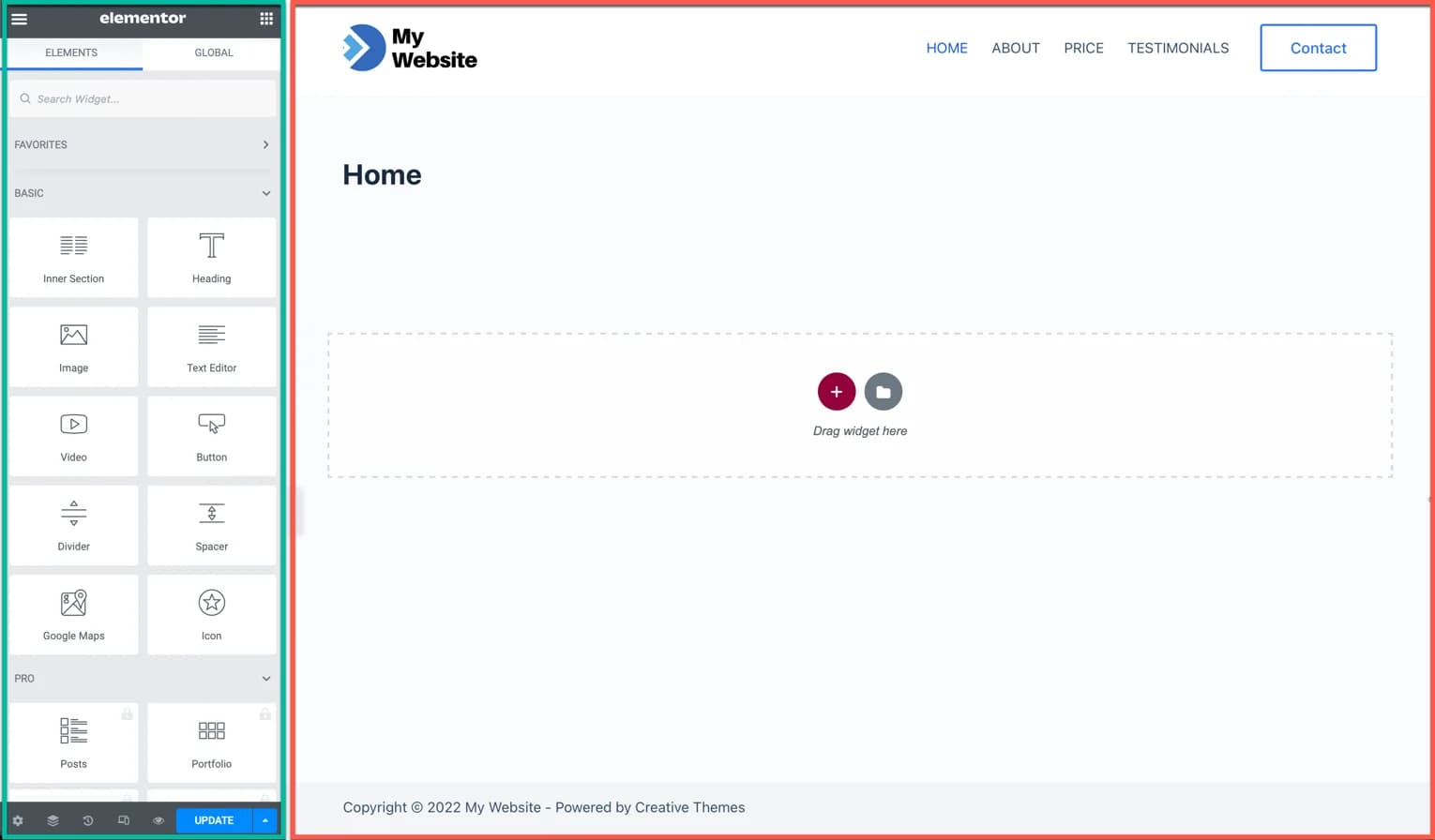
On the left there are widgets that you can use, such as:
- Heading widget to create page Titles
- Image widget for adding images
- Widget button to create buttons
- Icon widget for adding icons, etc
Meanwhile, on the right is the page that you will build. The way to add widgets to a page is by drag & drop. Just like when you use the header and footer builder from the previous Astra theme.
3. Build a Page using Elementor
From here on, you'll probably spend more time building pages using Elementor Page Builder.
In my opinion, this part is the most fun, because it is quite easy, and there are quite a lot of free templates and blocks provided by Elementor to help you build pages.
Oh yes, there are two ways to build a page:
First and the easiest way is to use a pre-made template, you just need to make modifications.
Second, design the page from scratch. This is not a good method for beginners.
So, in this guide I will guide you using the first method, namely using an existing template and modifying it.
3.1 Using Existing templates
Follow these steps:
- Click the icon as shown in the screenshot below.
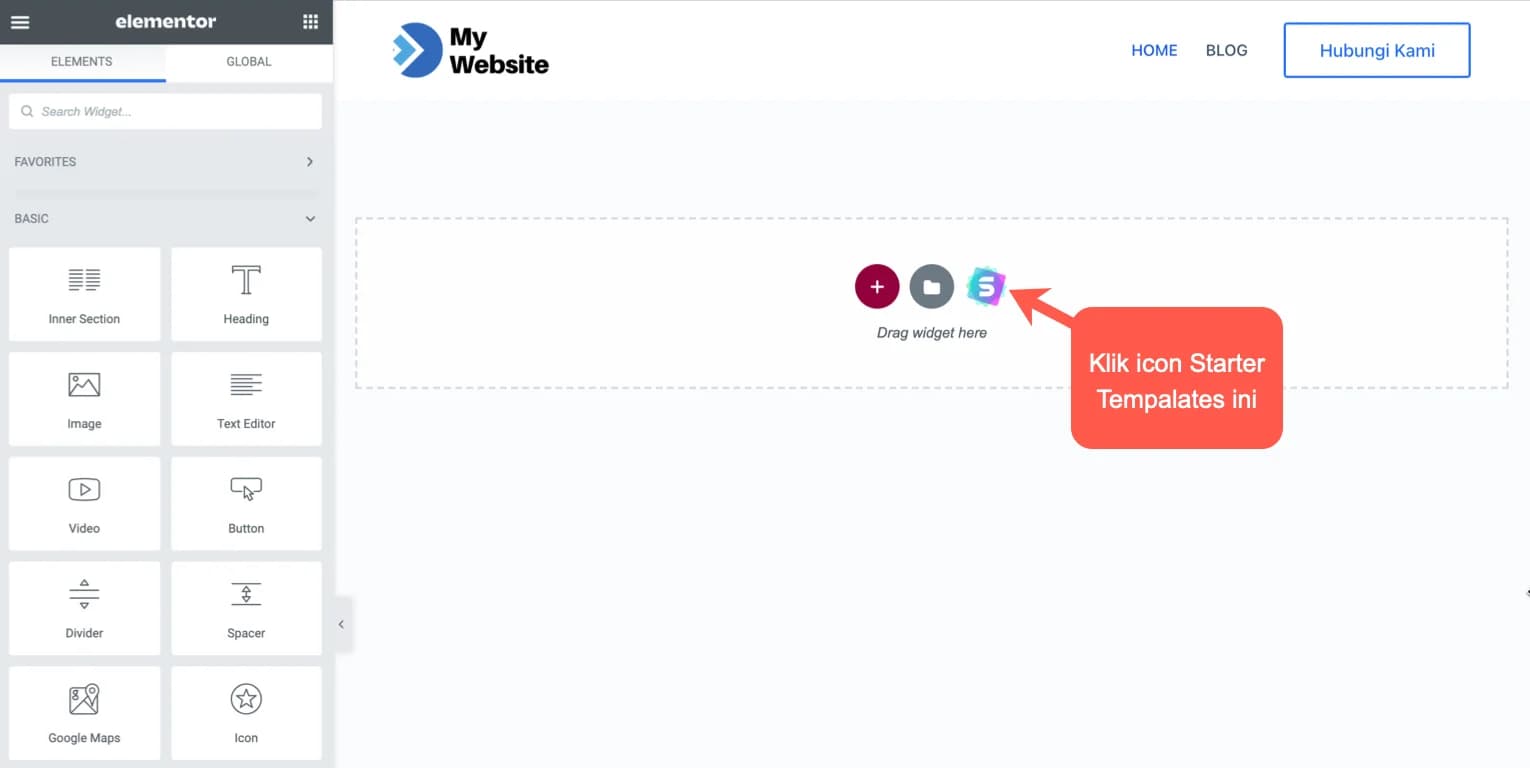
Then it will appear.. We will call this the
Template Library, which is a place where you can search for templates, both template pages (a finished template) and blocks (templates per section).
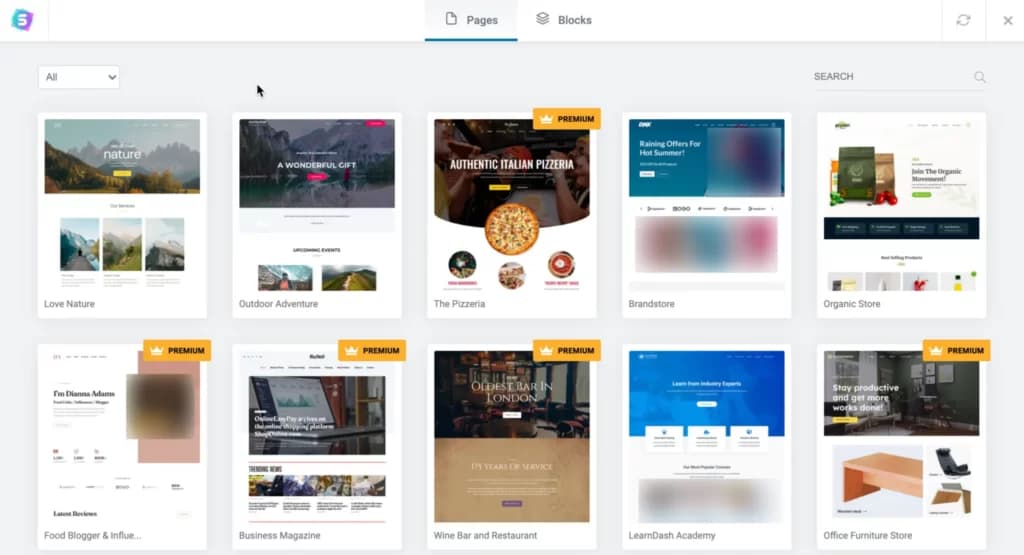 This template library is provided by the
Starter Templates plugin that you installed previously.
Questions may arise in your mind:
Why not just use the template provided directly by Elementor?
Because there are not many free options. I checked and they kind of force you to upgrade to the PRO version to use all the templates they make.
That's the biggest reason why I chose to use a supporting plugin like Starter Templates, namely to make it easier for you when building website pages.
The template library from Starter Templates has two templates, namely the shape Pages and the shape Blocks.
Apa bedanya template pages dan blocks?
Pages adalah template jadi. Complete. Biasanya terdiri dari kumpulan dari bagian:
- Heroes
- Features
- Price
- Testimonials
- Team
Meanwhile blocks are parts of the finished template above.
Misalnya, Hero adalah block. Features are blocks. Testimonials adalah block.
- Kembali ke template library tadi. Look for a template that you like or that suits your website needs.
First of all, you can filter your search by only displaying free templates.
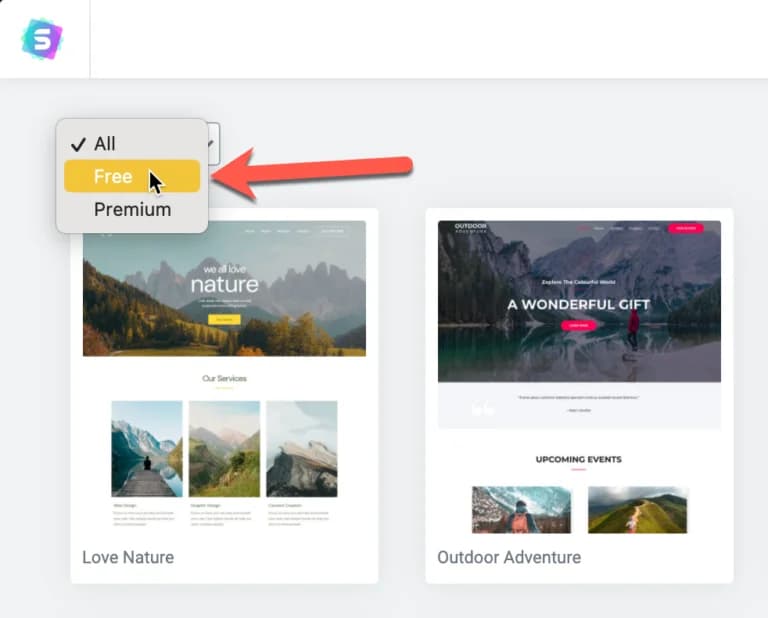
As of January 5, 2022, when I was updating this guide on how to create a website with Elementor, I counted around 99 free page templates available.
Or you can also search by entering certain keywords in the search box, such as: business, organic, clean, CV, etc.
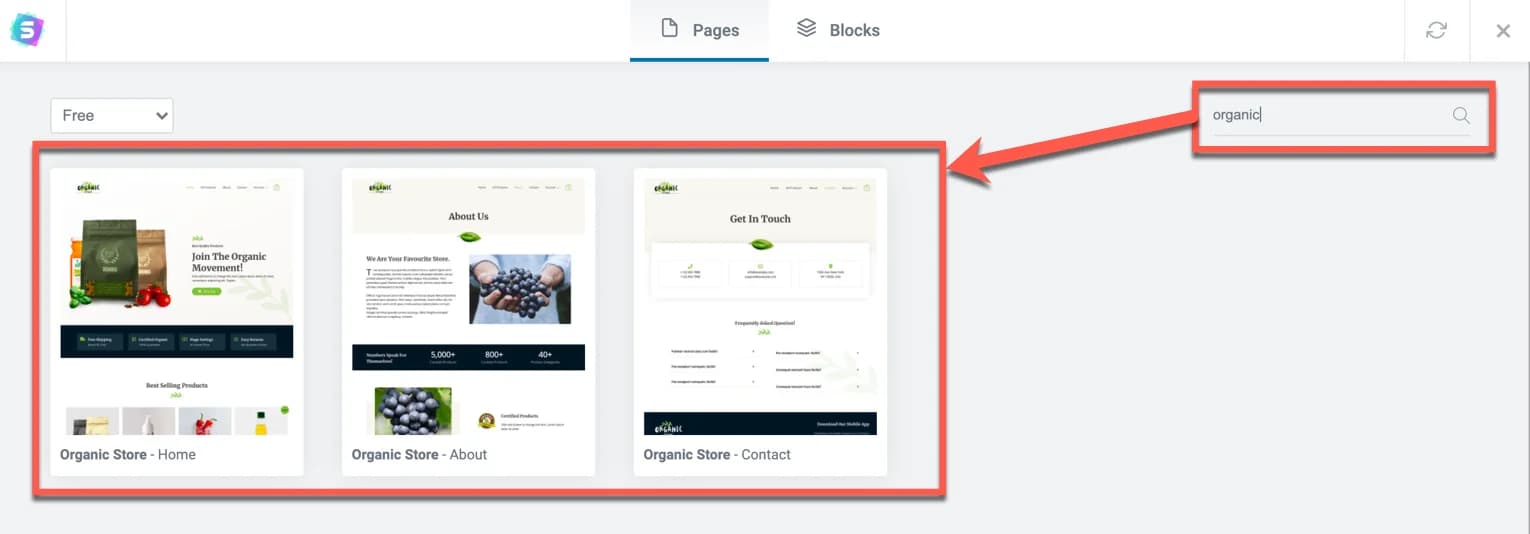
For example, in this example of a guide on how to create a website, I use the "Love Nature" template. *
Note: You can choose another template, it doesn't need to be the same as this one. Look for a template that suits your website needs. *
Then, click on the image.
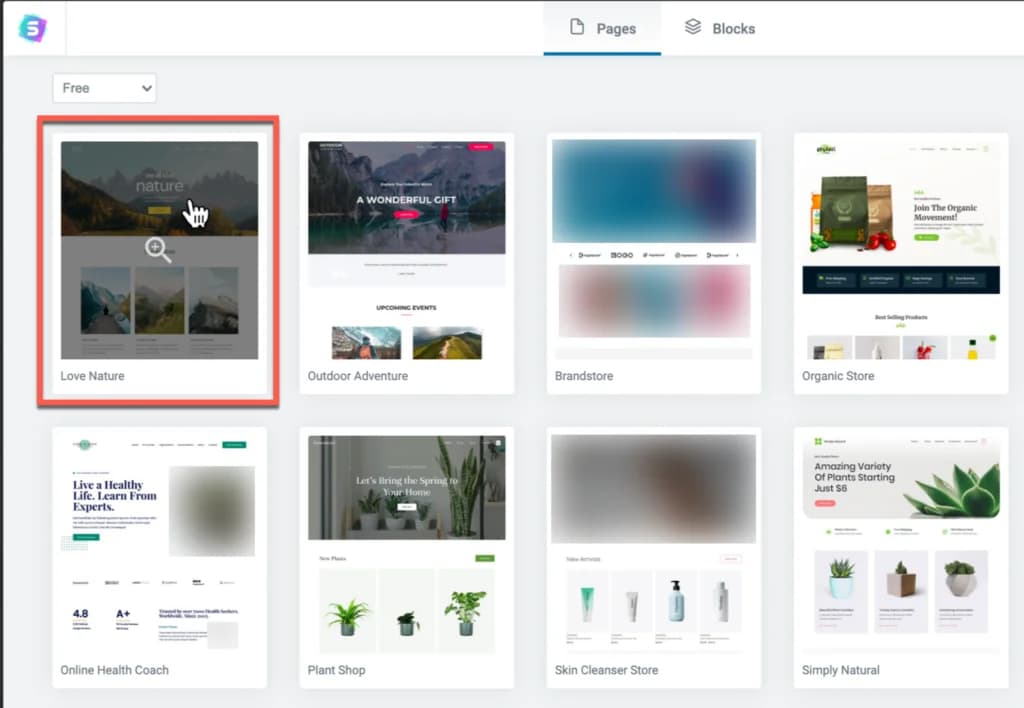
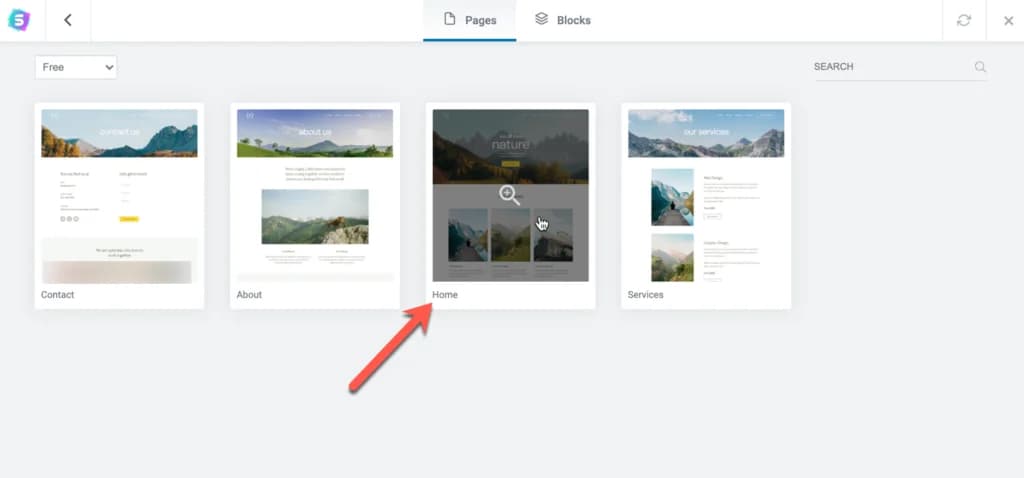
Several options will appear from the "Love Nature" template. Because you are currently building a home page, click the "Home" template.
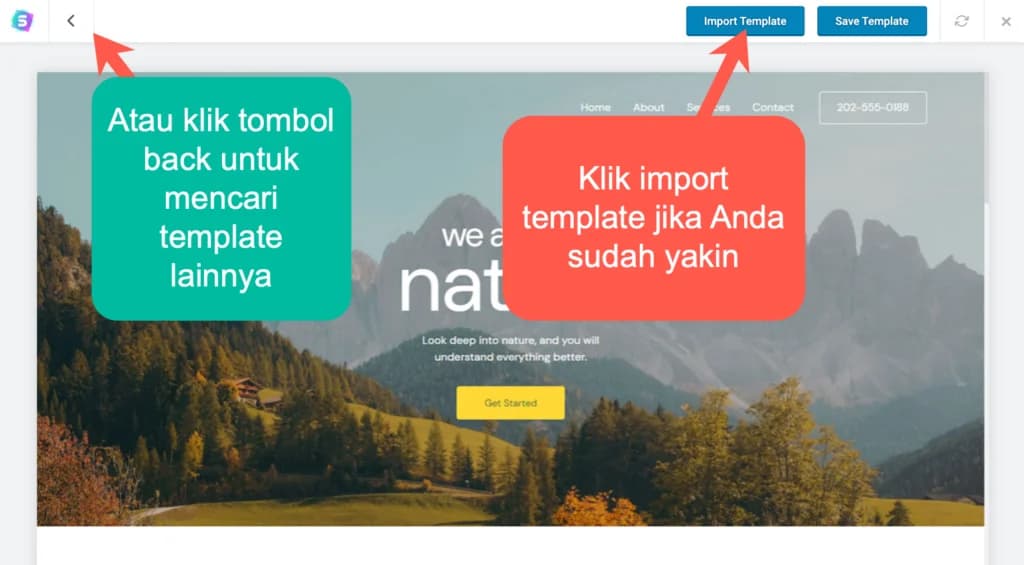
Before the template is inserted into the home page, you can first see the full layout of the home template you chose earlier.
4. Modify the Template
So, now you have a template and you are probably ready to make modifications to the template you chose.
I'll walk you through modifying some of the important elements that I think you need most:
When you insert the template into the page, you may notice that the top section (the term in web design is "Hero") or other sections are not full width as shown in the screenshot below:
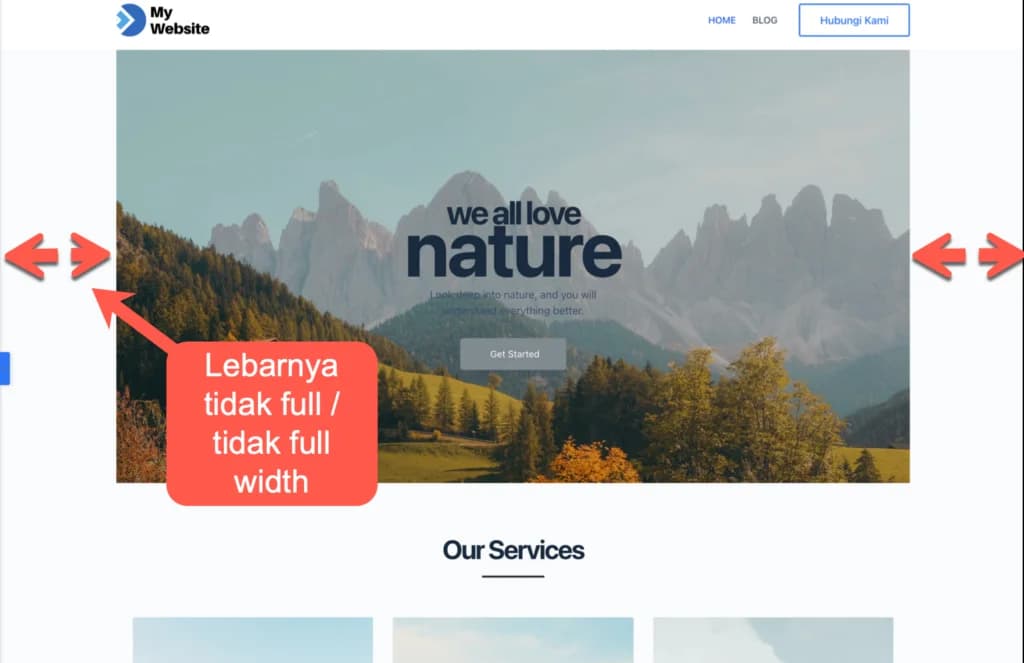
You can make the width full or full width by setting it to full width.
It's easy. Move your cursor to the section you want to make full width. Notice that a blue box line will appear. At the top, there are three icon buttons next to each other.

- The icon marked plus functions to add a new section
- icon marked with six dots for editing sections
- And the icon marked "X" functions to delete a section
So, click on the icon marked with six dots in the middle and the settings in that section will appear on the left of your screen.
Then, activate or click full width section on toggle as I show below:
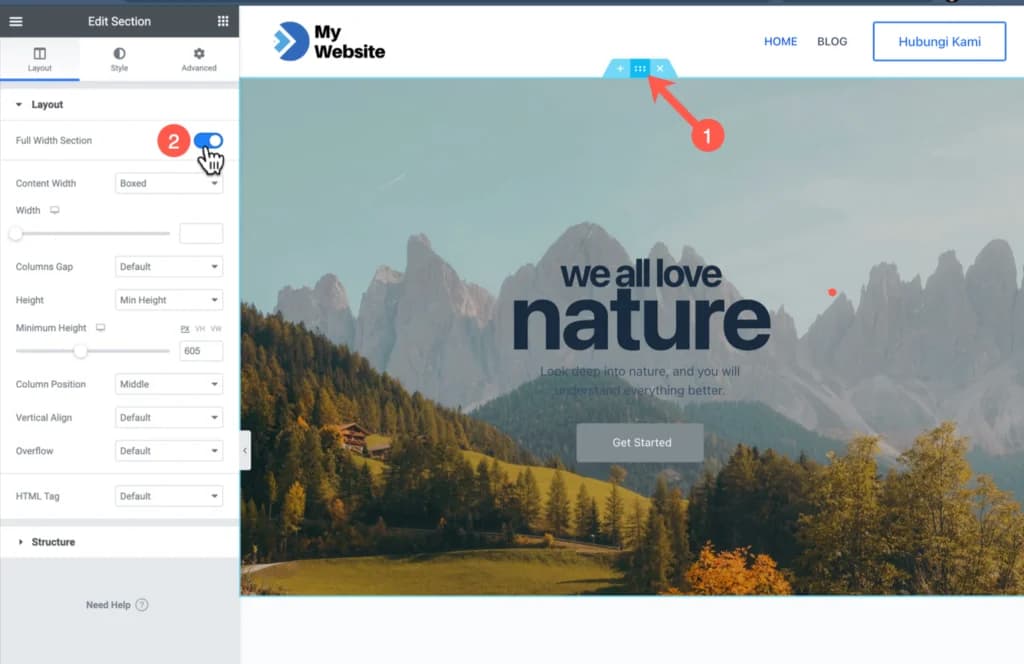
This is optional and depends on your taste or design needs. But, if you want to make your header transparent like below, then this is also easy to do.
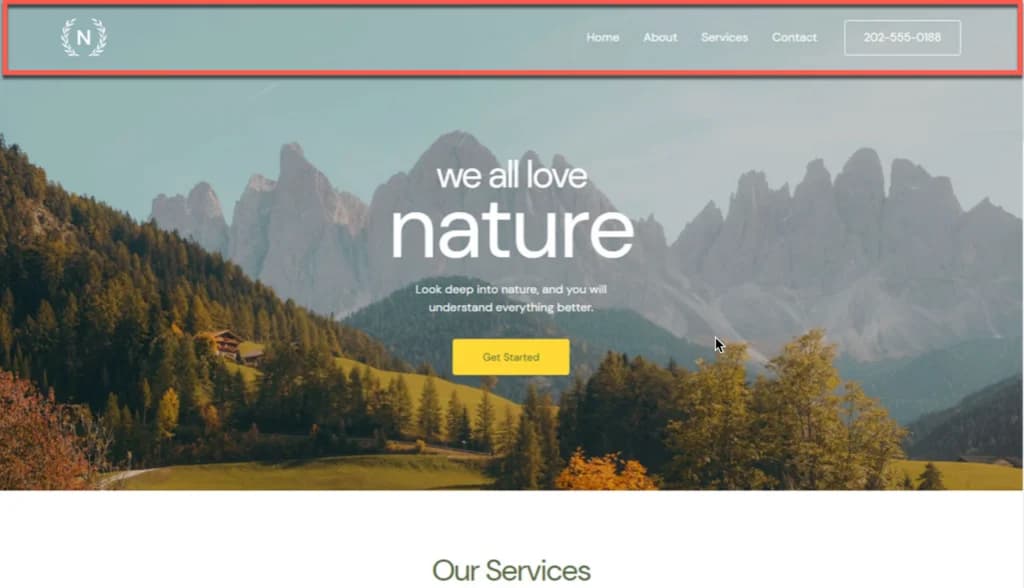
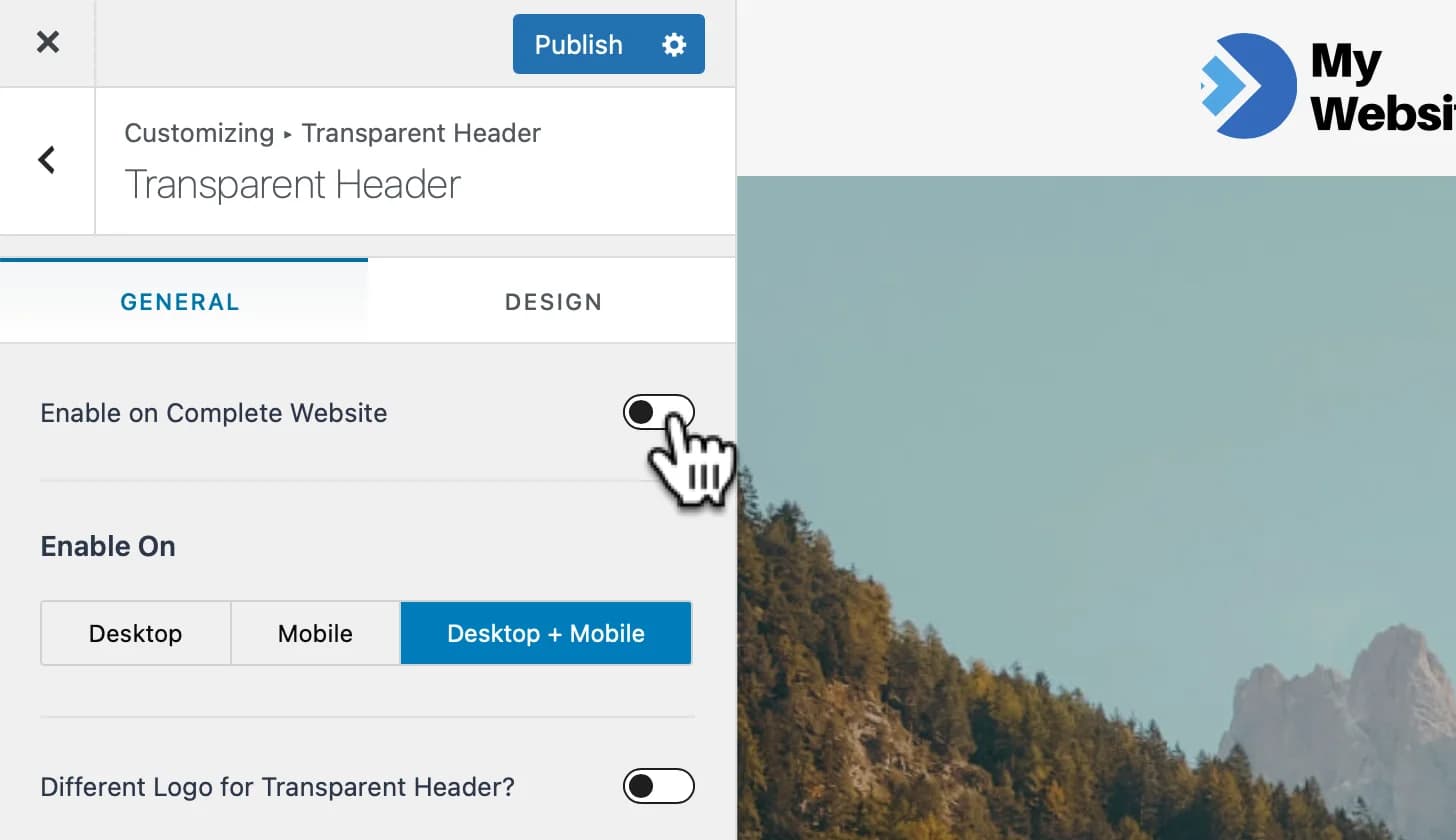
The settings are in the Astra theme, so you may need to open a new tab in your browser and in your WordPress dashboard, go to Appearance > Customize.Go to Header Builder > Then click Transparent Header
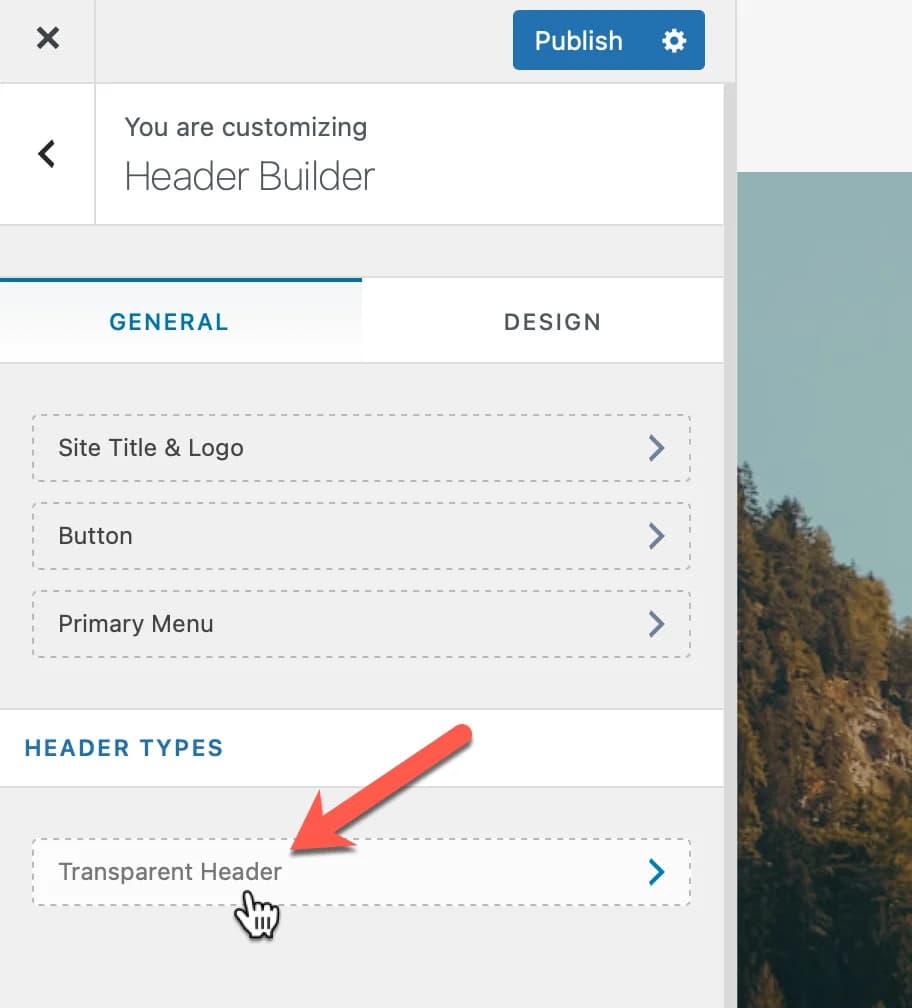 Then, activate Enable on Complete Website as I directed below to make the header transparent.
To change a text or button, you simply click on the element you want to change.
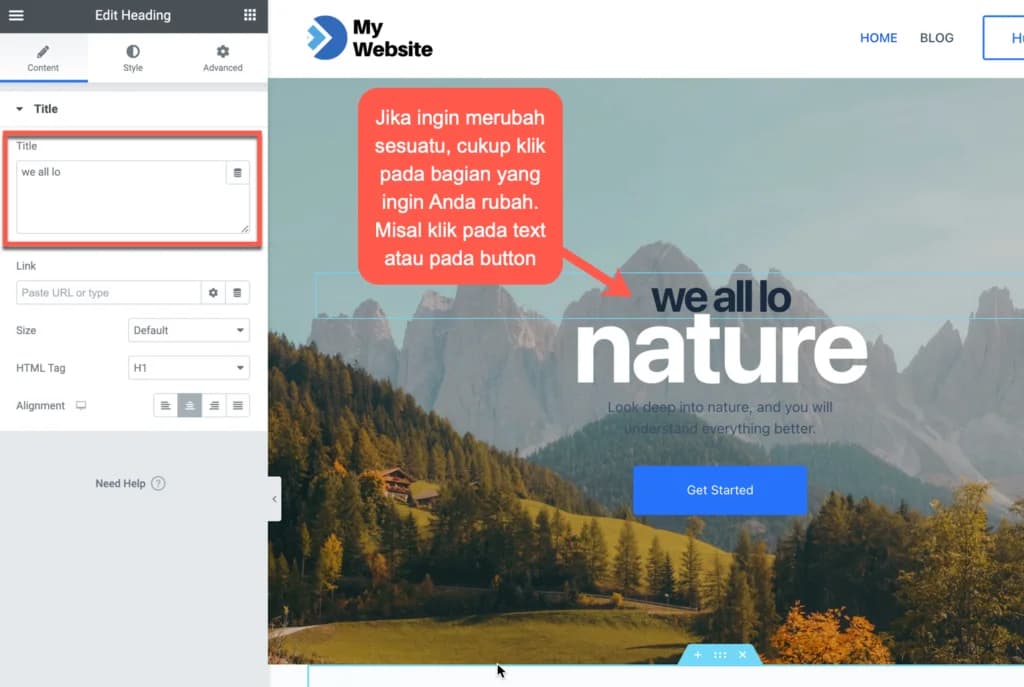
Then pay attention to the panel on your left, the panel immediately turns into an editor for the element you clicked on.
You can change the text directly from the element, or from the panel on the left.
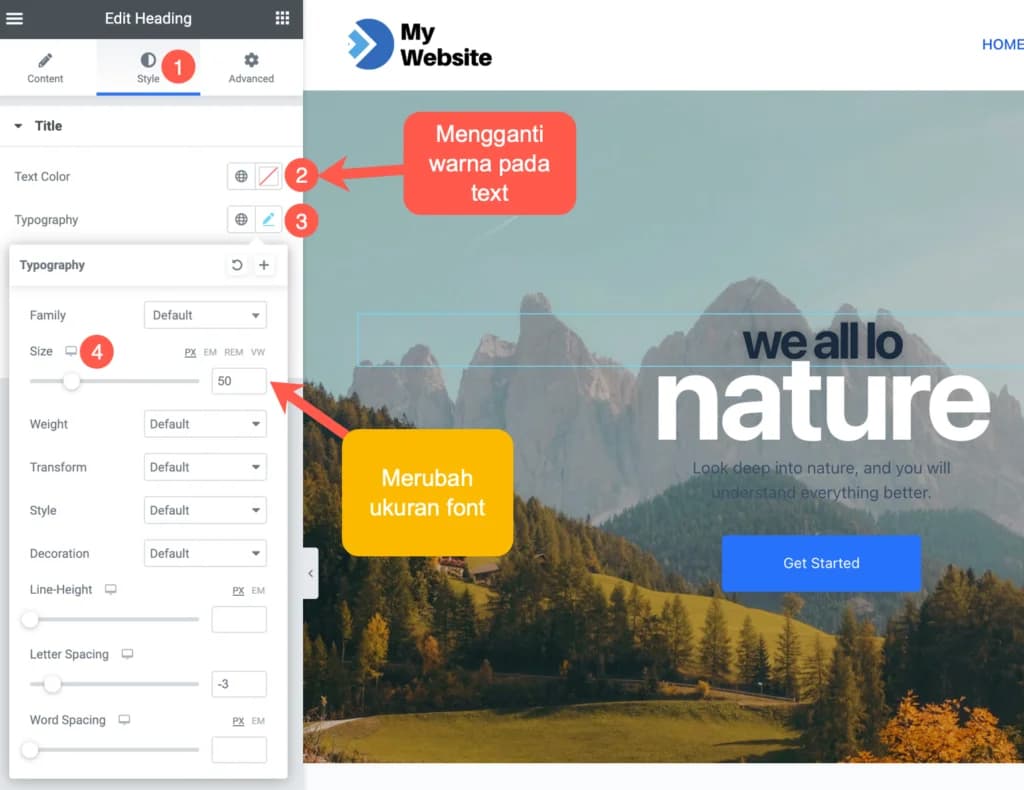
How do I change the style, such as color, font size and so on?
Click on the "Style" tab to adjust the text color, size, shadow, and so on.
What about buttons or buttons?
The same way as when you change text. You first click the button you want to modify, then the button editor panel will appear on the left of your screen.
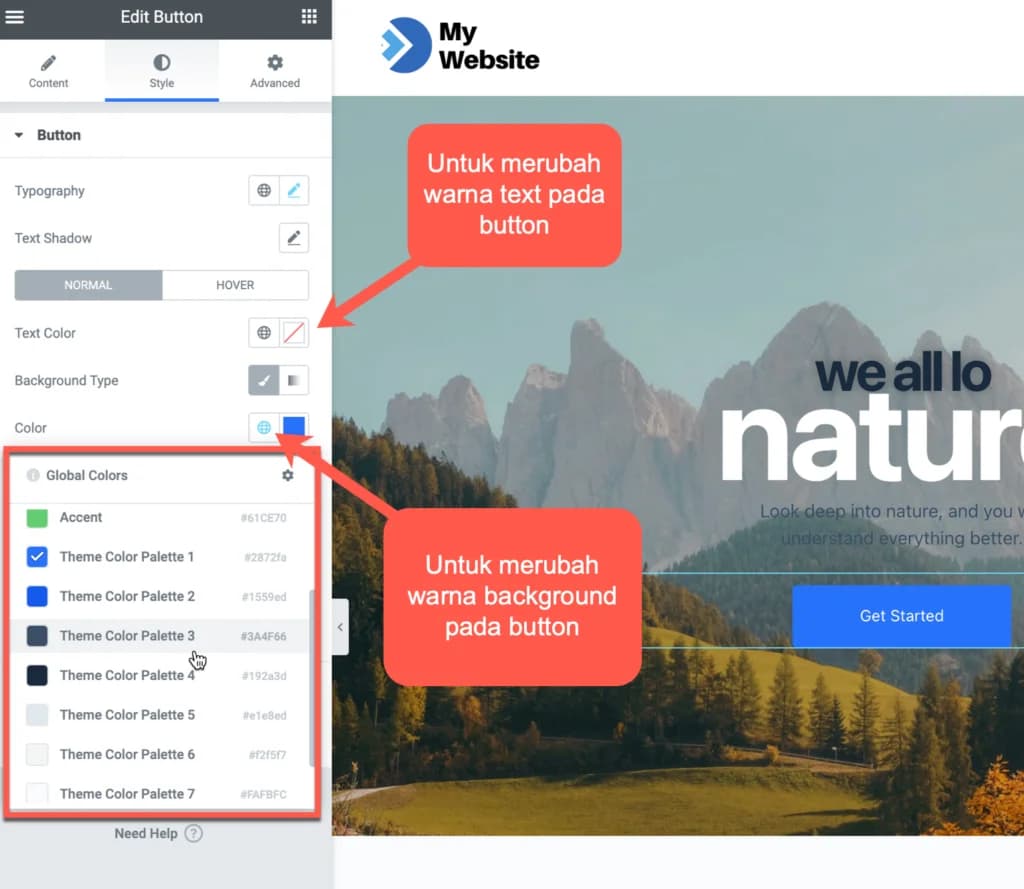
Pay attention to what I put in the red box above. All the color palettes that you previously set in your Astra theme will appear.
I recommend using consistent colors, therefore choose colors based on the available color palette.
If you want to change your theme's palette color set, go back to the colors settings in your Astra theme's customize feature.
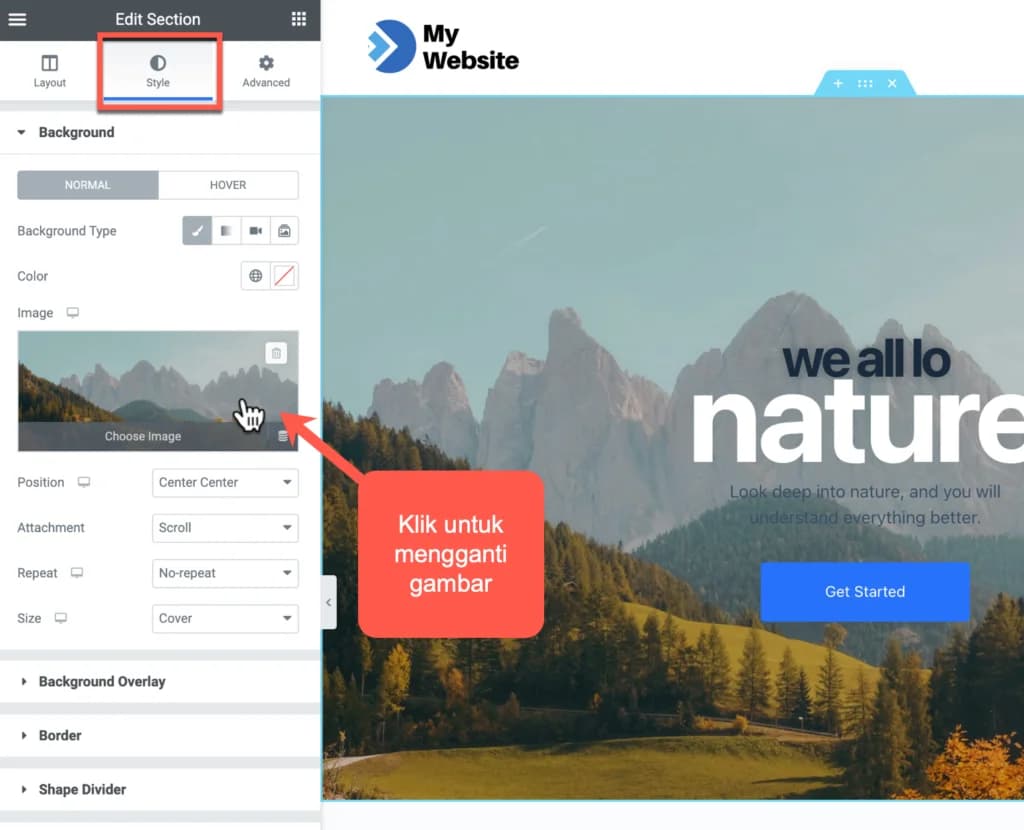
There are different ways to change images depending on the widget or element used.
If the image you want to replace is a background image, then the way to do this is to point your cursor to the background image you want to replace, and click the edit section icon (the icon marked with six white dots).
Then click on the image to replace it with another image.
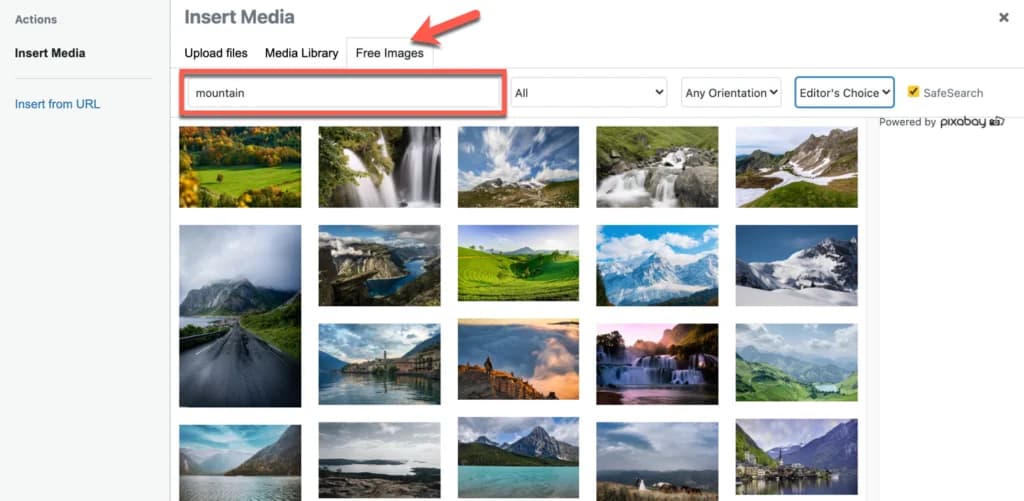
By the way, the Starter Templates plugin has a feature to fetch images directly from the Pixabay site. You can search thousands of free images directly from the Media Library.
Make sure you click the “Free Images” tab to find the image you want.
Really a great plugin, right?
What if you want to replace an image that is not a background image, like the one below?
Just click on the image you want to replace and click “Choose Image” in your left panel.
I believe there is a high probability that you will add a new section to your page design.
Maybe you want to add other information such as features, testimonials, FAQs and so on.
There are three ways:
- Build a section from scratch (not using a template)
- Use the template block provided by Stater Templates
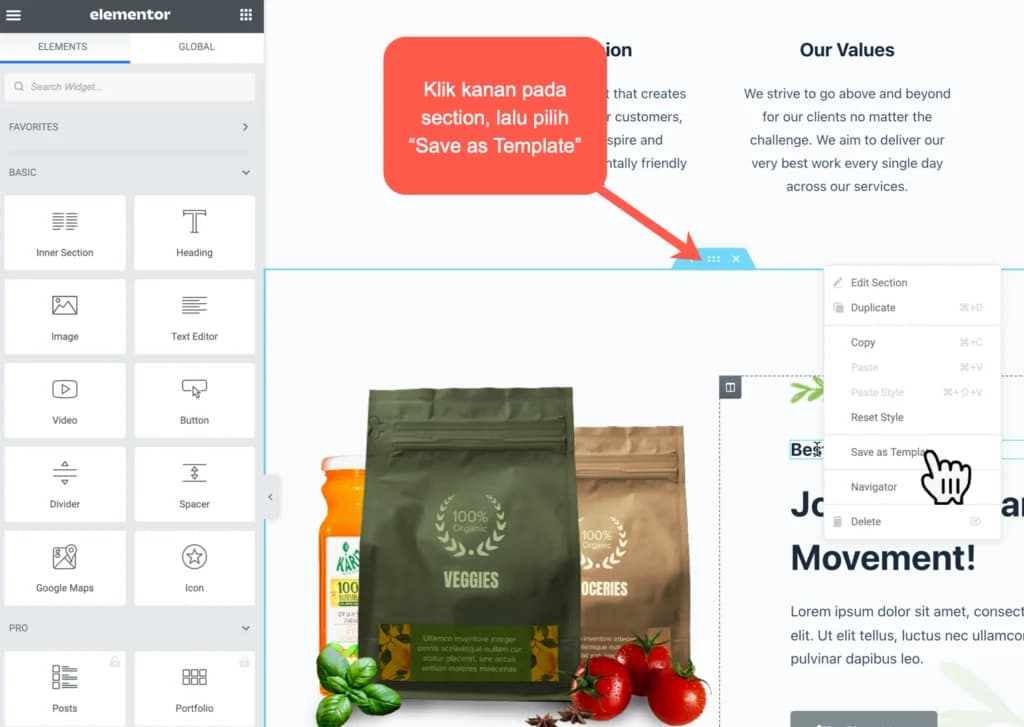
- Take sections from other template pages
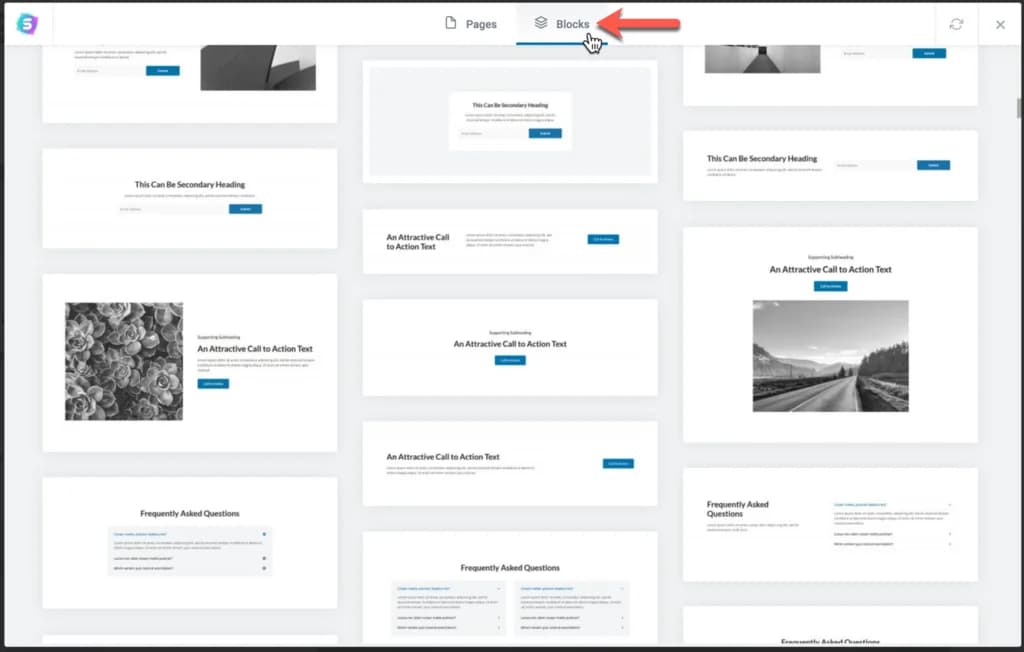
The second way, choose a block from the Template Library.
There are more than 100+ blocks. And unlike template pages, you can use all of them for free. Wo-ho!
The third way, take sections from other template pages. This method is a bit complicated, but there is nothing easier than making it from scratch.
5. Finish Your Home Page Design
Elementor is quite easy to understand.
Maybe you will encounter difficulties when you first start building your website pages, but that's normal, you need to try and explore other parts of Elementor to get used to using it.
At this point, you are free to be creative, such as changing the background color, adding sections and widgets, creating buttons, and so on.
Then, what about other pages, such as the about us page, services, or any pages other than the homepage that you created?
The method is the same as creating a home page, you just need to repeat the process from the beginning.
Launching Your Website
If you really follow the guide on how to create a website from start to finish, I believe your website is ready for launching.
What's Next?
Honestly, there is still a lot you need to learn. This guide is just the beginning.
I'll probably make another guide (am struggling looking for time), like this guide:
- Create a contact form and integrate it with webmail and 3rd party email
- Choosing the best plugins for SEO, Performance, Security, etc.
- How to maintain a WordPress website
- On Page SEO Tips
- And others..