Choosing a WordPress Theme

Just for your information, WordPress has 6,000+ free themes that have been professionally designed in their database. You can explore it like a child in a candy store.
Your website is still empty, you need to create several pages, such as the front page (home), about, contact, etc. Also, you need to choose a website theme. In step 4, I will also guide you in choosing the best WordPress theme for whatever your needs are.
How to Choose a Theme?
- Access free WordPress themesClick Appearance > Themes and click the “Add New” button to access the free themes available in WordPress.
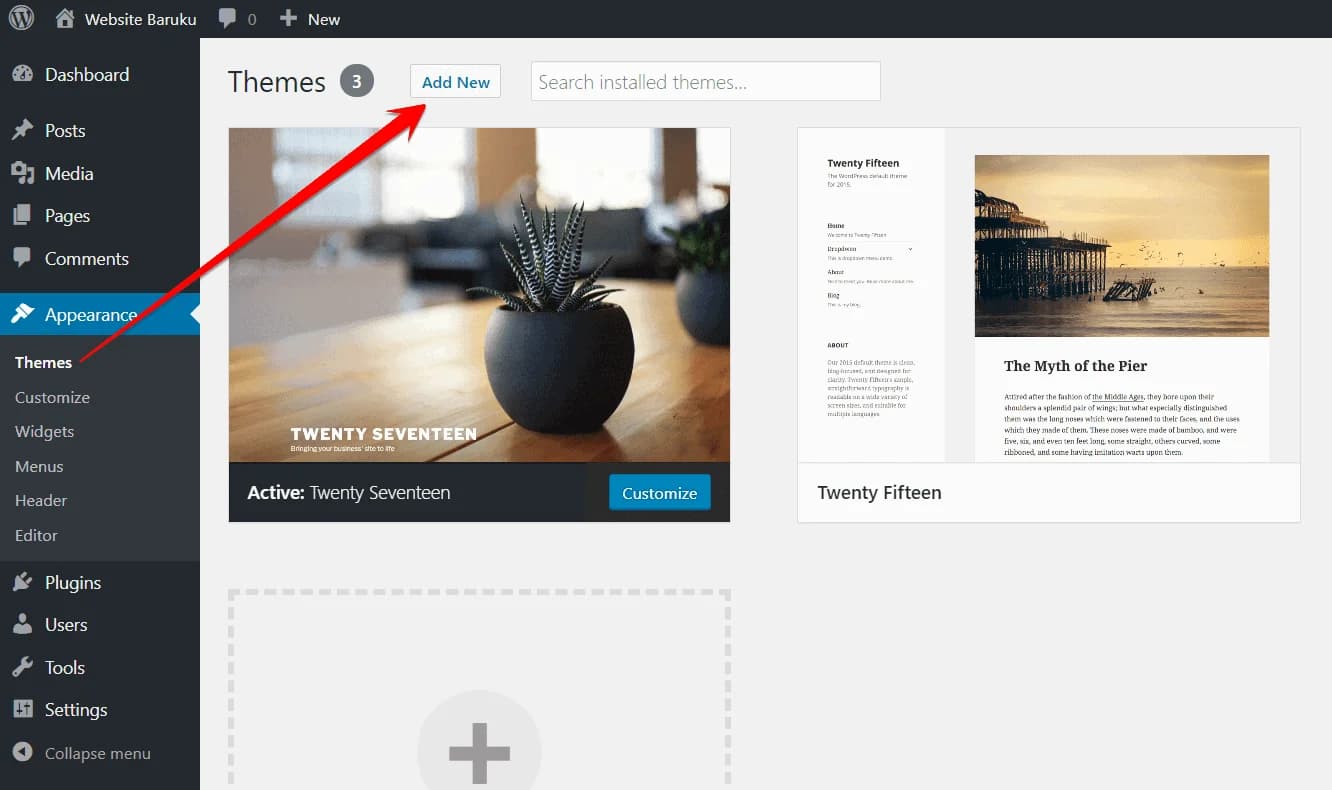 And boom! You have access to over 6,000+ free WordPress themes!
Now you can browse a wide selection of themes like a kid in a candy shop.
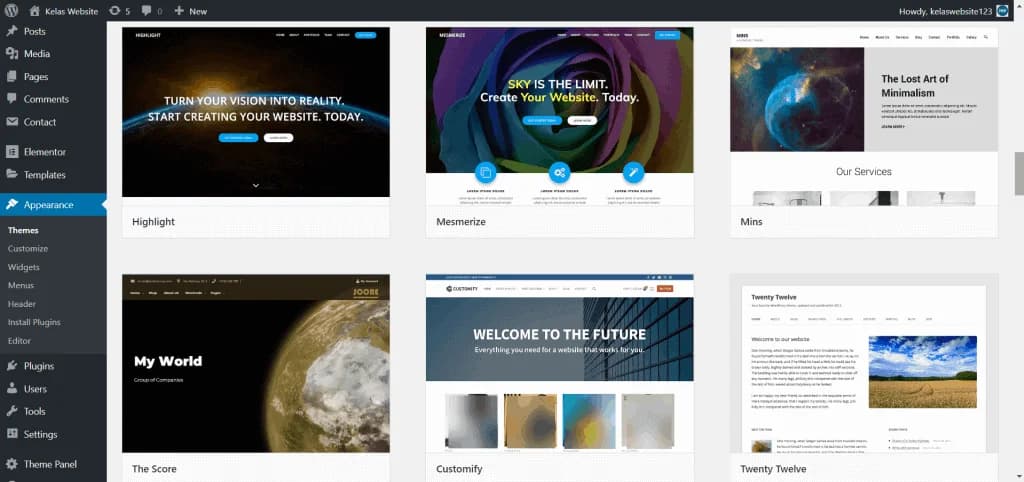
At this point, I need to tell you that before completing this guide on how to create a WordPress website for beginners, I have tried various popular WordPress themes which I think are easy to use for anyone and whatever their purpose.
Popular themes such as:
- Astra (1 million+ installed)
- OceanWP (700k+)
- Kadence (100K+)
- GeneratePress (400k+)
- Blocksy (50k+)
- Dan Neve (300k+)
After trying everything, I came to the conclusion that, which:
- Free
- Easy to use for beginners
- Easy to customize
- Fast and SEO friendly
It's Astra. *
-
You can choose other themes if you want. However, my recommendations will not be far from the 6 themes that I have mentioned above.
-
All the themes I mentioned above are freemium. This means that you can use it for free, but if you want more features, you have to pay a fee to upgrade to premium.
-
Astra in my testing was a powerful free theme. You don't even need to upgrade to premium to create a good website.
You can add the Astra theme directly from your WordPress dashboard.
Type Astra in the search field at the top right.

Then hover your cursor over the Astra thumbnail and an install button will appear.
Click the “install” button then “Activate”.
And once you click the "Activate" button, the theme is active.
Great job!
If you have installed it, now is the time to create page content on your website. Content on pages such as:
- Home
- About Us
- Our Services
- Contact Us
- Blogs
- Testimonials
Or whatever page you need.
How to create a new page and add articles?
In fact, writing content on WordPress is easy.
However, there is something you need to know beforehand, namely that WordPress has 2 places you can use to add content.
There are Posts and there are Pages.
"Why are there 2 places? So what's the difference between Posts and Pages? (It's important to know before you move on to the next stage, so I recommend not skipping this part).

Posts and Pages do look similar, but have different functions.
- Post is used to publish articles of a regular nature on your website. For example, if you want to publish articles once a week or twice a week, then you should write them in Post form. Apart from that, Posts can also be divided by category. Let's say you have a website about news, and you have articles about technology news, political news, archery sports news, education news, and so on. Then you can put it into a category to make it easier for visitors to find. For example, I included an article on how to create a website using WordPress in post form.
- Meanwhile Pages are fixed or static in nature. Pages created in Pages cannot be categorized. Examples of pages that are usually created using Pages are the home page, about us, contact us, testimonials, our products, vision/mission, etc.
How to add Pages
If you want to create an ‘About Us’, ‘Contact Us’, ‘Vision/Mission’ page, etc. then you have to write it in the form of Pages.
The method is as follows:
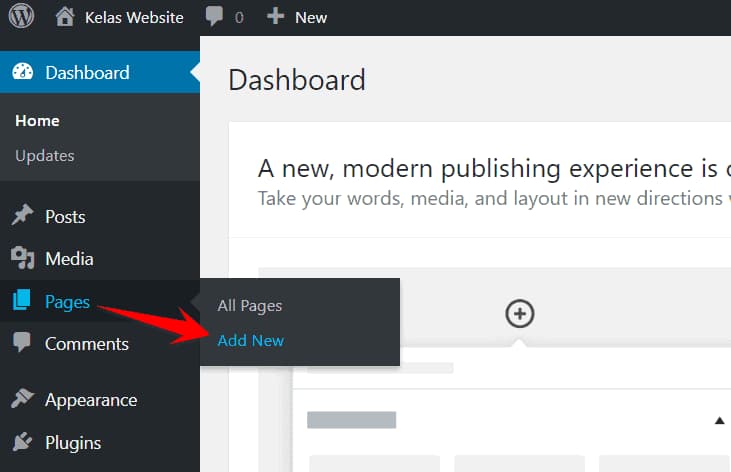
- In the left sidebar on your screen, click Pages -> Add New.
 2. And this is what the WordPress pages editor looks like.
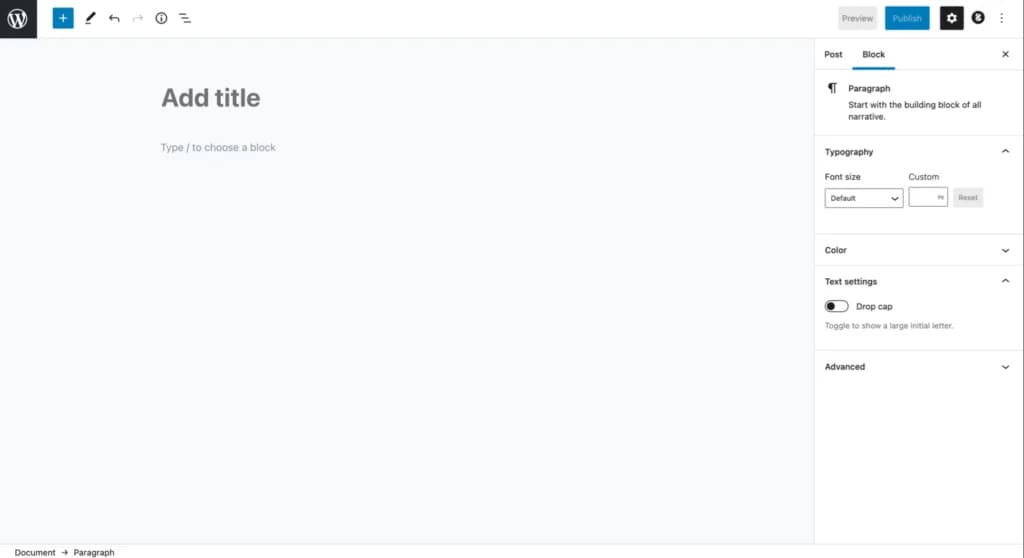
At this point, you only need to fill in the page title then immediately click the "Publish" button.
(Spoiler: Because I will invite you to design a website page using the Elementor plugin (?) later in the next chapter).
So, just leave it as is, empty like this.
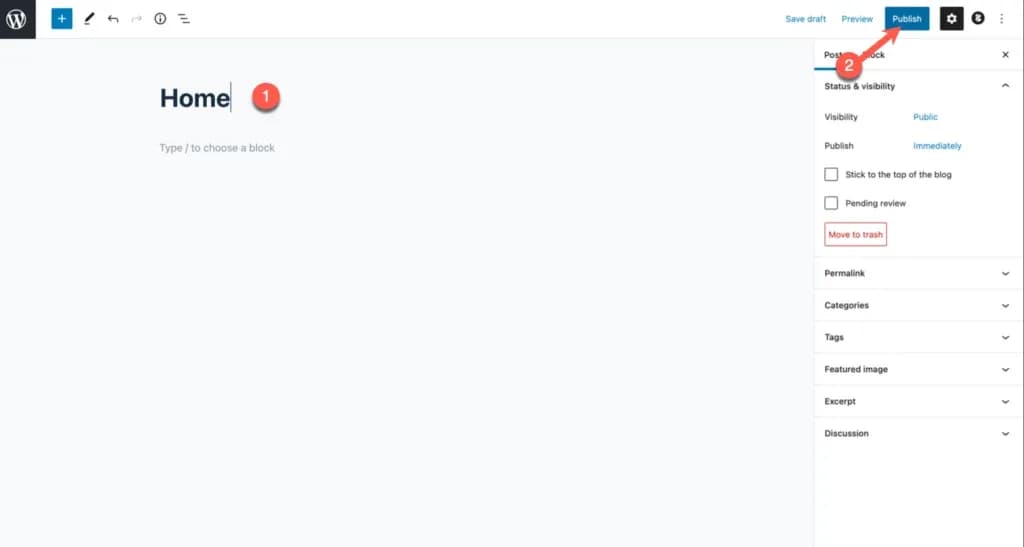
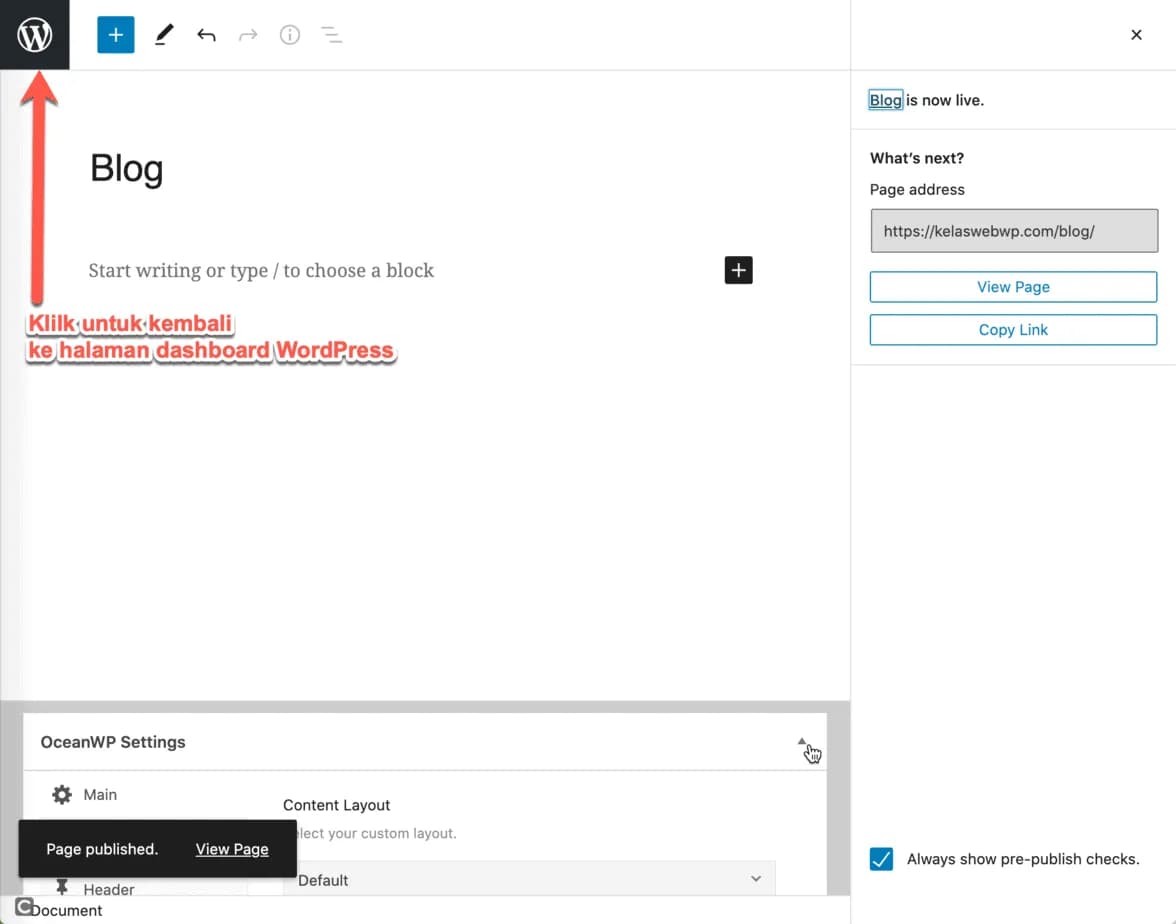
If you have clicked publish, you can click the WordPress logo button as shown in the image below to return to the WordPress dashboard page.
- If you want to create multiple pages.
Say: Front page (home), about us page, contact us, blog (page containing articles in post form), etc... then create that page and leave it blank as is.

And how do you add pages to the menu?
Before we design the pages that have just been created, you should add these pages to the website menu.
Look at the menu in the website image below:

The method is also easy.
- Click Appearance > Menu
 2. Follow the steps below to create your website menu.

- Create a name for your website menu. You can do anything, because it won't affect anything
- Click the "Save Menu" button
- Add the page you created previously to the menu structure by ticking it. For example, you want to add Home, About and Contact pages. You can also add menus inside posts or create custom links.
- Then click the 'Add to Menu' button. Then all the pages you checked will appear in the menu structure.
- Arrange the menu as desired by drag & drop. Remember that you can also create a sub menu like my example above.
- Check 'Menu Header 1"
- Finally, click the 'Save Menu' button again (for the second time)
At this stage, you can check whether the website menu you just created is displayed on your website.