Installing WordPress in cPanel
Installing WordPress on cPanel hosting is easy. The process is not complicated and only takes less than 5 minutes.
You already have 2 basic ammunition to create a website, namely domain and hosting.
Now is the time to put your website online so it can be accessed by everyone on the internet.
The first thing you have to do is install the WordPress platform on your hosting.
There are two ways to install WordPress:
- Automatic method (one click installation)
- Manual method
We will use the easiest method, namely using the One Click Installation feature (install with 1x click) in cPanel hosting.
Installing WordPress Using the *One-Click Installation
- Feature
Almost all hosting providers provide a One-Click Installation feature to install WordPress inside cPanel hosting or DirectAdmin Hosting or Plesk hosting.
If you choose good hosting, you will find this feature in your cPanel hosting.
In this example, I use the hosting provider DomaiNesia.
What if you use a different hosting provider? Don't panic, because the settings will not be much different.
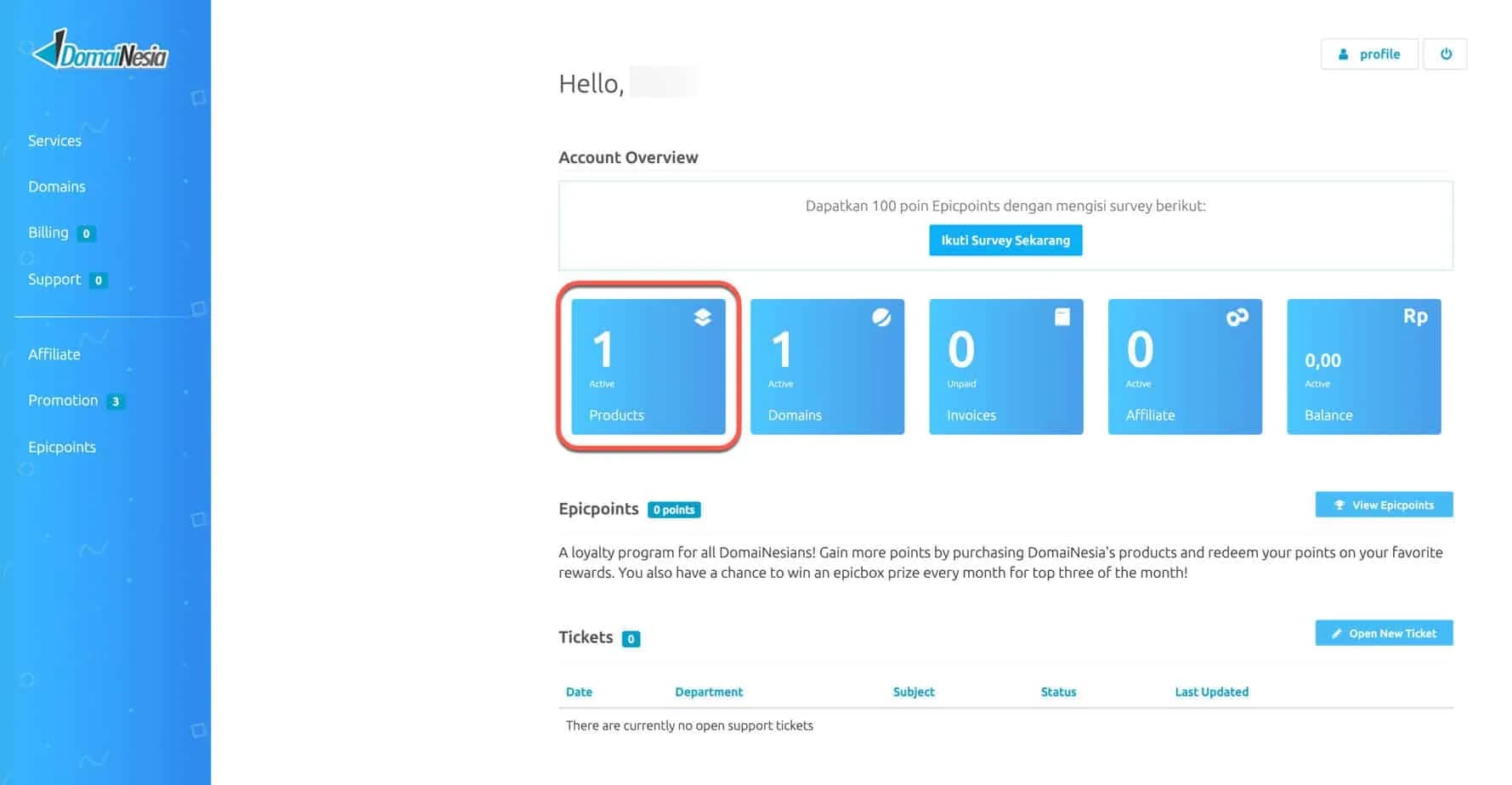
1. Log in to your DomaiNesia account
Or click the following login link: https://my.domainesia.com/signin/
Enter the username and password that you created when filling in the previous DomaiNesia account registration form.
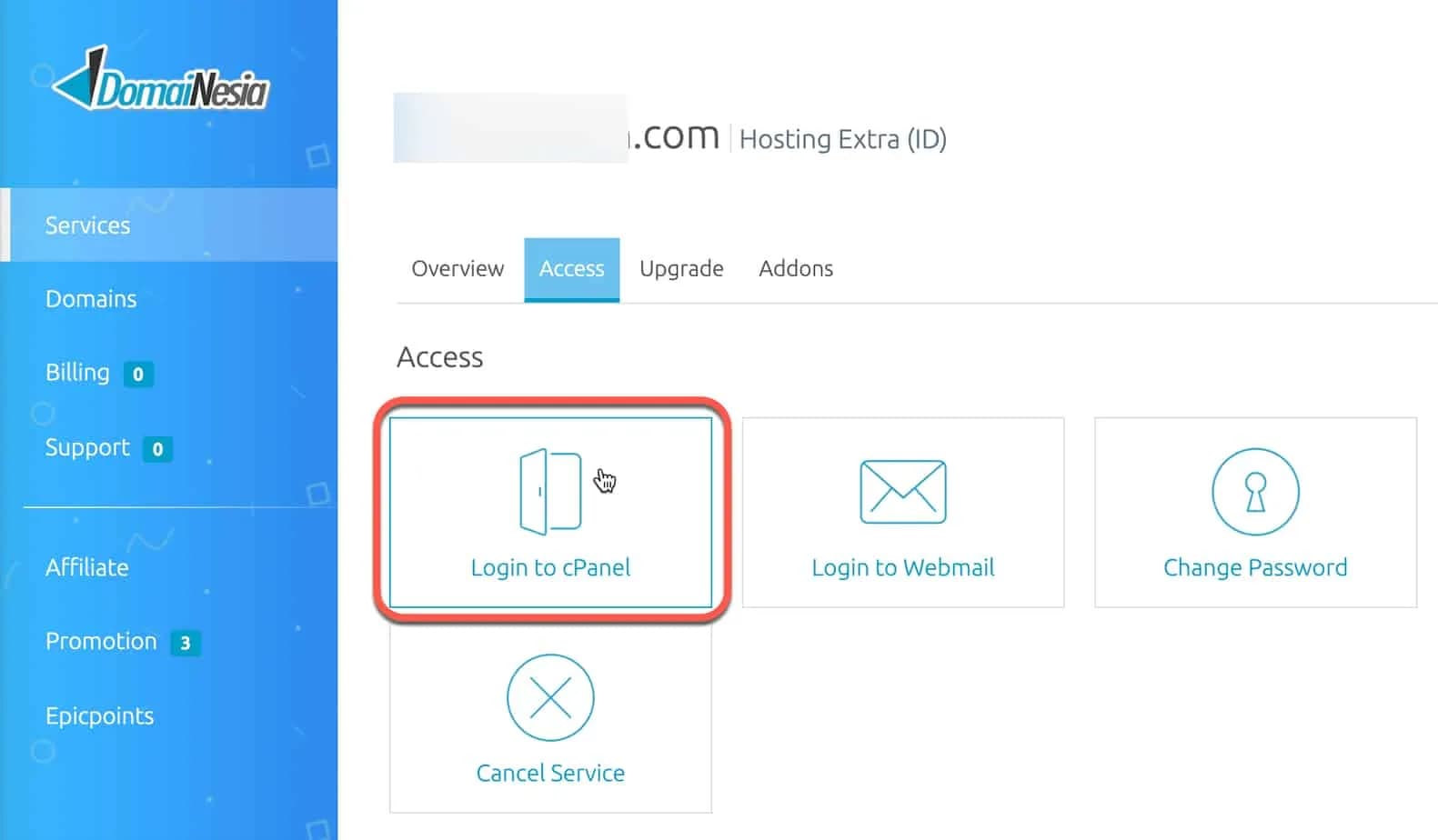
- Then, click on the section that I boxed in red or click on the products section.
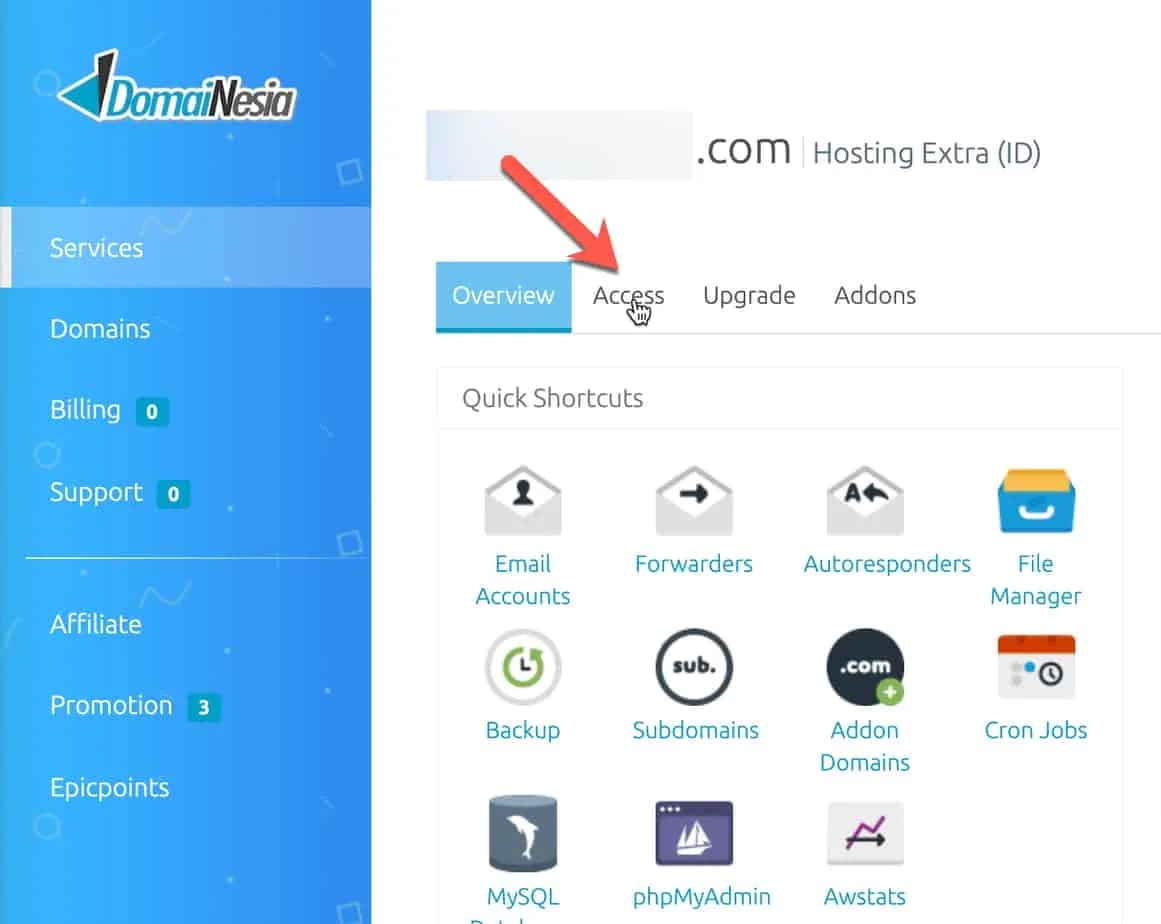
- Then, click on the “Access” tab.
- And click login to cPanel.
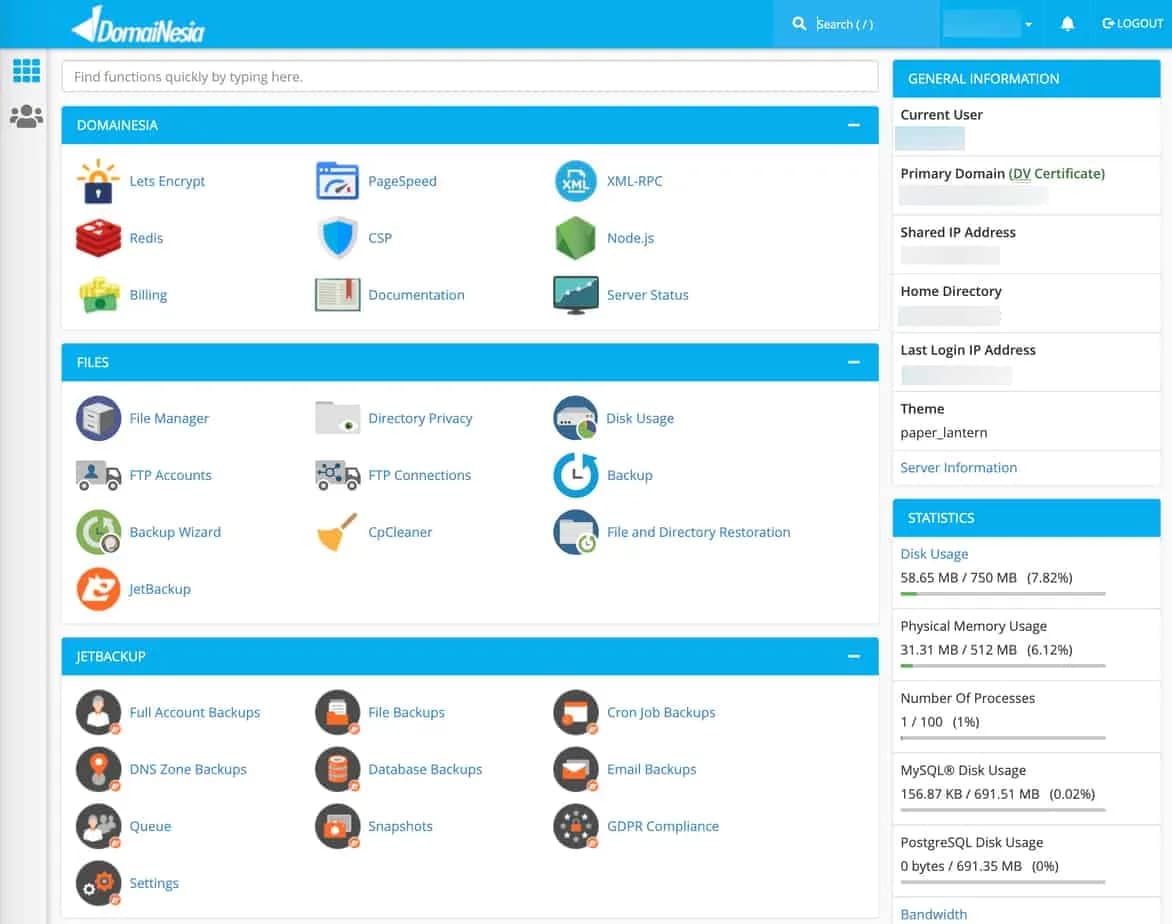
- You are logged in to cPanel. This is how your DomaiNesia hosting cPanel looks like.
2. Make sure your domain uses SSL
Before going to the steps to install WordPress, there is one important thing you have to do so that your website looks professional, namely installing SSL.
If you use SSL, the connection to your website will be secure, like this:
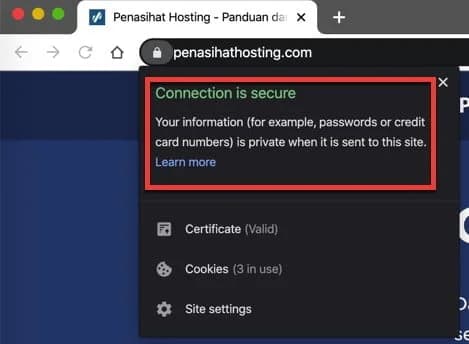
If you don't use SSL = not secure. In the Chrome browser, your website will be labeled as "Not Secure".
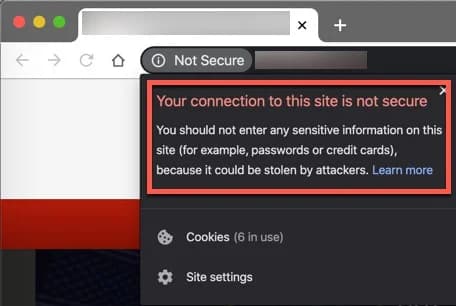
You don't want your website to look unsafe like the one above, right?
So, how do you install SSL on your new website? It's easy.
Look at the top right of your cPanel, does your primary domain have a green "DV Certificate"?
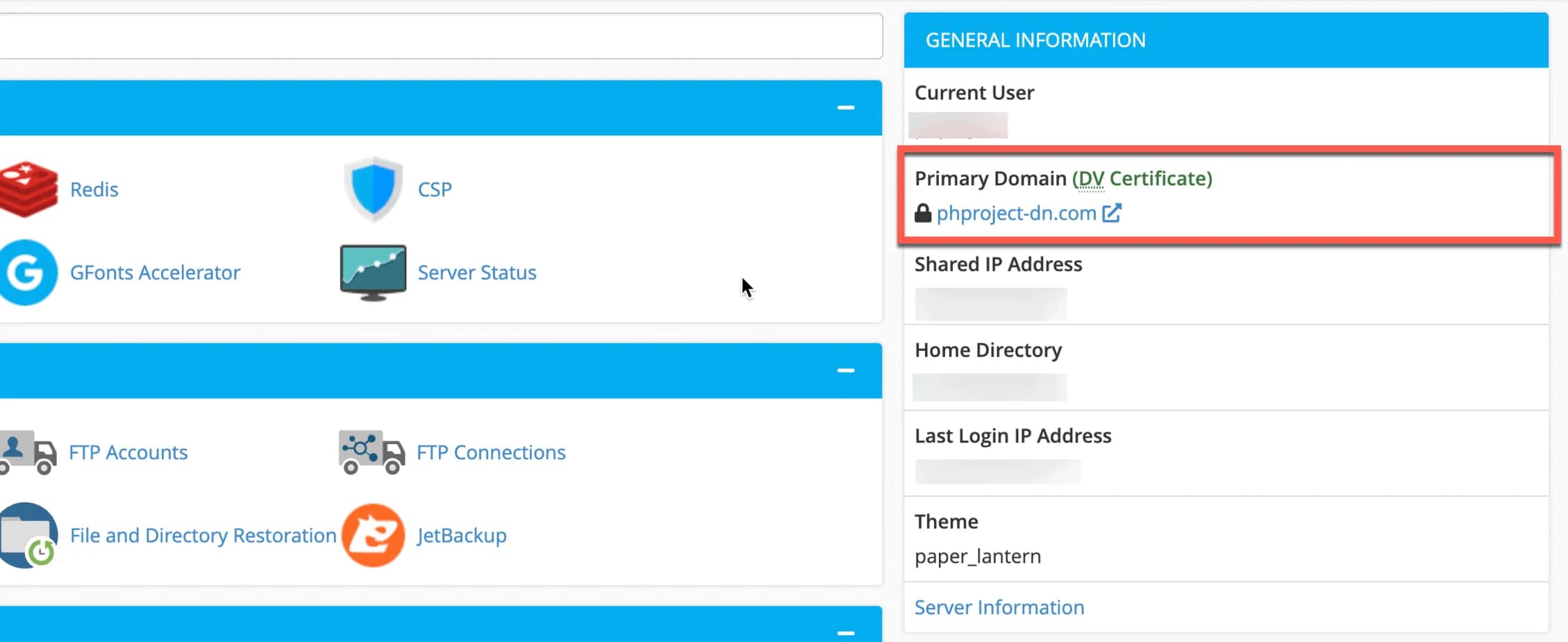
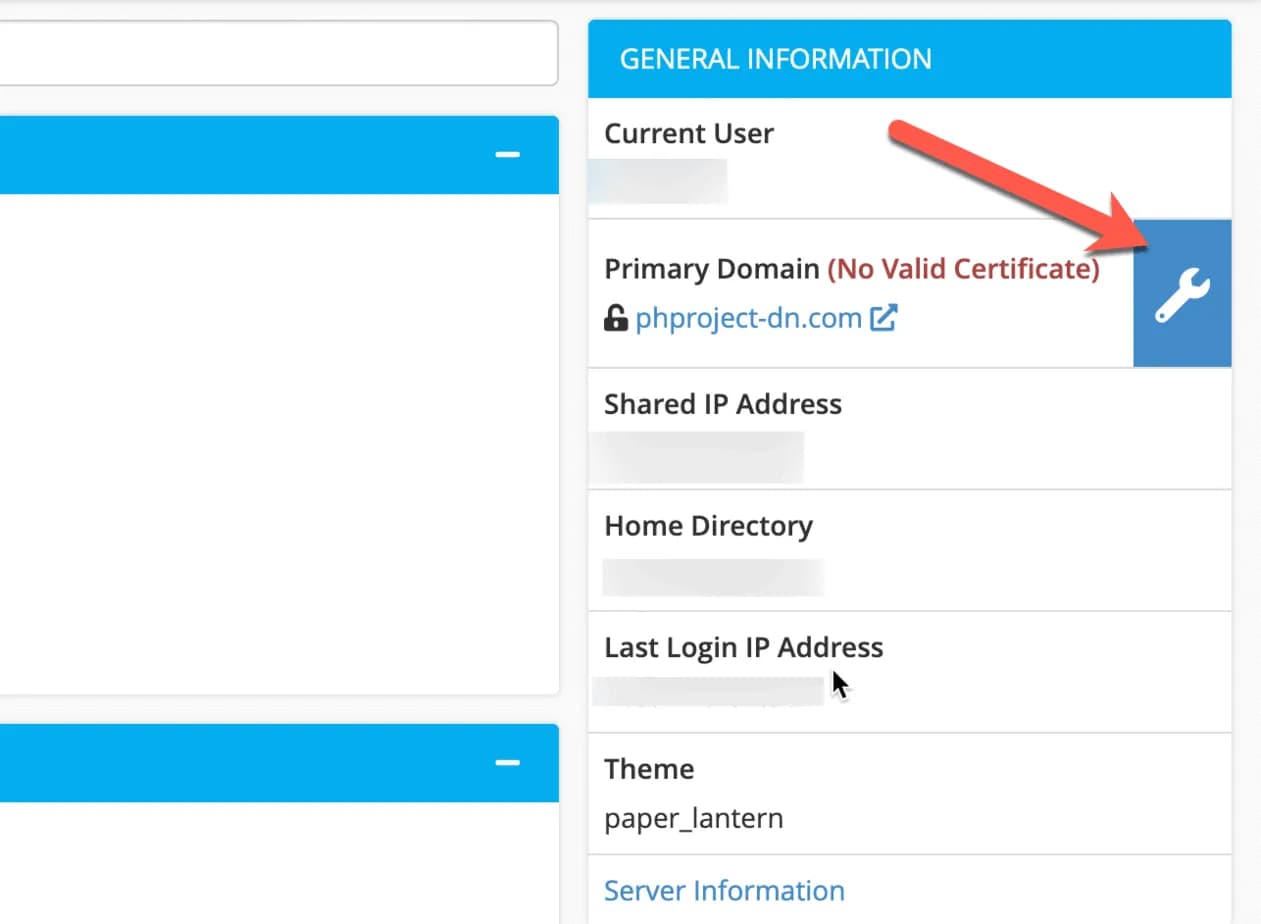
Basically, at DomaiNesia SSL is activated automatically. If not, your primary domain will be marked "No Valid Certificate".
How to fix it:
- Click the screwdriver icon button as I show below:
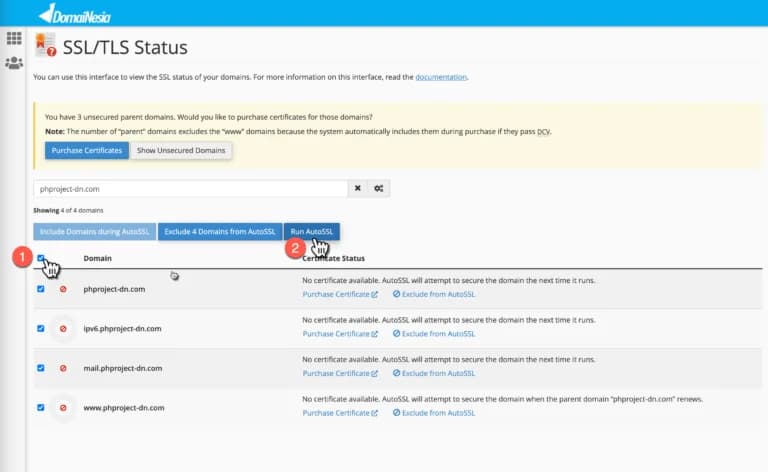
2Then, check section number (1), and click the 'Run AutoSSL" button in section number (2).
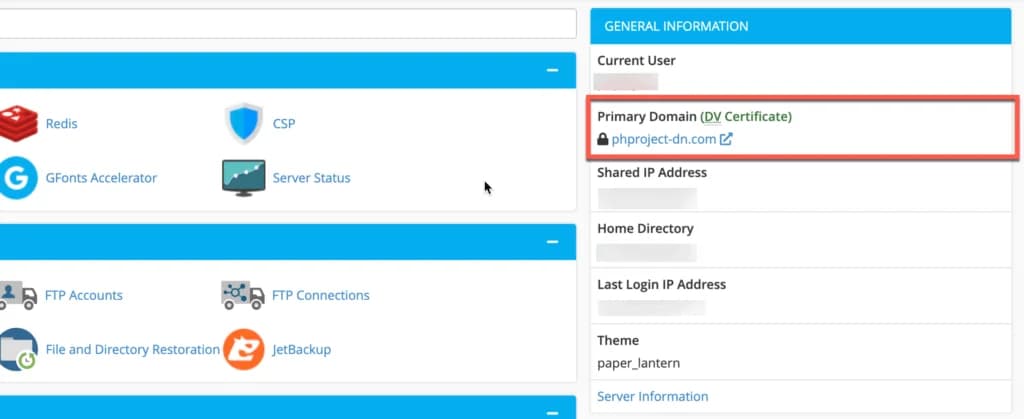
- Check again in the cPanel home, confirm whether your primary domain has a "DV Certificate" or not.
If so, please continue to step three.
3. Redirect HTTP to https (For SEO)
So that the domain always uses https (secure and good for SEO), you have to redirect from http to https, if not, other people can access two versions of your website.
One is http (not secure) The other is https (secure/because SSL is installed)
Therefore, you need to redirect http to https.
In cPanel, you can easily do this redirect with just 1 click.
There are several ways, depending on the hosting provider and control panel you use:
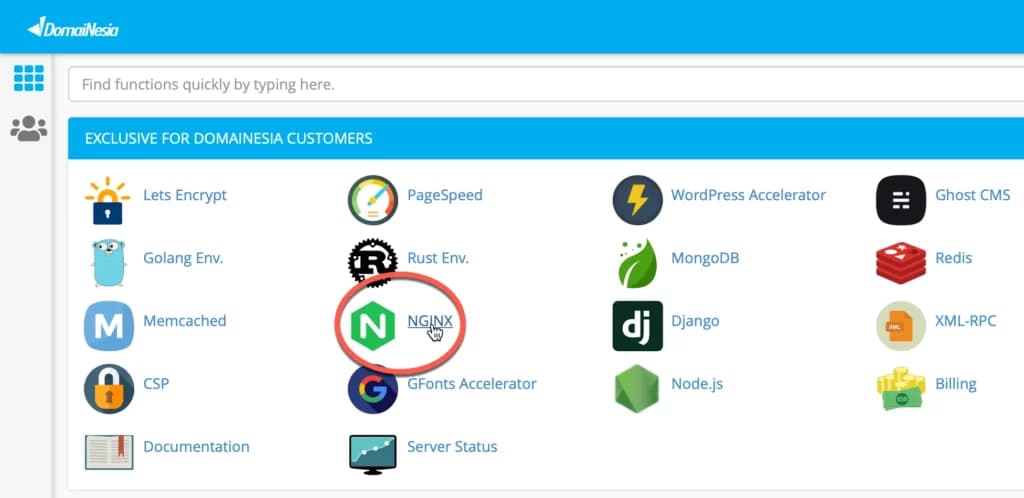
- Click Nginx in cPanel
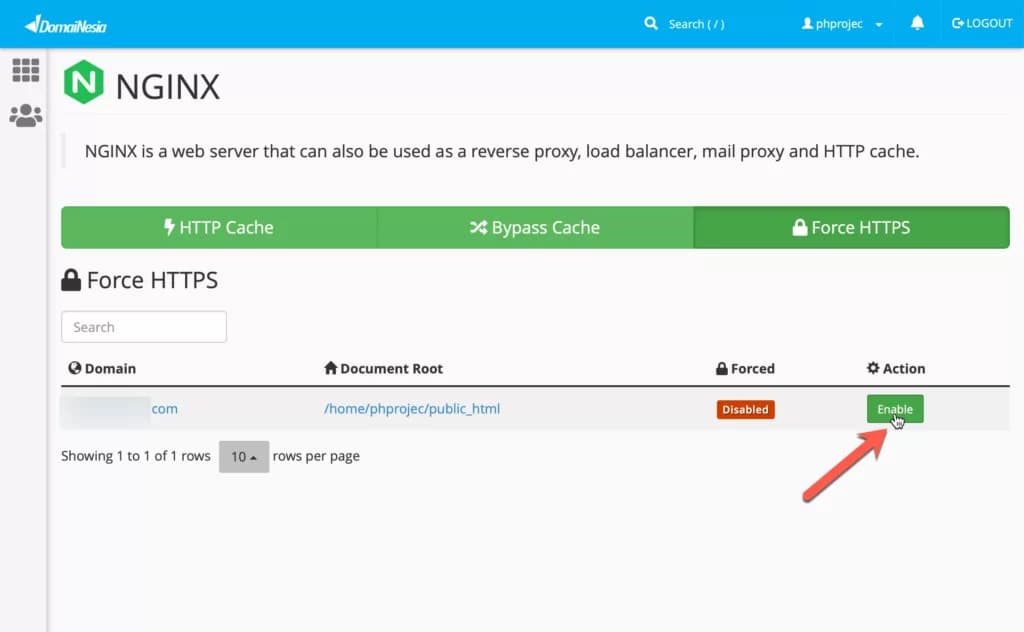
- Then click the "Force https" tab and click the "Enable" button as I demonstrated in the image below.
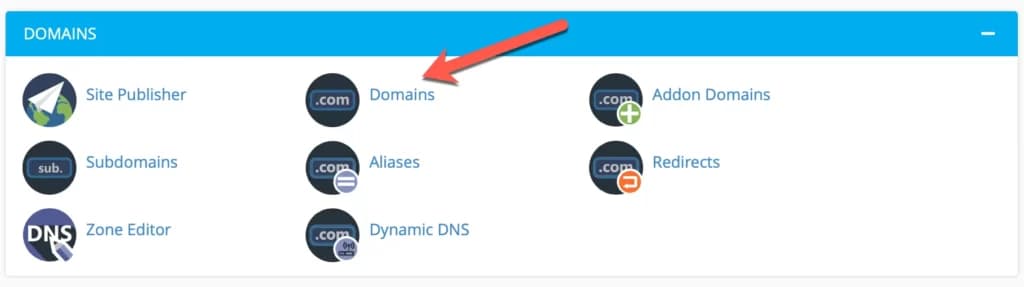
- Click on the Domains section.
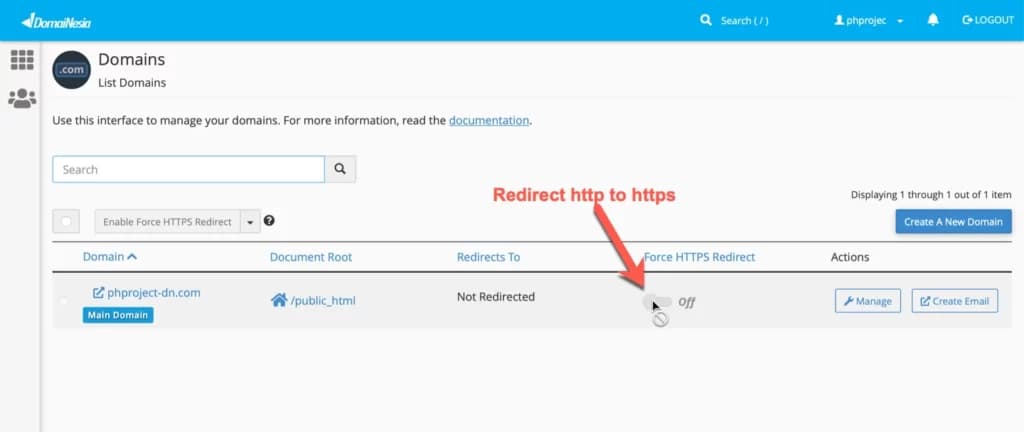
- Then click the button that I directed in the image below.
4. Return to Tutorial on How to Install WordPress
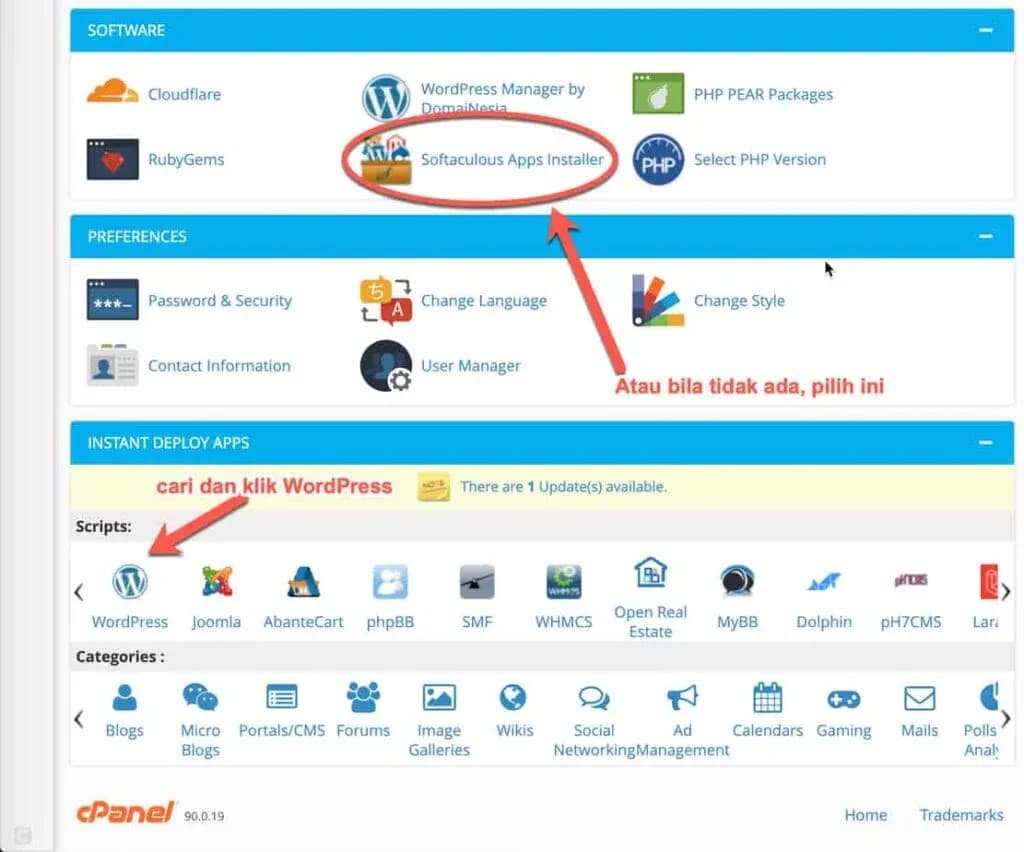
- Look for and click on the WordPress logo or if it is not there, select Softaculous Apps Installer
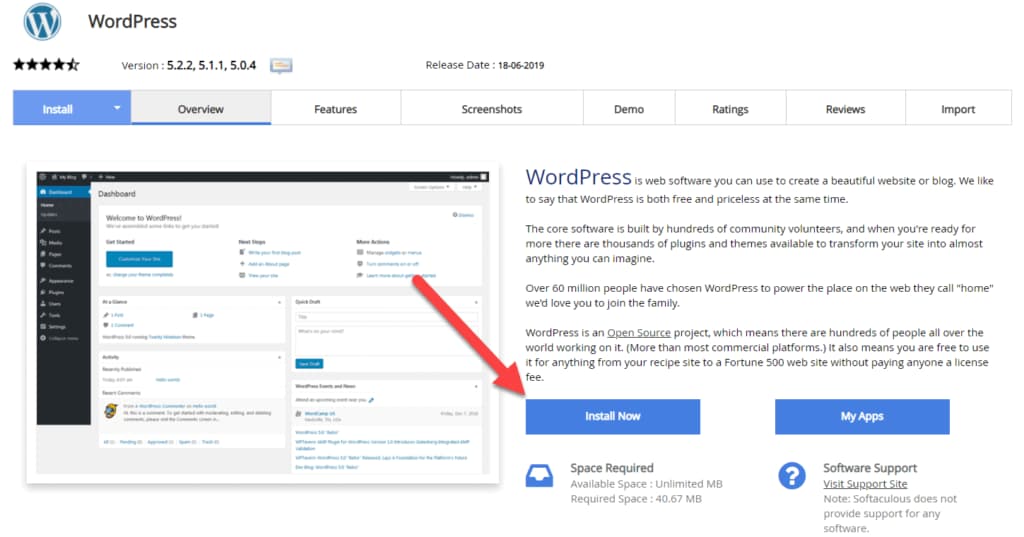
2Click the blue “Install Now” button
- Then, fill in the required information. Follow the instructions in the image below:
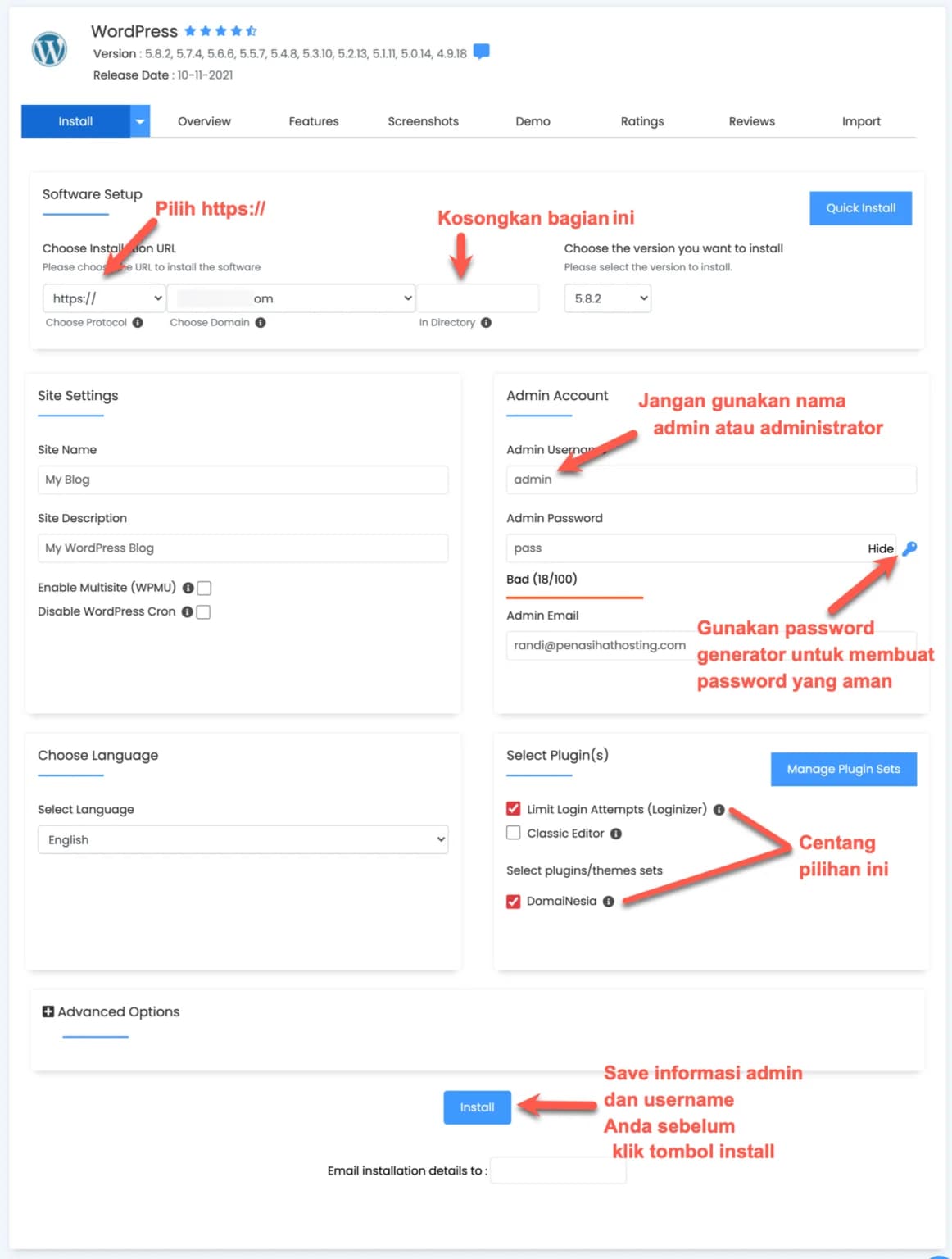
Don't forget to fill in your admin email with your active email. This can also be used to reset your password if you forget it someday.
Wait about 1-3 minutes until WordPress is installed completely.
If already installed:
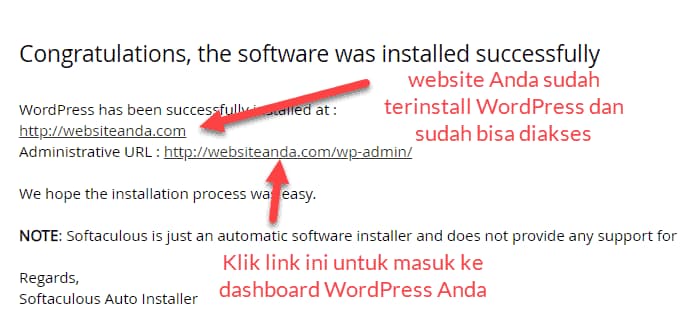
Making adjustments to the new website
OK, now you have successfully installed WordPress. Your website can be accessed by everyone on the internet.
You can try opening your website by typing your domain name in the browser.
For example: adviserhosting.com in the Google Chrome address bar.
However, currently your website still looks new and empty.
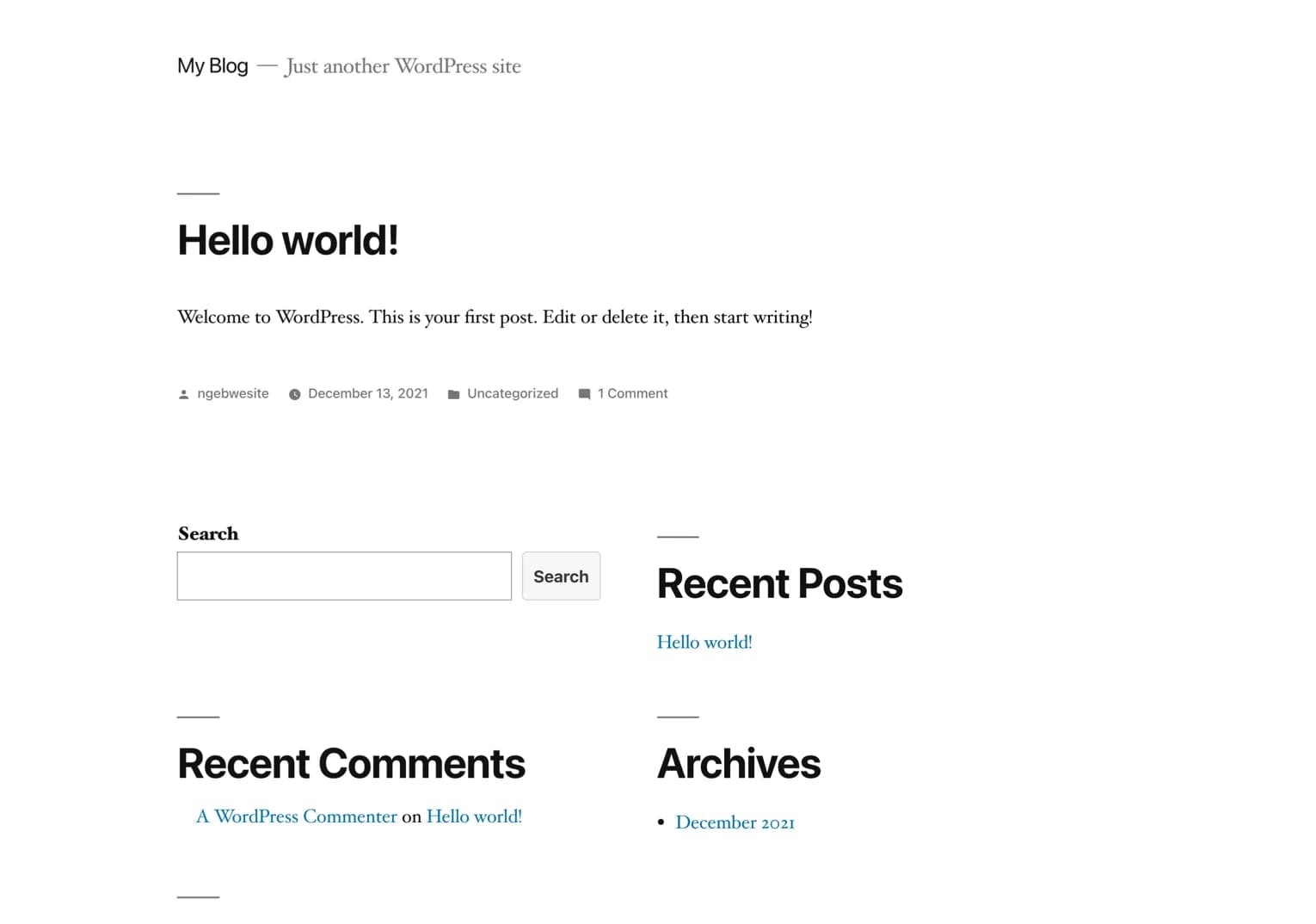
Before filling it with content and moving on to the 4th chapter of this tutorial on how to make a website , you need to take care of a few important things first to make the website look ready.
If you're not sure how, type: http://yourdomain.com/wp-admin/ (replace “yourdomain.com” with your domain name).
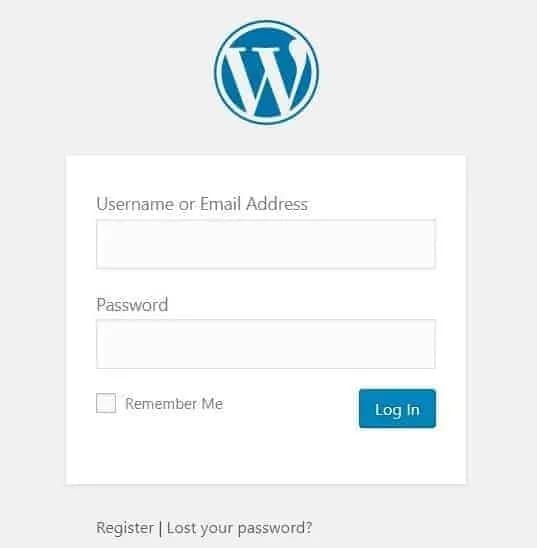
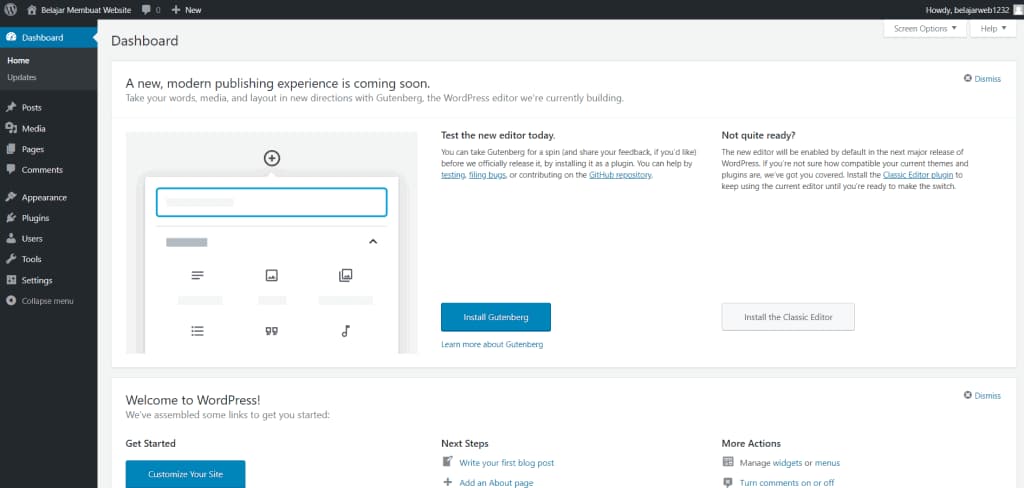
Enter your username or email address and password (which you created when installing WordPress). When you have logged in, this is what your WordPress dashboard will look like:
2Change Your Website Title and Tagline
The title and tagline are the first parts you need to customize.
Create a title and tagline that reflects the content of your website.
For example, the title of this website is “Hosting Advisor” and the tagline is “Web Hosting Service Provider Reviews”.
How to change the title and tagline?
On your WordPress dashboard, click Settings -> General.
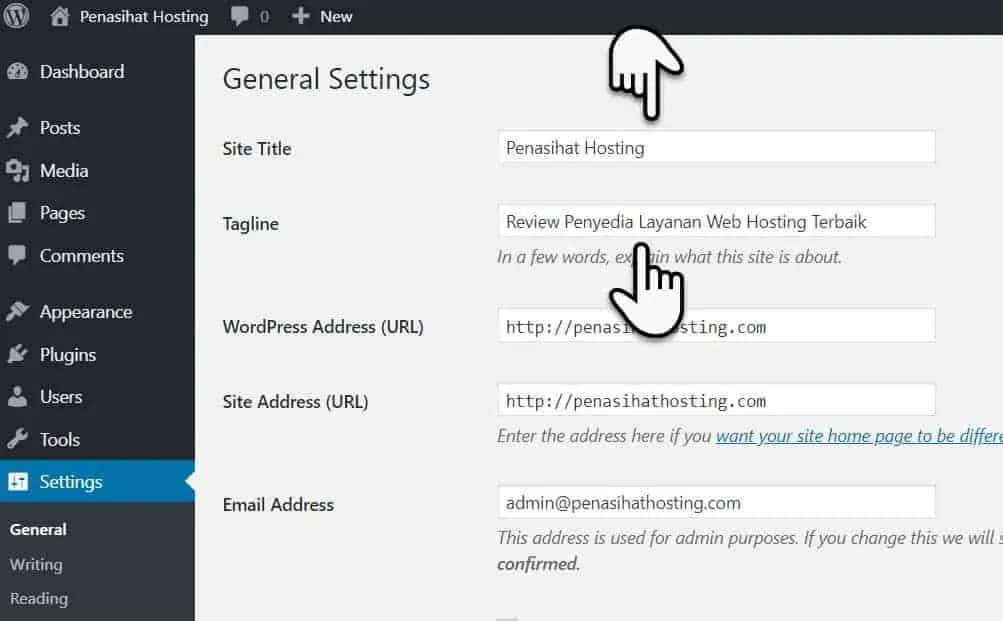 Confused about choosing a title and tagline?
If you are not sure what to write, here I give you 4 surefire tips that can help you:
- If you create a website for business/enterprise branding purposes, you can use the same or identical title as your domain name. For example, the Google page title is Google and Facebook is Facebook.
- Use a description that describes your website as a whole and combine it with your domain name. For example, the title of the Tokopedia website page is "Safe and Convenient Online Buying and Selling - Tokopedia".
- Ask yourself: "What is the purpose of your website?" What do you want to achieve through your website? You can use the goal or what you want to achieve as the title and tagline of your website.
- If you create a personal blog, you can use your own name as the blog title and your profession as the tagline.
There are three important points that you need to consider when preparing your website so that it is search engine friendly (good SEO).
Luckily, these three points are very easy to do in WordPress.
What is meant by the URL structure is something like this:
Actually, there's nothing wrong with using this URL structure, but search engines don't like long structures like the example above.
It's best to use a short URL structure and avoid using dates.
How can you ensure that your website's URL structure is like the correct example above?
Click Settings > Permalinks, then select ‘post name’ and save your settings.
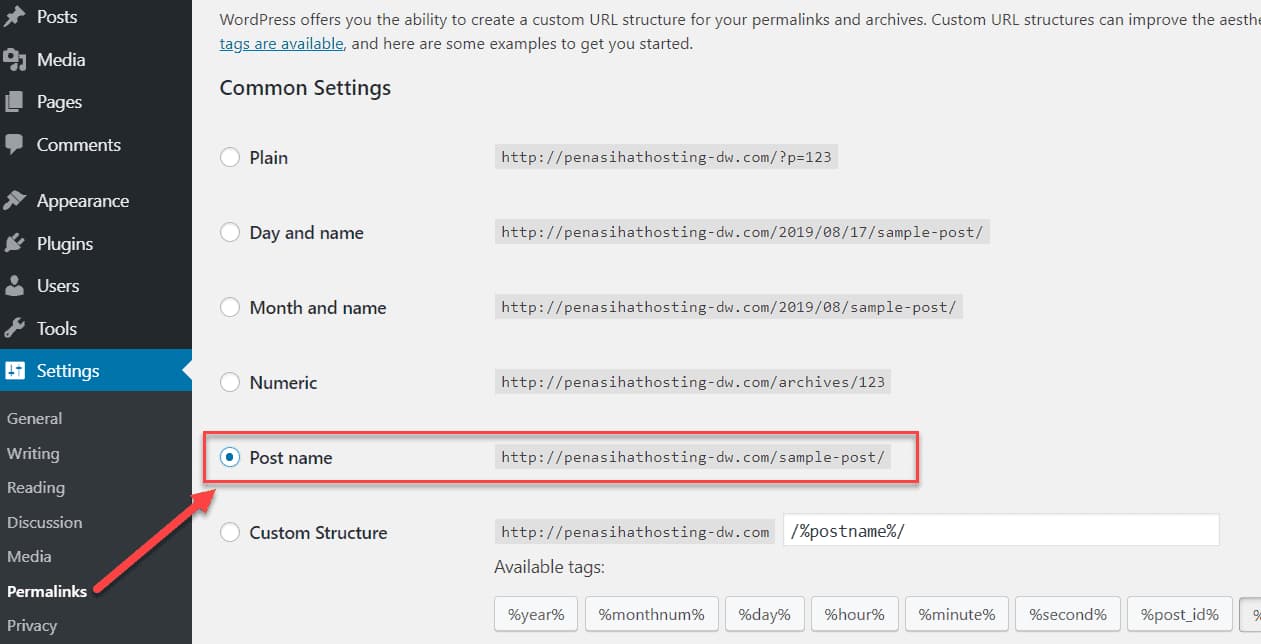
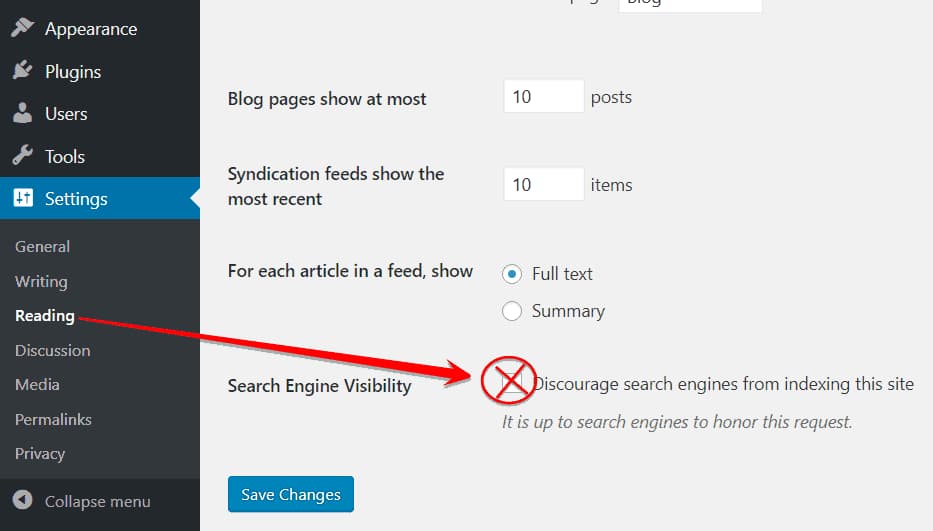
2. Don't block search engines from reading and crawling your website.Click
Settings > Reading. Scroll your mouse to the bottom.
Make sure that you DO NOT check search engine visibility, if you check it, your website will not be indexed at all by Google, Yahoo, Bing and other search engines.
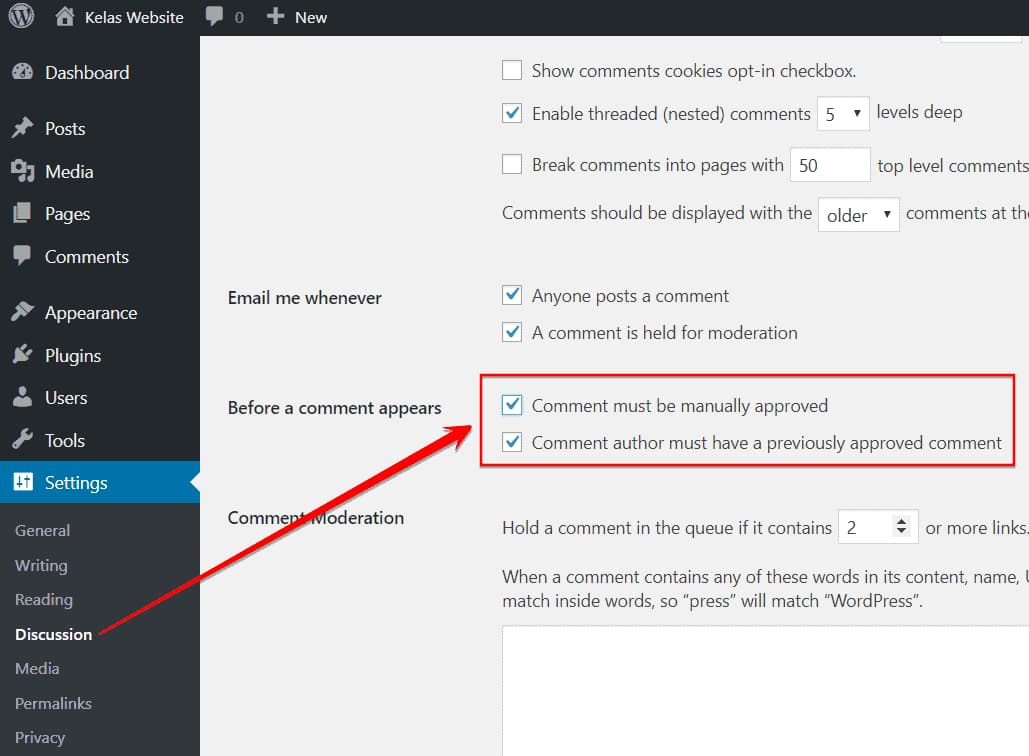
In fact, there are millions of people on the internet who love leaving spam comments to advertise their products or services.
Click
Settings > Discussion and make sure you check both options below:
 4. Delete default WordPress content [Such as: Hello World, and Sample Page]
Content you need to delete:
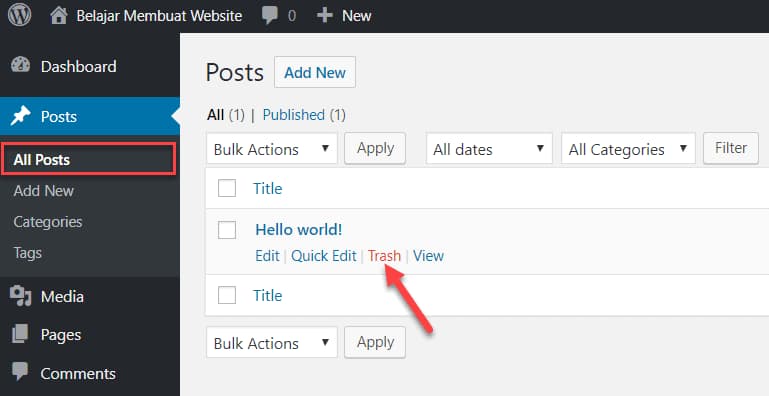
- Remove “Hello World” in the “Posts” section
- Delete “Sample Page” in the “Pages” section
Hover your cursor over the article title to select Edit | Quick Edit | Trash | View appears.