Making Adjustments to the Theme

Astra is an easy to customize theme and one of my three favorite themes along with GeneratePress and Blocksy.
Before proceeding to the final step of the guide how to create a website, namely designing the blank page (home, about, contact, etc.) that you created previously, you need to make a few adjustments to the Astra theme first, so that it fits the way you want.
1. Create a Static Page on the Homepage
Static pages are pages that never change.
So, “static” will display the same content or articles every time someone comes to your website.
An example is the front page (harunstudio.com), whenever you visit it and no matter how often I write new articles, this static page will never change.

Go to appearance > Customize.
Click "Homepage Settings" on the left side of Customize.
Then set it as "A Static page", then select Homepage = Home (the blank front page that you created previously).
and Posts page = Blog.
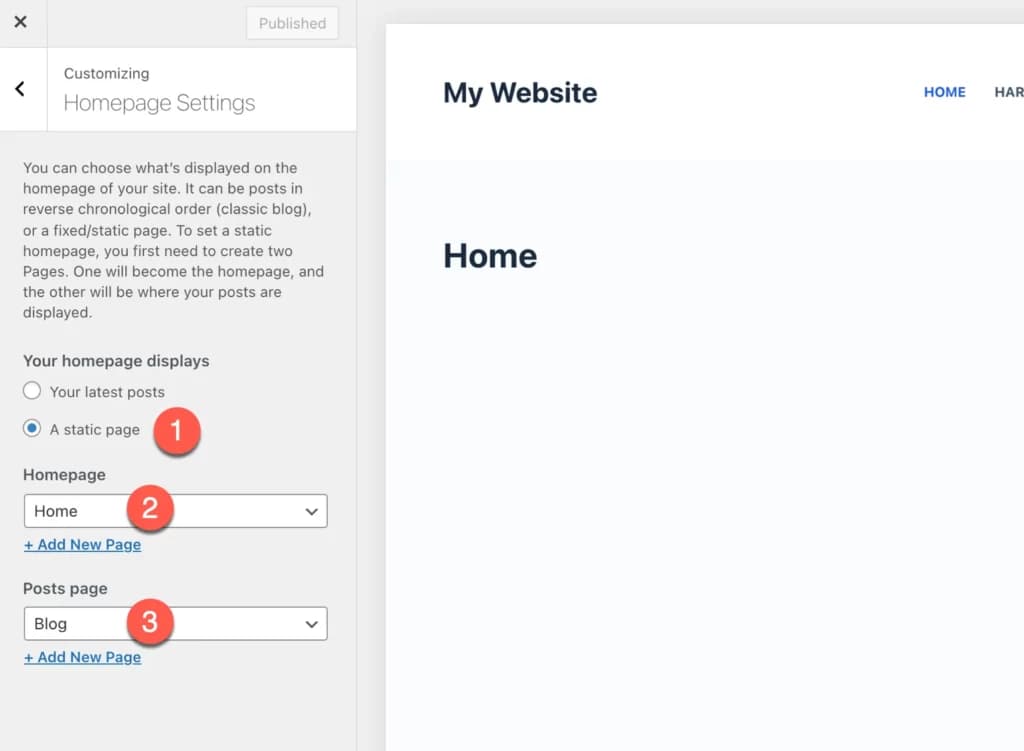
This Post Page is optional, but if you want to write routine articles then you need to create a Post page that displays articles that you have published on the website.
If you haven't created one yet, you can go back to create a new blank page and title it as Blog.
2. Global Website Customization
This is the most important part of the entire process of creating a website, namely determining from the start the global scope of your website.
Starting from what fonts you use, colors to the layout of your website.
We will start by determining typography.
- Determining TypographyGo to Global >Typography
By default, the Astra theme font that you use uses the system font. In terms of performance, the system font is the fastest font.
But, if you want to change it to something fancier, you can choose another font.
(1) You can choose one of the six fonts recommended by Astra in the "Presets" section (2) Or choose your own font from the list of fonts in the "Body Font Family" section (3) Determine the size of your body font. My advice is don't use a font smaller than 1

For other settings, I don't think there's a need to change them first.
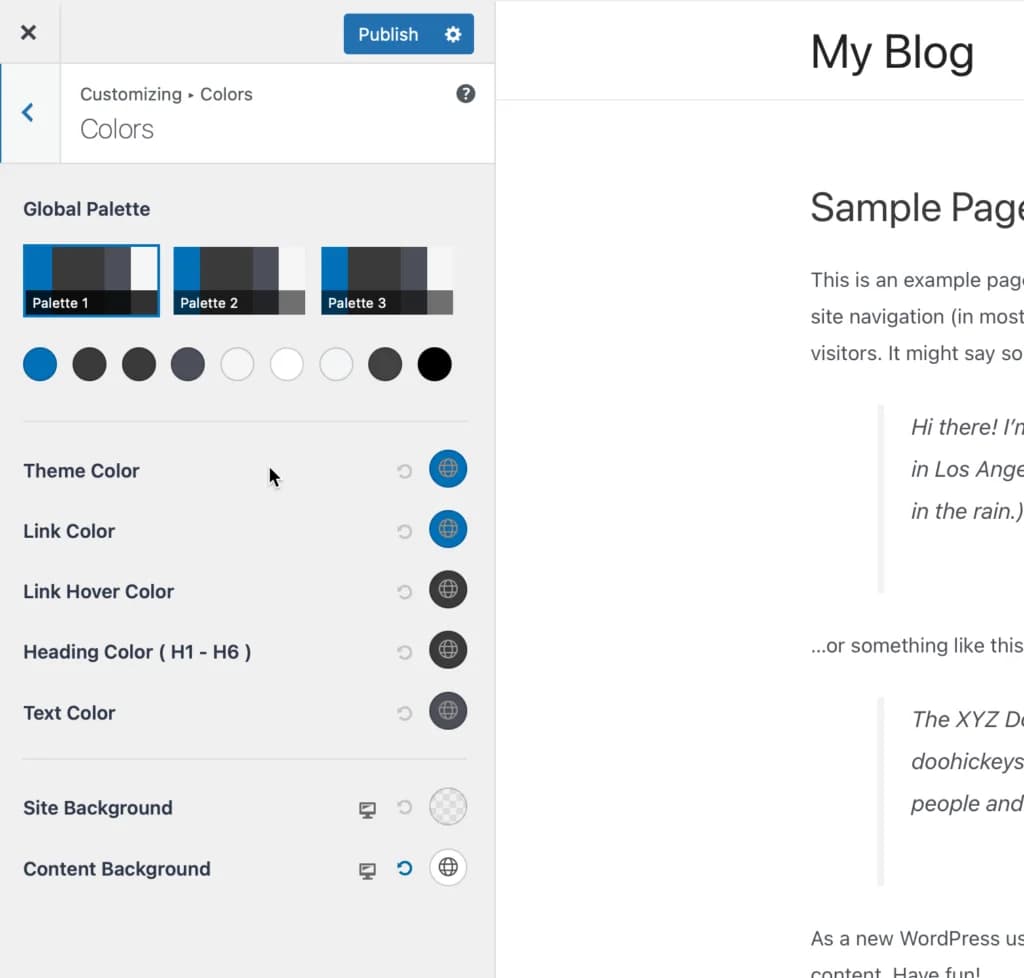
- Determining Website ColorsGo to Global >Colors
One of the characteristics of a good website is consistent color. I recommend not using a lot of color combinations, for example more than 6 colors.
Less is more.
For example, Facebook is synonymous with the color blue. Tokopedia is synonymous with green. YouTube is synonymous with the color red.
By default, Astra uses a combination of blue, black and white. You can choose other colors.
If you are confused about choosing color combinations, you can visit the following sites to look for color inspiration:
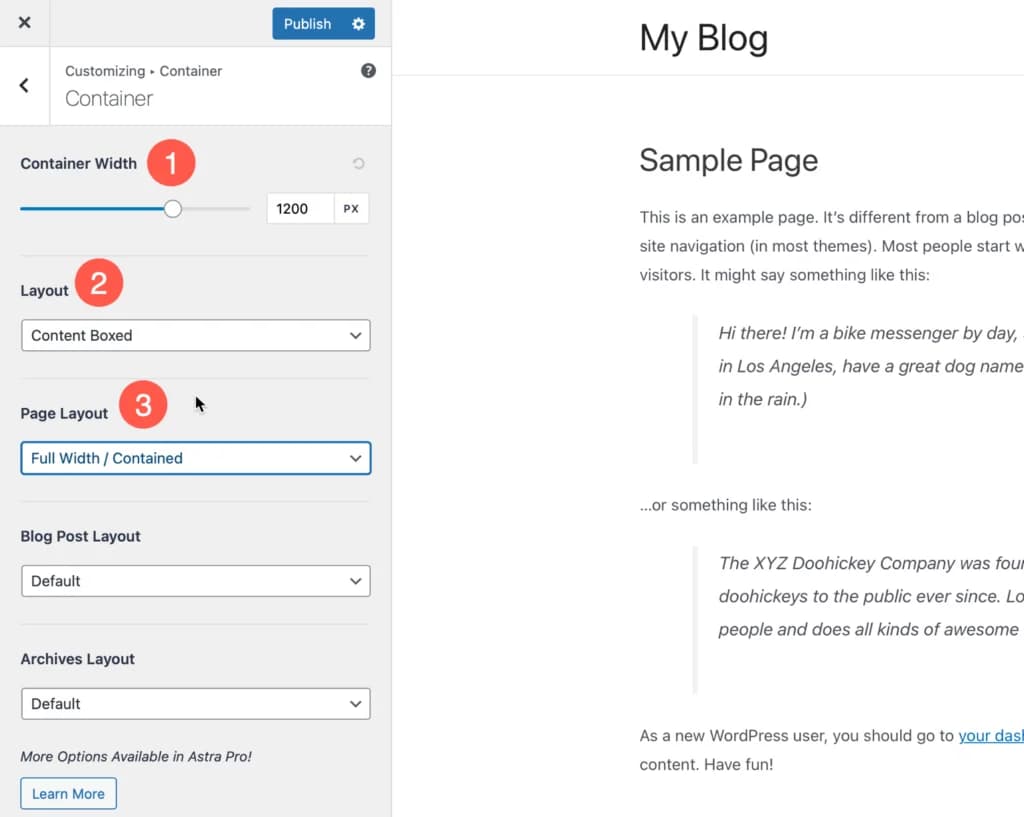
- Determine ContainerGo to Global > Container(1) Container width is the width of your website. The higher the value, the wider your website. My suggestion is to leave the default (1200px) (2) This is the layout model by default. If you choose contain boxed, then by default all layouts, both pages and blogs will have a layout that is contained boxed. (3) Usually the Pages page layout is full width, but I will leave it up to you to form the layout according to your wishes.
3. Customize Header
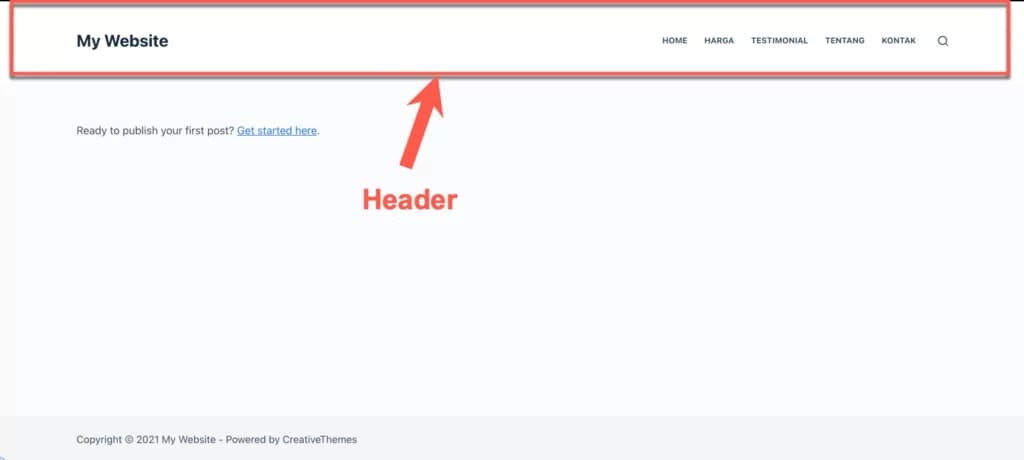
If you are not sure which is called a header, look at the image below:
At this point, you may want to change the name of your website to an image of your website logo or replace it with another name.
You may also want to change the color of the header background from white to black, or want to change its position to the right, left, or center, etc.
We will try out the Header Builder functions one by one from here.
You can be as creative as you want.
- Adding Website Logo
This is still optional.
If you already have a website logo, you can change the logo text from a text logo to a pictorial logo.
How to open Header Builder > and click Site Title & Logo as I show in the image below:
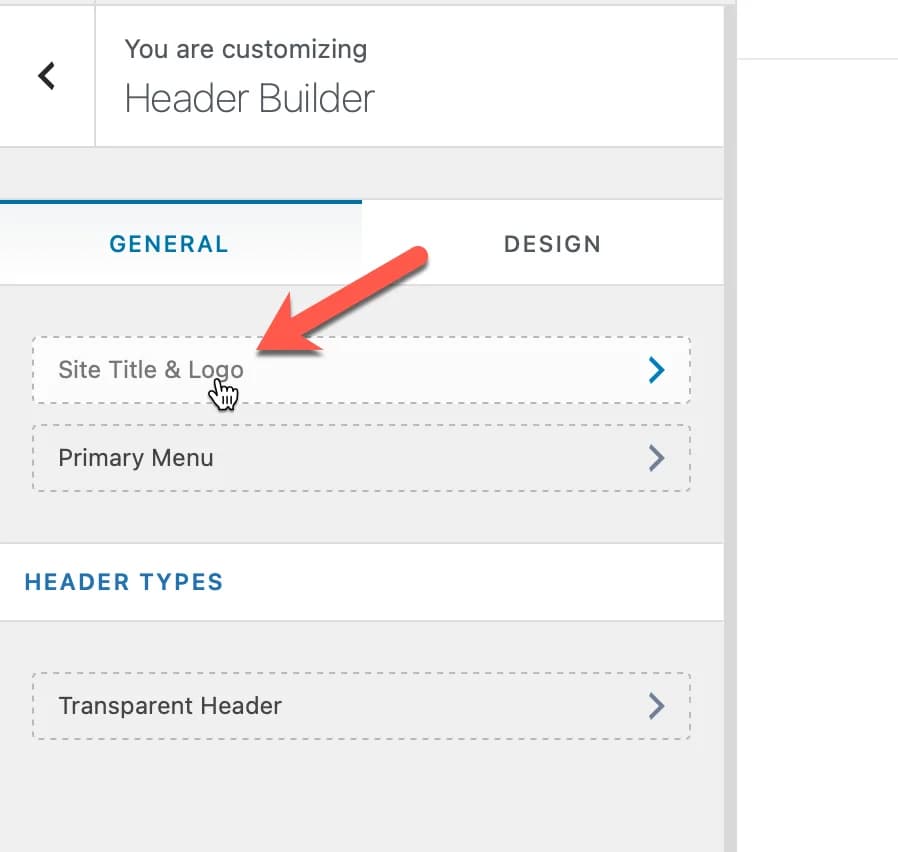
Then follow these steps:
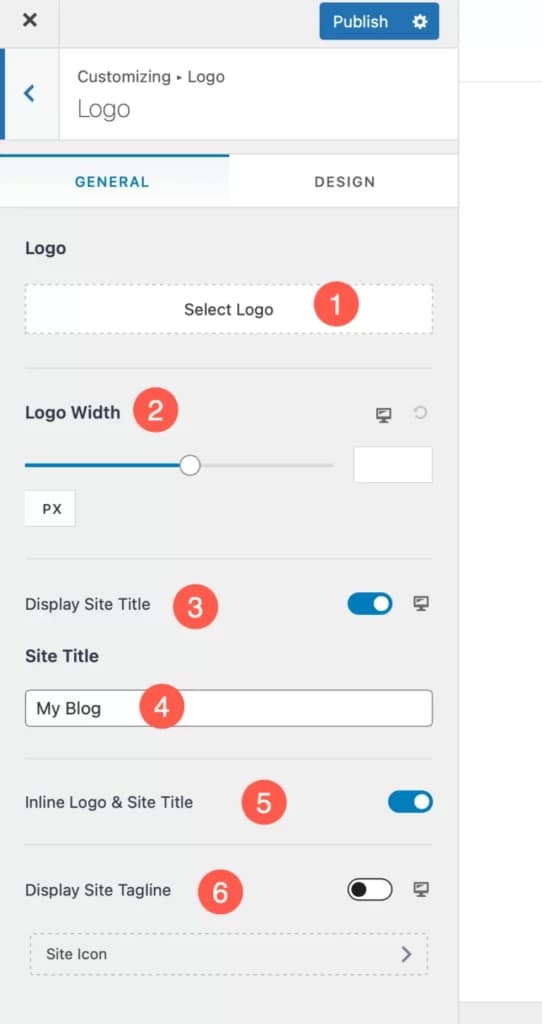
(1) Click 'Select Logo' to upload your logo (2) Set the width of your logo. For example 150, 200, etc... (3) You may want to hide the title text of your website (4) If you want to use logo text, you can change the text to another name, for example My Blog (5) If you want to align the logo image with your logo text (6) If you want to use a tagline
When finished, click the blue “Publish” button located at the top left of your screen.
By default, the Astra theme header background color is white.
Maybe you want to change it to red, green, blue or whatever color you want.
Open
Header > Main Row. Move your cursor to the logo section as shown below and click it.
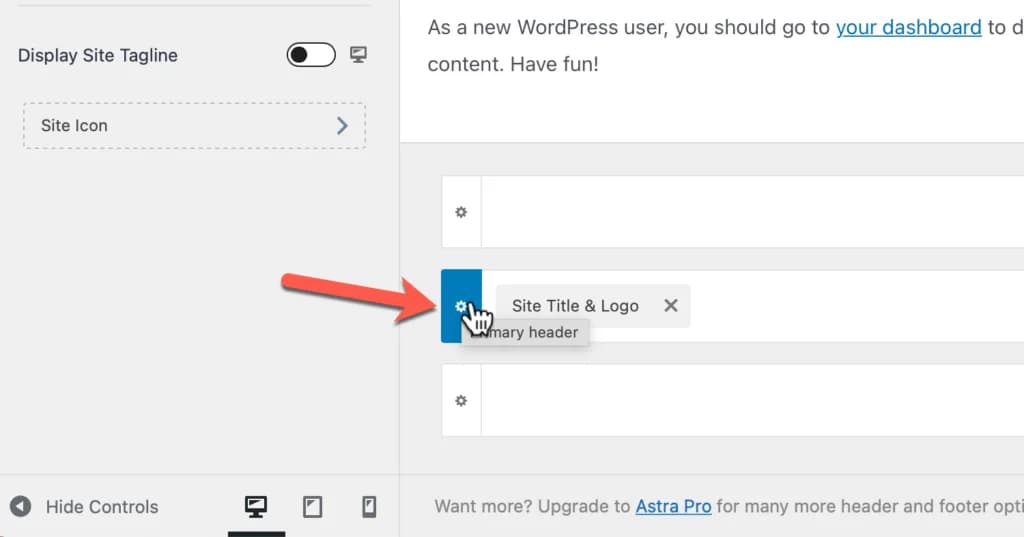
Click the "Design" tab (which I circled in red).
Then click the background icon and choose your background color.
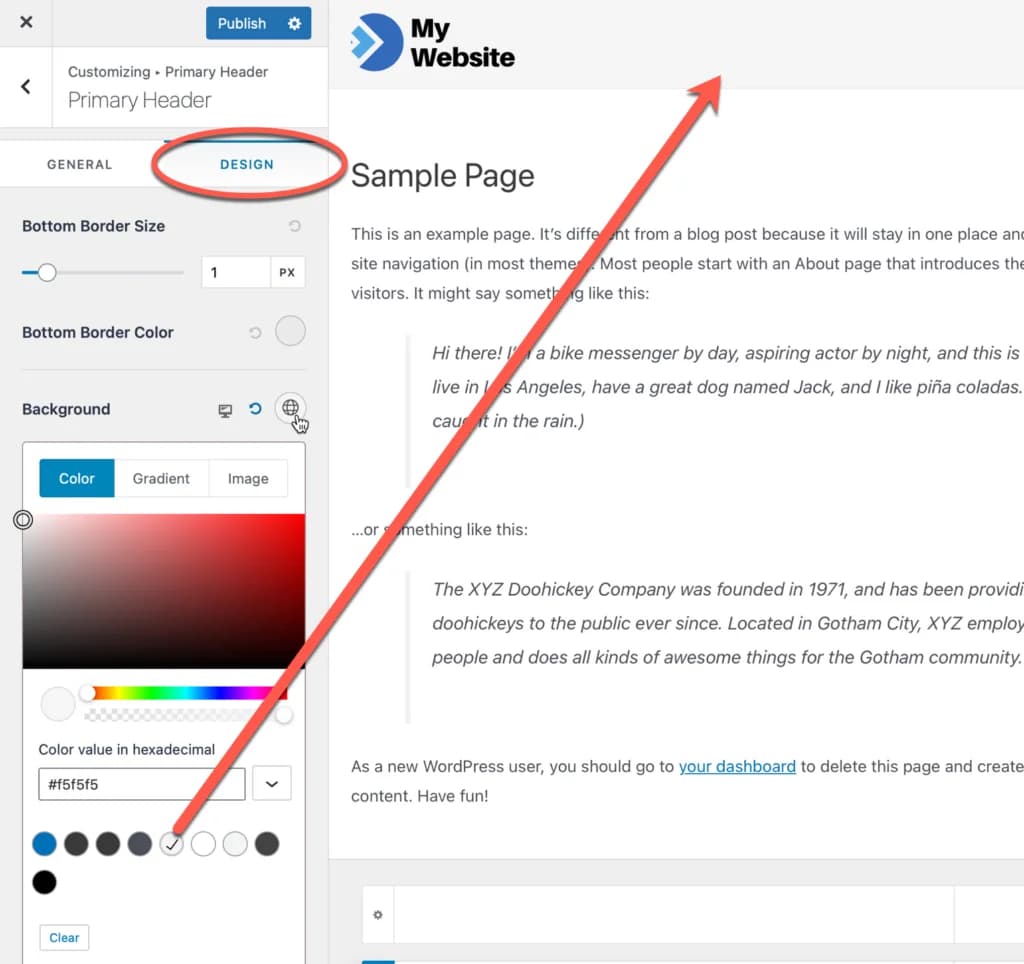
Changing the position of an element, be it logo, menu, search and so on, is very easy to do in the Astra theme.
You can add anything to your header, such as buttons, search columns, secondary menus, and so on.
At this point, you are free to explore other parts of your Astra theme.
However, make sure that before continuing to the last chapter, you click the "Publish" button at the top left so that all the changes you make are saved.